AI LoRA Modifiers: Make a Targeted Adjustment to an Image Model
An image model controls the overall look of generated art, but sometimes you want more targeted influence over a particular visual characteristic. LoRA modifiers are smaller learned model additions that can push output toward a defined visual pattern while preserving the base model's broader role. They are different from simple prompt adjectives, and they should be used deliberately rather than stacked automatically.
The PornX Wiki describes two current LoRA modifiers focused on anatomy and explains the prompt syntax used to activate them. This feature is technical and adult-oriented, but a useful workflow still begins with a clearly adult, entirely fictional subject and adherence to the service's rules. For other model-related controls, browse PornX features.
Ready to inspect supported modifiers? open the PornX AI image generator and review the currently available model, prompt and LoRA options before applying any technical instructions.
What Is a LoRA, and Why Is It Different From a Model?
LoRA stands for Low-Rank Adaptation. In this context, it is a fine-tuning component that works with a selected base image model. The base model still determines the broad visual language, while the modifier adds a narrower learned influence. Changing a modifier can therefore change parts of the result without turning an anime model into a photographic model.
Before choosing a LoRA, make sure your image model suits the intended look. Read the AI image models comparison to understand why model choice affects the interpretation of the same prompt.
How to Write LoRA Syntax in a Prompt
The Wiki describes the form `<lora:NAME:WEIGHT>`, where NAME identifies the modifier and WEIGHT controls its influence. The documented weight range is 0.1 to 1.0, with many useful tests in the middle rather than at the maximum. The exact supported identifiers, triggers and compatible models should be taken from the live tool or current Wiki rather than guessed.
Think of the weight as an intensity control, not a quality slider. Stronger influence is not automatically better. Excessively high or stacked settings can add artifacts or overpower other aspects of the composition. Make a moderate change, compare the output, and keep the simpler setup if it works.
Use a Structured Testing Process
Start with a neutral prompt describing an original fictional adult scene. Choose a model that can represent it well and generate a baseline. Next, add one supported LoRA with a moderate weight while keeping other instructions as stable as practical. Compare whether the target visual feature changes as intended and whether other parts of the image become less coherent.
If you add several modifiers at once, it becomes difficult to know which one affected the outcome. The Wiki specifically cautions that stacking strong weights can produce artifacts. A consistent test should isolate one parameter before you consider combining influences.
For a step-by-step account of the setup, see how to use AI LoRAs. The tutorial is useful when you want to track model compatibility and keep a record of working values.
When a LoRA Is Not the Right Fix
The image is simply too blurry. Sharpening or regeneration may be more appropriate than anatomy fine-tuning.
The camera angle is wrong. Rewrite the camera and framing instructions before introducing a modifier. A LoRA does not decide your entire composition.
The subject or background is tangled. Simplify the base scene and test without modifiers. Inaccuracies caused by a crowded prompt can persist even after fine-tuning.
The result has unintended anatomy or proportions. A supported anatomy-focused modifier may be worth testing, but first compare a cleaner prompt and model. The improving AI anatomy guide explains how to evaluate structure instead of relying on a single parameter.
Negative Prompts and Other Controls
Negative prompts can identify specific traits you do not want, but they should remain focused. Long lists of exclusions can compete with positive instructions. If you need examples of short, targeted constraints, consult negative prompt examples before adding more modifiers.
A reusable workflow is easier to maintain when you save working model and prompt settings. Keep notes on which modifier and weight produced a result you liked, and test the next change separately. Technical flexibility only helps when you can see which adjustment actually mattered.
LoRA Modifiers FAQs
Discover more
Keep exploring with related tools, features and step-by-step guides.
AI Image Models
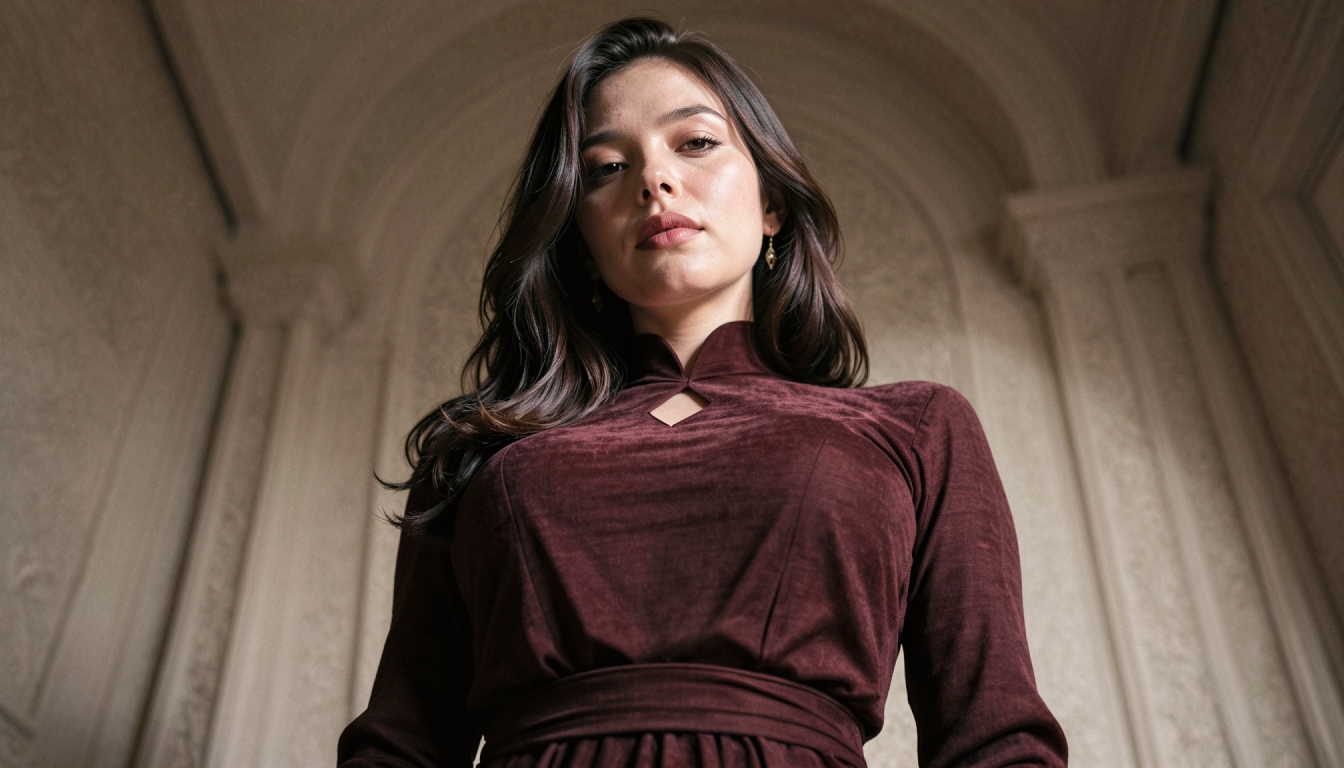
Compare PornX AI image model styles for realistic portraits, anime art, cinematic scenes and graphic illustrations, including model and Premium considerations.
AI Image Style Packs
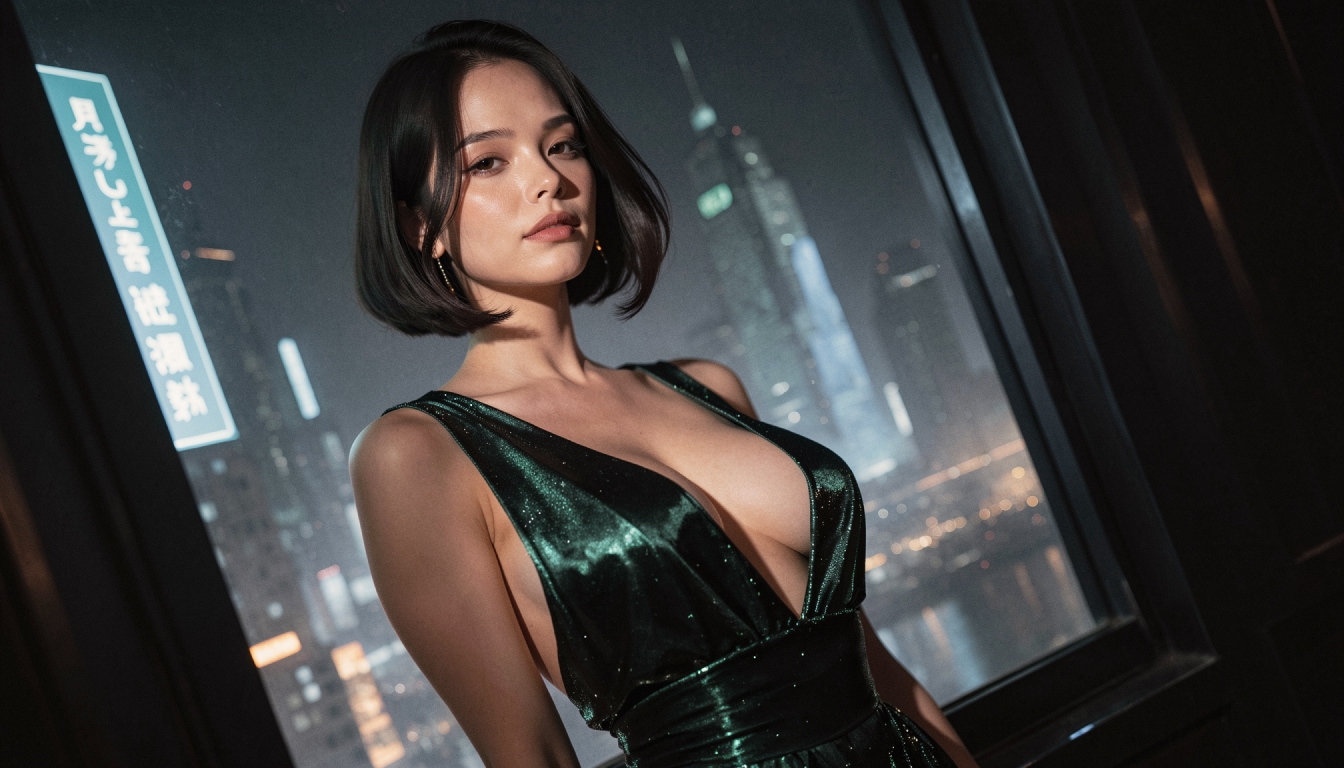
Explore PornX AI style packs for different color, texture and lighting treatments. Learn how styles differ from models and how to keep a visual direction coherent.
AI Prompt Enhancer
Explore PornX Prompt Enhancer and learn how to improve short image prompts, when to turn enhancement off and how to keep visual instructions intentional.
Saved Generation Presets
Learn how saved presets on PornX store image model, LoRA, style, resolution and prompt combinations so you can return to useful generation settings.