How to Generate an AI Video from Text in PornX
Text-to-Video turns a written scene into a short moving clip without asking you to create the first frame yourself. That is convenient for exploring new ideas quickly, but it also gives the model more responsibility: it must infer the subject's appearance, the environment, the camera and how everything moves over time.
The way to gain more control is not to write an extremely long description. It is to name one clear visual subject, one setting, one main movement and a compatible camera instruction. PornX supports Text-to-Video in its video generator, organized through Sessions. This guide covers the workflow and explains when an image-led approach would give you a more predictable starting picture.
For related tutorials on other parts of the workflow, browse AI generation tutorials.
Quick Answer
Open the PornX video generator, start or open a Session, select Text-to-Video, write a prompt covering subject, setting, motion and camera, select the available resolution and Generate. No source image is required. If the first attempt is not right, adjust the most important missing element before making more complex changes.
Get started: To turn the motion direction into a clip, open the PornX video generator.
Step 1: Choose a short, visually coherent concept
Begin with one original fictional adult character or a simple environment. A short clip is better suited to a small action than a sequence with multiple scene changes. For example, “a traveler turns toward a sunlit station entrance” is easier to visualize than a story with three locations and five costume changes. Decide on the emotion and pace, but express them through visible movement, lighting and framing.
If you do not have a first frame, explore text-to-video creation.
Step 2: Open the video generator and select Text-to-Video
Enter the video area and open an existing Session or create a new one. Select the Text-to-Video mode rather than Image-to-Video. Unlike an image-led workflow, you do not need to choose a gallery still. Keep the session dedicated to a single concept so your attempts remain easy to compare. Review the visible resolution choices and current token usage before generating.
For more control over motion and camera language, read writing AI video prompts.
Step 3: Write subject, setting, motion and camera
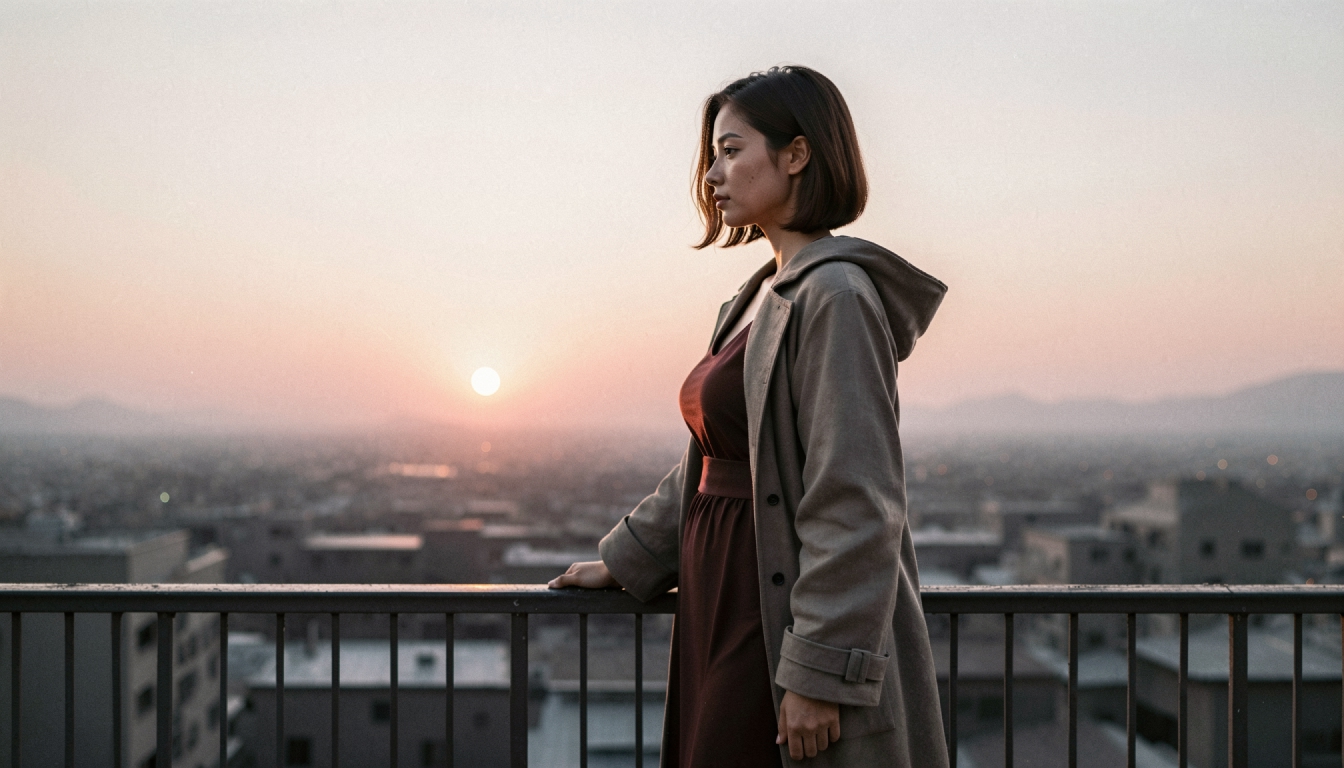
Structure the prompt in that order. Subject: “original adult musician wearing a gray coat.” Setting: “quiet rooftop at sunrise.” Motion: “slowly turns toward the railing.” Camera: “gentle push-in, stable frame.” Add one plausible light source. Do not ask the same camera to remain fixed while also circling the character quickly. Without a source frame the model must invent the composition, so be explicit about the intended shot type.
For scenes that do not require a first frame, try text-to-video prompts.
Step 4: Generate and diagnose the first clip
Watch the clip at normal size before editing the prompt. Did the main action happen? Did the character remain recognizable? Is the camera behaving as requested? If no motion is visible, use a clearer verb and movement direction. If the subject is too small, specify medium shot or close-up. If the composition is unpredictable, a first-frame-led Image-to-Video workflow may suit the project better.
Step 5: Refine motion before enhancing quality
Run another version with one targeted change and compare it with the first clip in the same Session. Once the action, framing and overall continuity look right, consider Enhanced Video for sharper output. Enhancement does not fix a wrong sequence or a character that moves incorrectly. If a specific fictional adult character must be maintained across attempts, consider creating a stable first image and switching to Image-to-Video.
Worked Example: Example: a simple motion-led clip
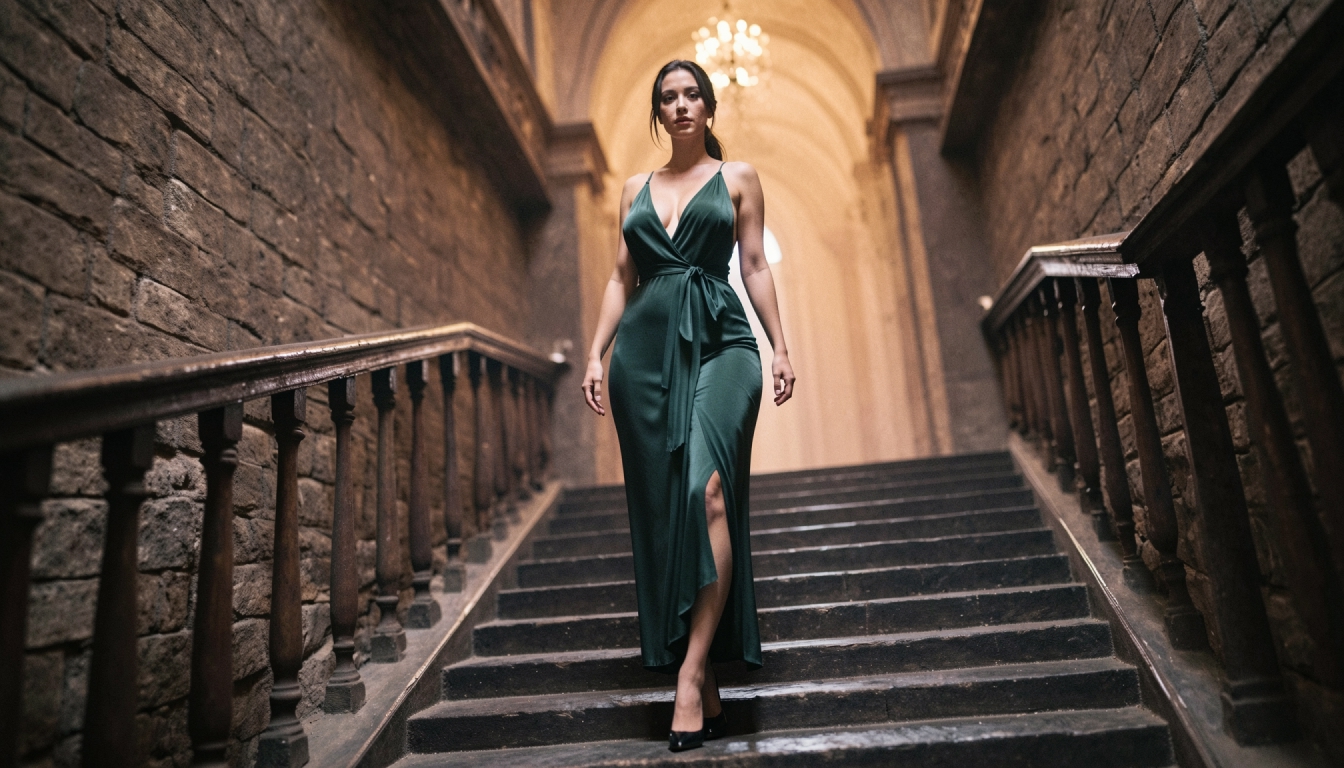
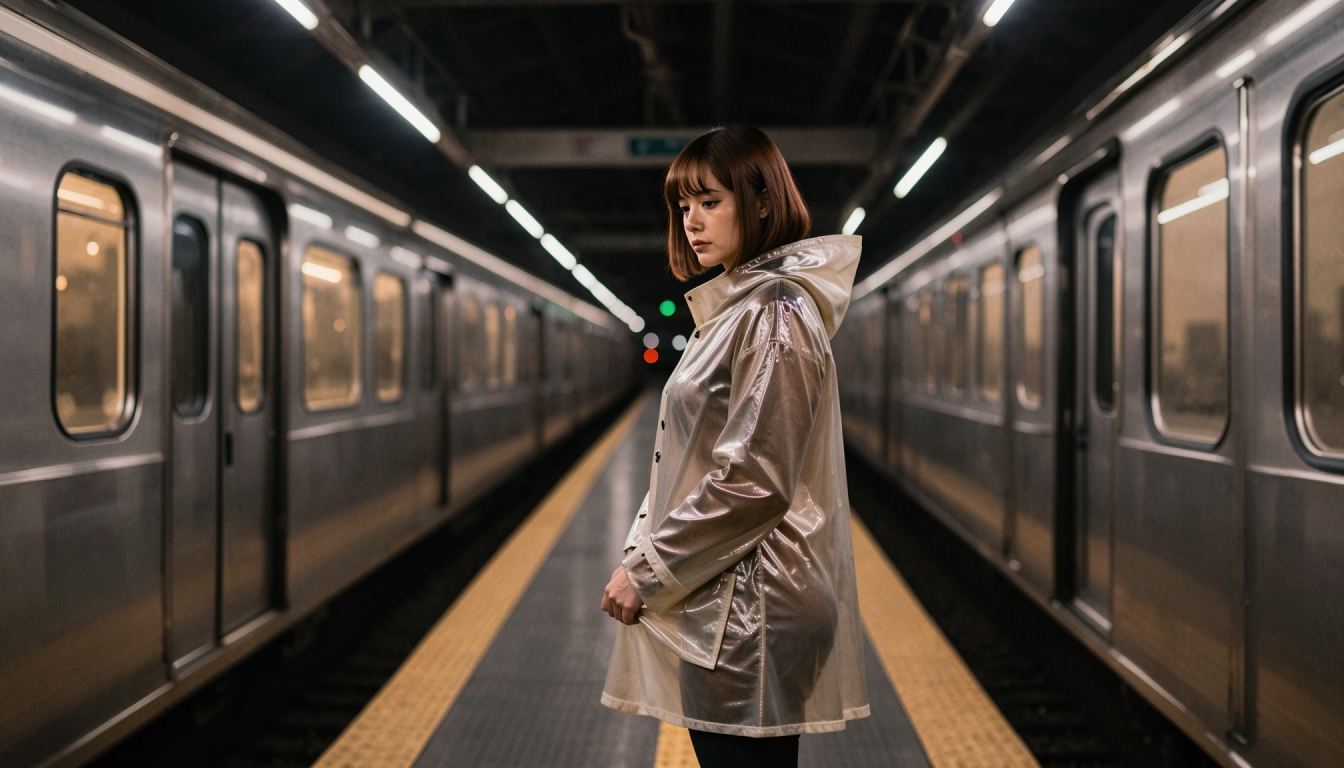
Prompt: “Original adult traveler with a short dark bob and tan raincoat on an empty train platform at dawn, medium shot, looks up as a gentle breeze moves her hair, slow camera push-in, pale blue ambient light, natural motion.”
This is a self-contained brief: subject, place, action, camera and light are all present. If the resulting scene is static, emphasize “looks up and turns toward the incoming train.” If the background is chaotic, replace elaborate environmental details with a quieter platform and fewer moving objects.
Common Problems and What to Change
If the character's features shift through the clip, remember that Text-to-Video has no fixed first frame. Try a simpler shot or use Image-to-Video when likeness consistency is important. If nothing moves, write an explicit action. If the shot is not the requested distance, add framing language near the beginning. Avoid asking for an entire narrative arc in a brief single clip; build the project as smaller visual beats instead.
Explore the Next Step
For a broader comparison of video-generation services, see best NSFW AI video generators. For a text-led adult video starting point, explore the NSFW text-to-video creator.
Frequently Asked Questions
Put the Guide into Practice
Use the approach above to make one careful test in PornX. Keep your subject fictional and clearly adult, review the result and change one thing at a time.
Generate a video from textDiscover more
Keep exploring with related tools, features and step-by-step guides.
AI Text to Video
Learn how PornX Text-to-Video turns a written scene into an AI video clip. Structure subject, setting, movement and camera directions for clearer results.
NSFW Text to Video
Create original adult AI video concepts from text on PornX. Learn Text-to-Video prompts, scene structure, camera movement, resolution and generation tips.
AI Prompt Enhancer
Explore PornX Prompt Enhancer and learn how to improve short image prompts, when to turn enhancement off and how to keep visual instructions intentional.
Enhanced Video
Learn when to use PornX Enhanced Video after generation to sharpen a finished clip, reduce artifacts and compare the refined version with the original.