Enhanced Video: Refine a Clip You Already Like
Sometimes a generated video has the movement you wanted but still appears soft, slightly noisy or less detailed than the original idea. Enhanced Video is a post-processing step for that situation. It processes a finished PornX clip to improve sharpness, detail and the viewing experience, while leaving the underlying composition and motion largely as they were.
The PornX Wiki describes using Enhance from an existing video Session after a clip is generated. It also explains that enhancement consumes additional tokens. This is not a way to change the story of the scene or make the character perform a different action. It is best used after choosing a clip that is already close to your creative goal.
To compare PornX's creation and finishing features, browse PornX features. For an example of the full video product, view the existing AI porn video generator landing page.

What Enhanced Video Does - and Does Not Do
Enhanced Video can improve the appearance of an existing clip through sharpening and artifact reduction. It does not provide a new first frame or rewrite the camera movement. If the character is facing the wrong way, the camera angle is unsuitable or the action never happens, you need to revise the generation itself before you enhance the result.
That distinction saves time and tokens. A sharpened bad composition remains a bad composition. Start by asking: Would I keep this clip if it were clearer? If the answer is no, return to the prompt. If the answer is yes, an enhancement pass is worth evaluating.
How to Use Enhanced Video in PornX
1. Generate a clip first
Use Image-to-Video when you have a selected first frame or Text-to-Video when you want the model to establish the scene. Both feed into the same general project flow. For still-image workflows, the AI image-to-video feature overview explains how the first frame and motion prompt work together.
2. Open the result in its Session
PornX organizes video outputs in Sessions. Open the clip you want to improve, then choose Enhance. The documentation says the enhanced version appears alongside the original when processing completes. Keeping both versions makes a direct quality comparison easier.
3. Compare quality rather than assuming improvement
Look at the face, small textures, background edges and motion consistency. Does the result have more readable detail? Are there new hard edges or distracting artifacts? Choose the output that looks better in the actual viewing context, not merely the one labeled enhanced.
The step-by-step enhancing AI video quality guide covers when to spend tokens on enhancement and when to regenerate instead.
When Enhancement Is Worth the Cost
A clip with stable motion and attractive framing but somewhat soft detail is a sensible candidate. A short scene with a clean silhouette may also benefit from careful refinement before saving or sharing. Enhancement is less compelling while you are still experimenting with fundamental framing, scene content or character design.
The Wiki notes that the enhancement step takes additional tokens. Check the current pricing in PornX rather than assuming it is included in the base video generation. Be selective: compare shortlists of your best clips before applying the finishing pass to every attempt.
How Enhancement Can Go Wrong
The enhanced result appears too sharp. Existing artifacts can be accentuated. Return to the original and consider a new base generation with simpler motion or composition.
The job is still processing. Enhancement is a separate render and can take longer than the initial clip. Check the Session for the new output when processing completes.
The face changes during motion. Enhancement cannot reliably reconstruct a consistent identity if the movement model altered it. Start with a better first frame and a more restrained movement request. The how to animate AI images tutorial covers improvements earlier in the workflow.
The clip lacks the camera behavior you wanted. The problem is in the prompt, not sharpness. Explore AI camera motion prompts for clearer subject and camera directions before regenerating.

Plan a Better Video Workflow
A productive order is plan the shot -> generate -> evaluate motion -> enhance a keeper. If the video fails to follow your action, revise that instruction before using more tokens. Once you like its composition, test a finishing pass and compare side by side.
Visit open the PornX video generator to open the working video area, verify current processing options and begin a new Session. For adult creative work, use only original fictional adults and follow the platform's current content rules.
Enhanced Video FAQs
Discover more
Keep exploring with related tools, features and step-by-step guides.

AI Image to Video
Explore PornX Image-to-Video. Prepare a clear first frame, guide motion, make a short AI clip and find tips for improving animation quality.
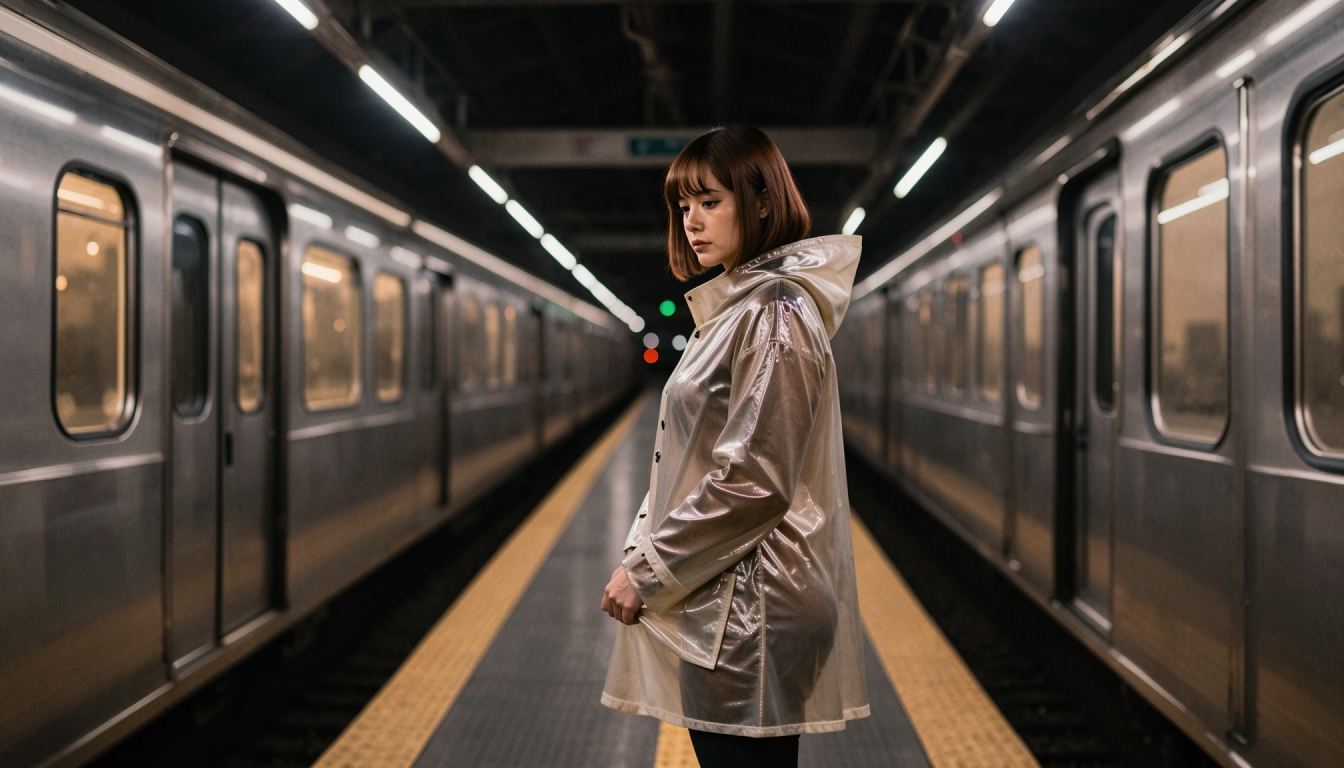
AI Text to Video
Learn how PornX Text-to-Video turns a written scene into an AI video clip. Structure subject, setting, movement and camera directions for clearer results.
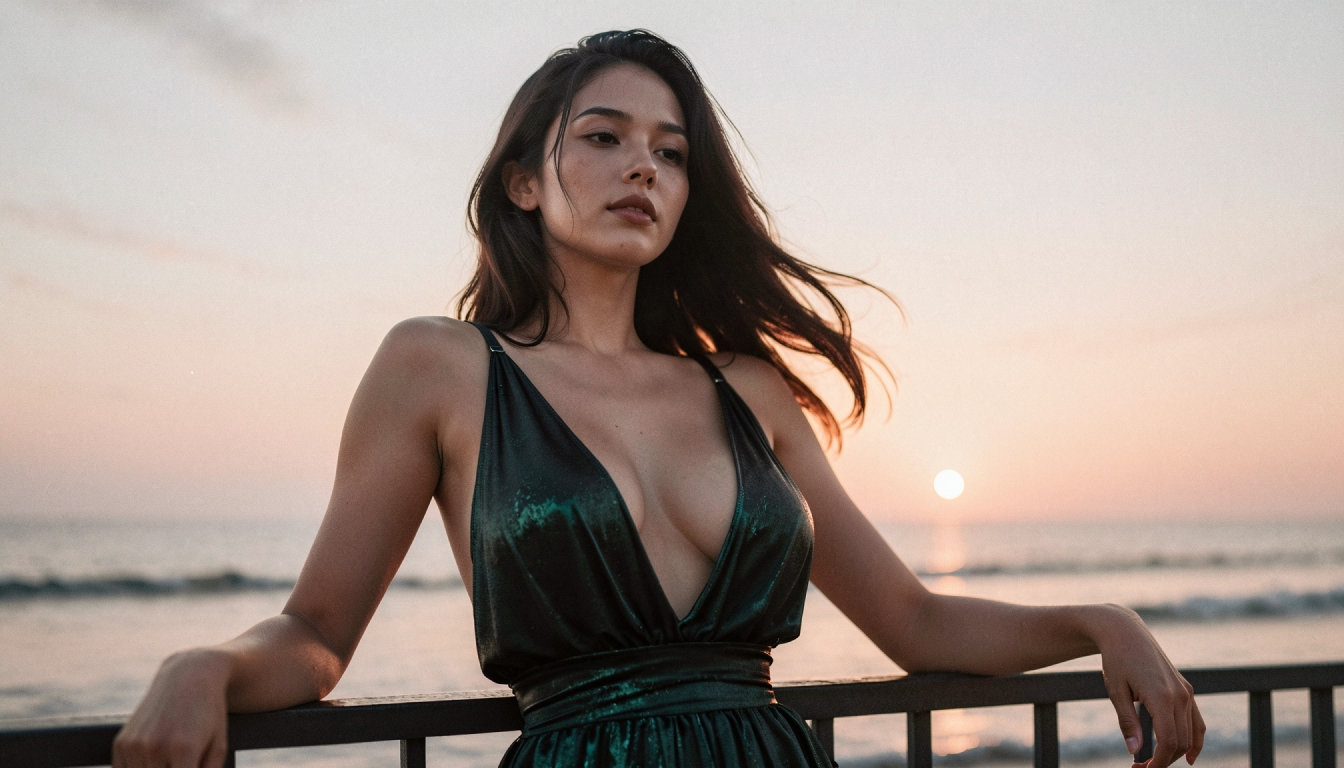
How to Turn an AI Image into Video Step by Step
Animate a saved AI image with Image-to-Video. Learn first-frame preparation, matching resolution, motion prompts and useful troubleshooting.
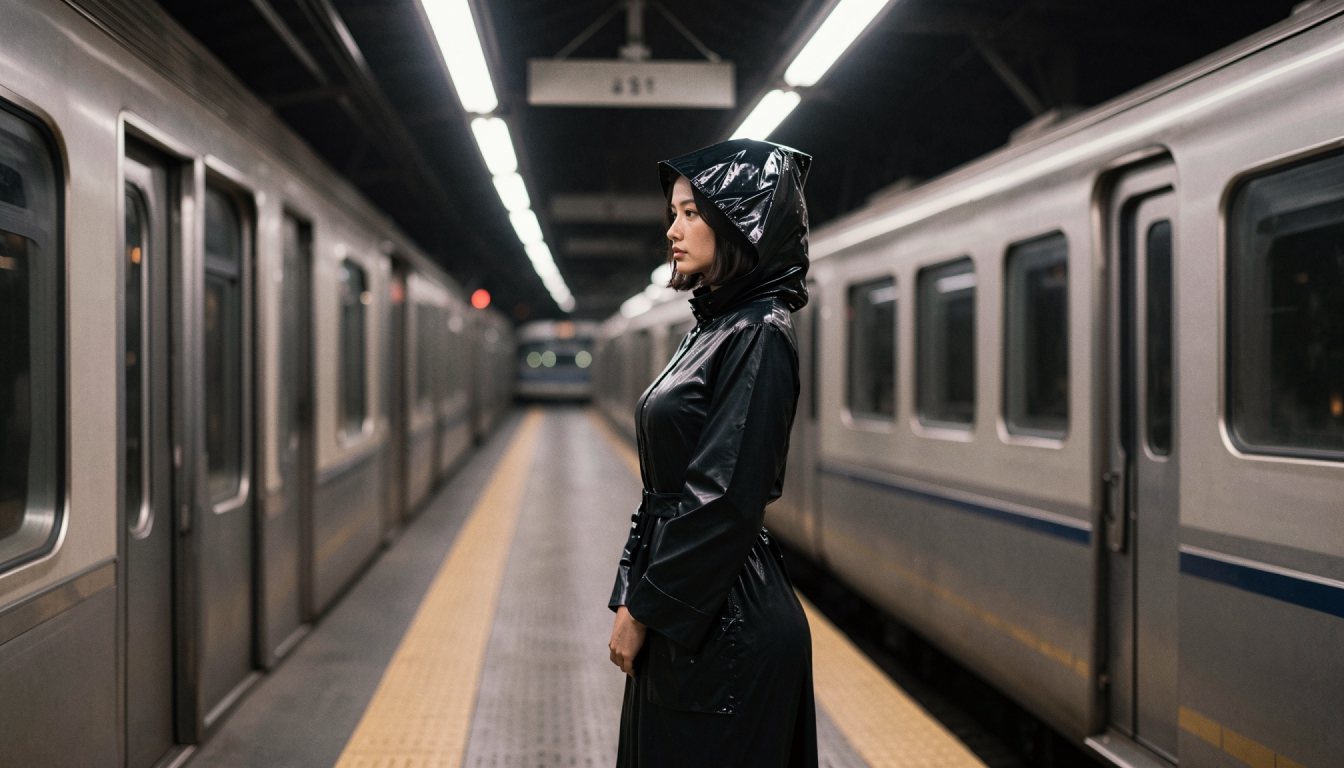
How to Generate AI Video from a Text Prompt
Create a short AI video directly from text with subject, setting, movement, camera direction and practical retry steps. No first frame required.