How to Turn an AI Image into a Short Video
Animating an existing AI image gives you more control over the opening composition than generating a clip from text alone. You can choose a specific character, pose, environment and lighting in the still image before asking for movement. The video model then works from that first frame instead of inventing the entire scene from scratch.
PornX Image-to-Video uses a gallery image as the starting frame and produces a short clip with a maximum documented duration of five seconds. The cleanest workflow starts with the still image, not with a complicated motion prompt. Spend time on readable posture, a simple background and compatible resolution before you animate.
For related tutorials on other parts of the workflow, browse AI generation tutorials.
Quick Answer
Generate or choose a suitable first frame, save it to your gallery, open the video generator and start or select a Session. Choose Image-to-Video, select the source image, check the resolution, then write a short motion prompt. Generate the clip, inspect the movement and enhance it only if the action and composition already look right.
Get started: To turn the motion direction into a clip, open the PornX video generator.
Step 1: Prepare a clean first frame
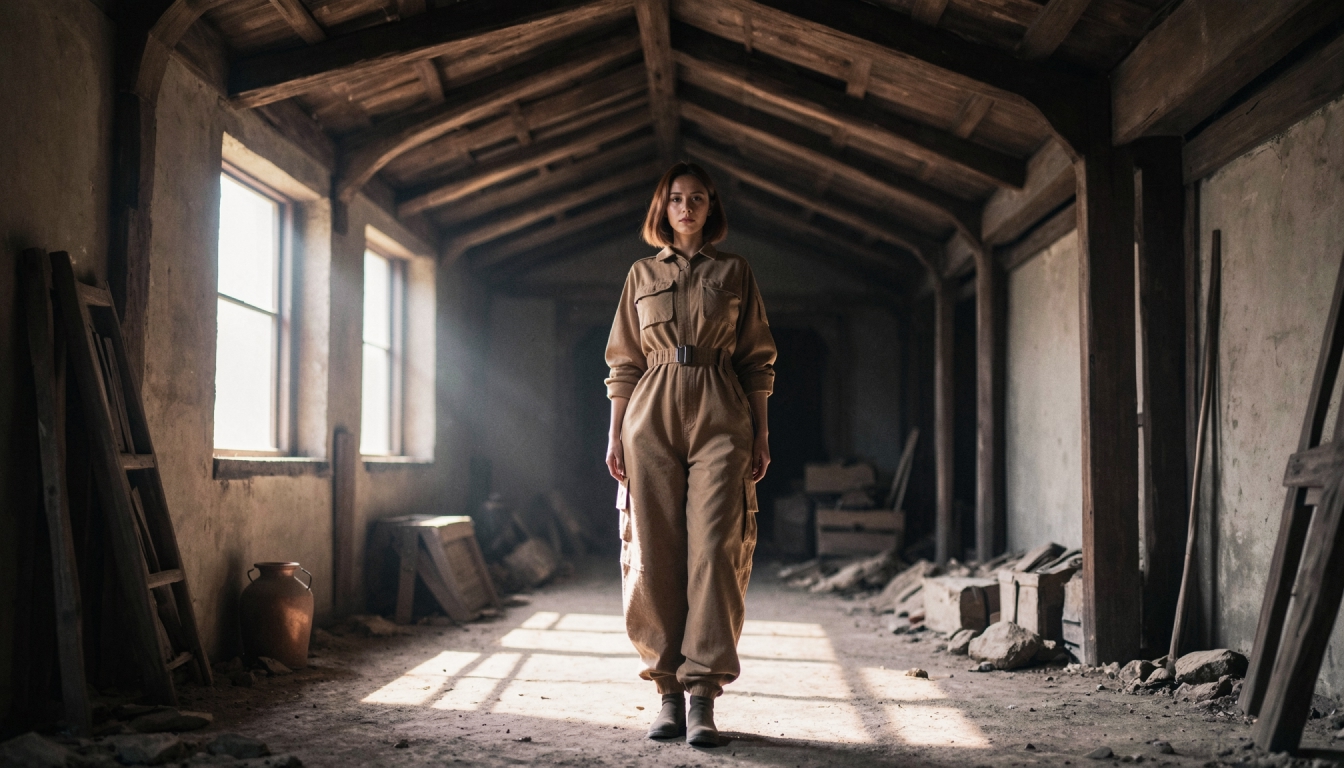
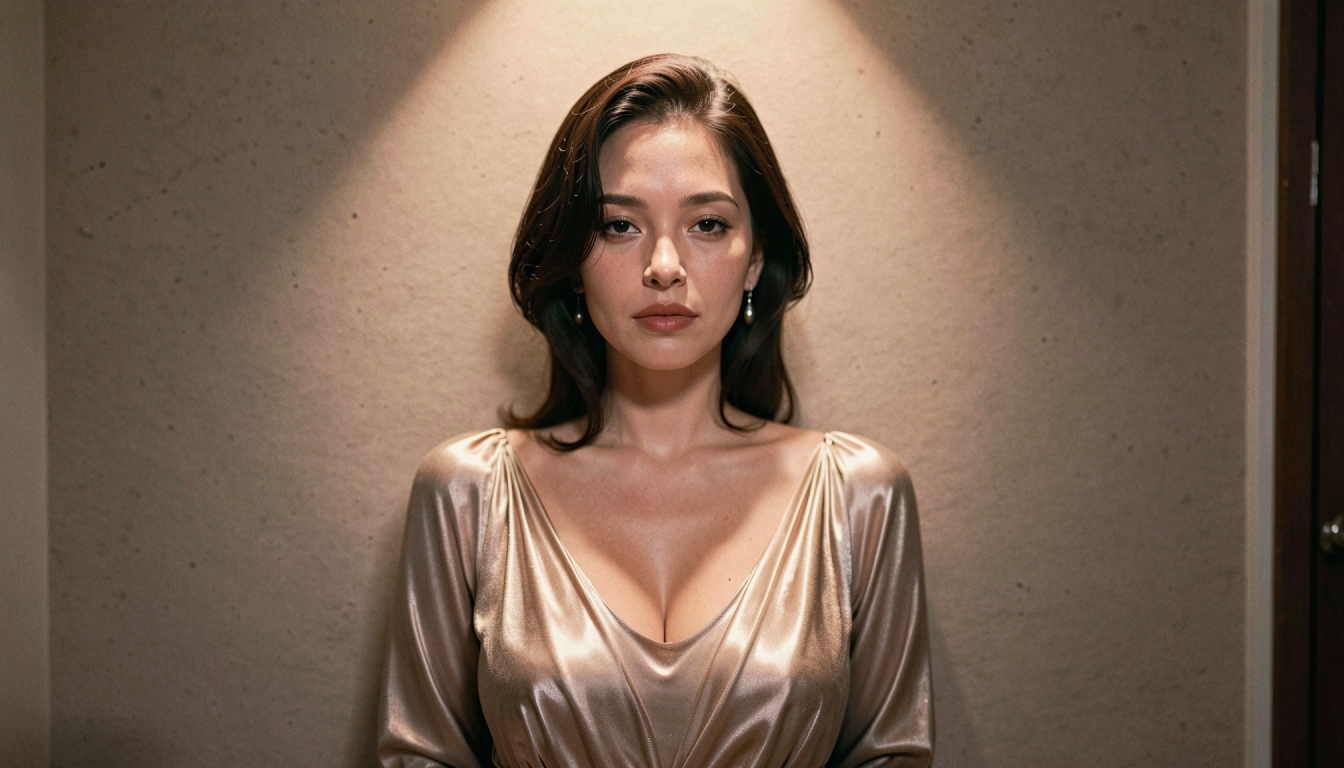
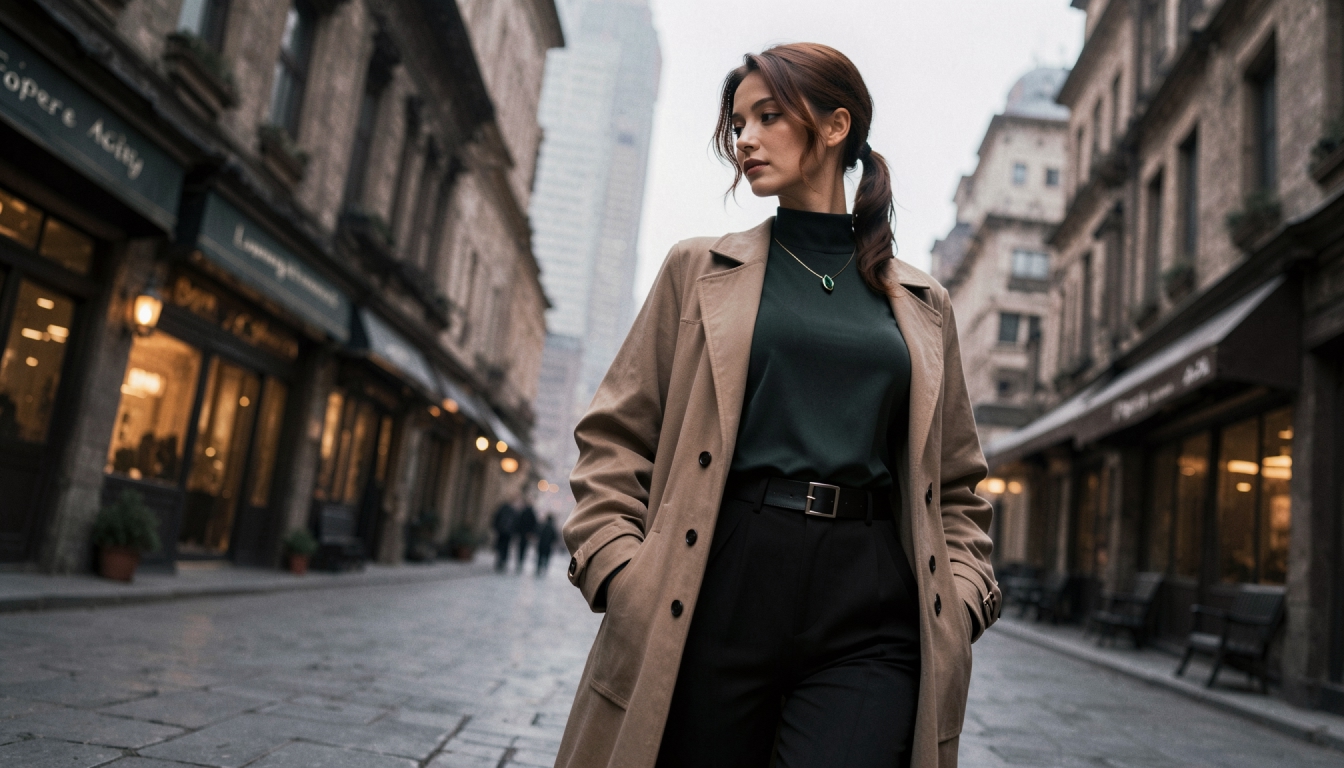
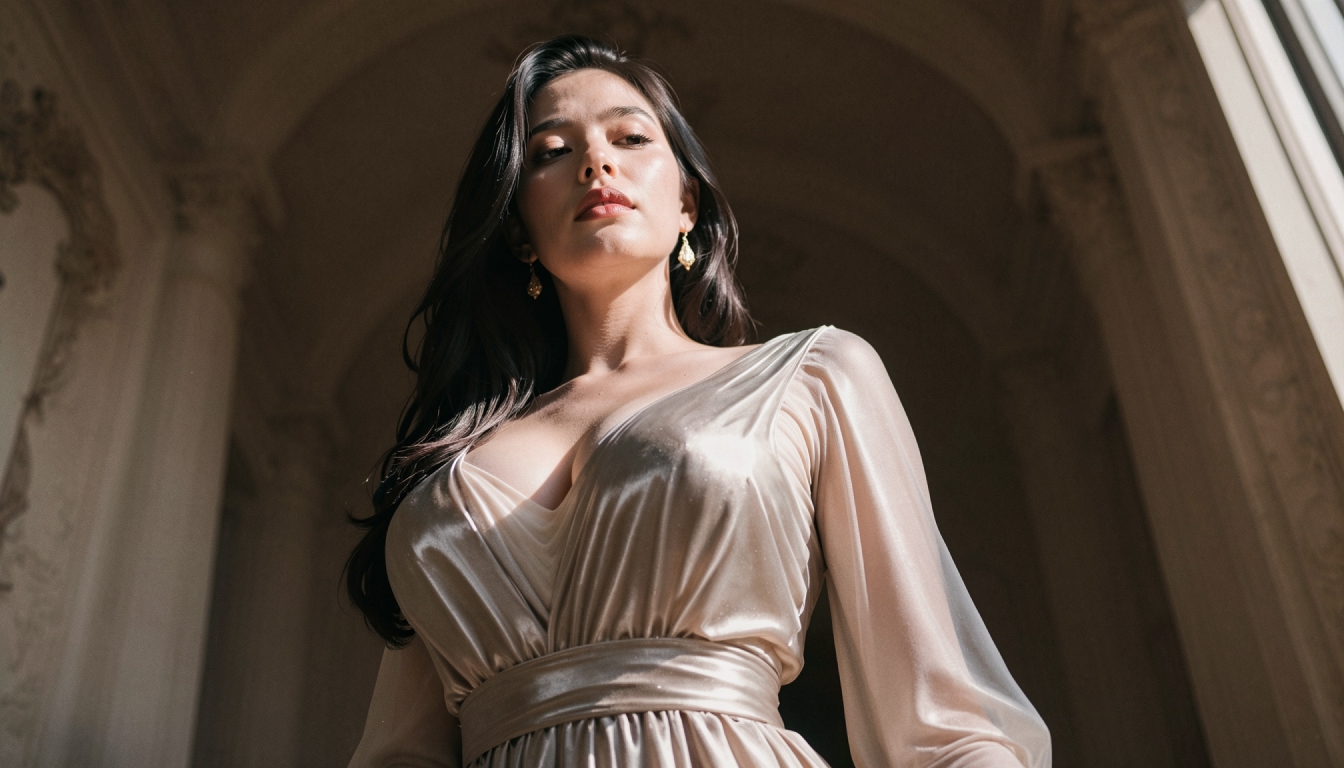
Use a realistic or illustrated image with clear subject separation. Mid-shot and full-body poses often animate more naturally than extreme close-ups. Keep the background relatively simple and lighting soft enough that shadows do not fight the motion. An original adult character standing naturally with room around their arms offers more animation flexibility than a heavily twisted pose. Correct structural issues in the still before moving to video.
For the process of animating a selected still, review the AI image-to-video feature.
Step 2: Save the image to the gallery
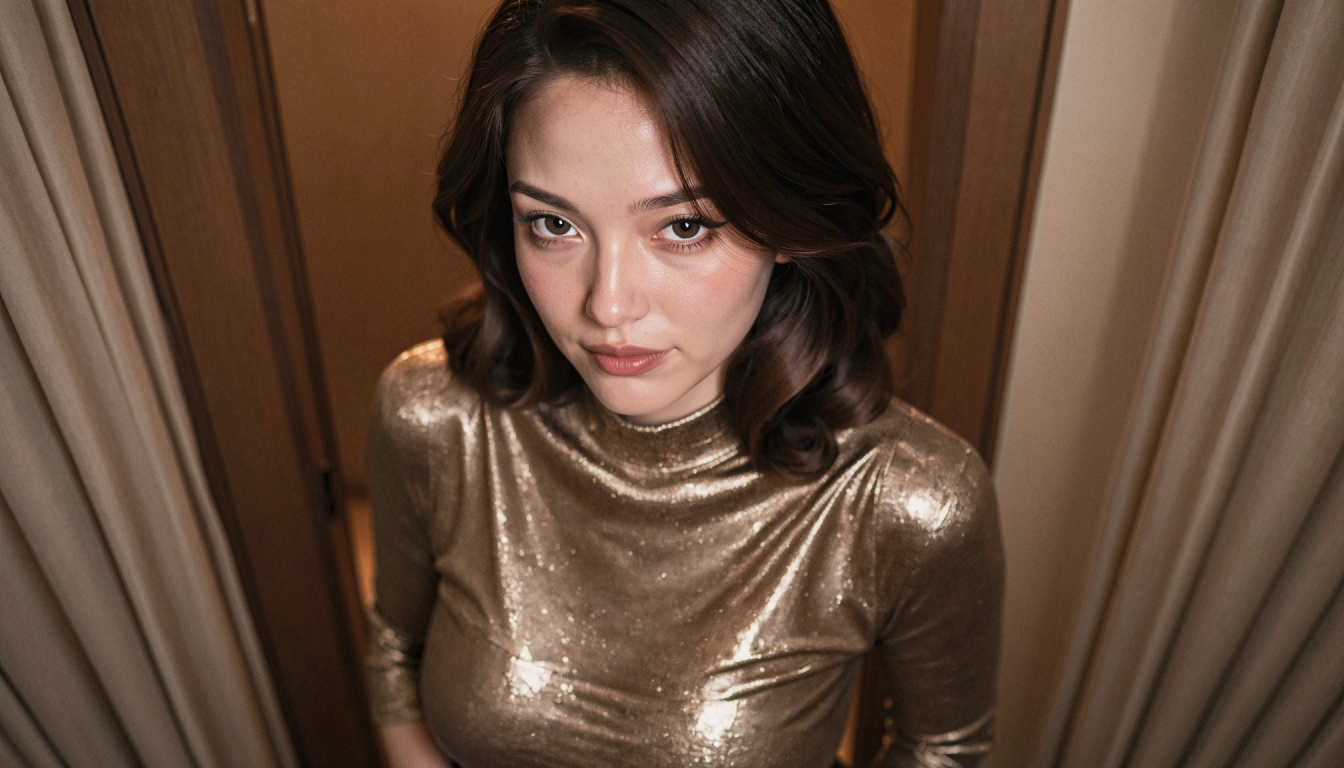
Once you have the right composition, save the still image. This becomes the source frame you will select in the video workflow. Retain a copy so you can try several motion variants against the same visual reference. If you switch to a different still between attempts, it becomes difficult to tell whether the motion prompt or the image itself caused a change in quality.
To prepare a still that will animate more cleanly, see AI video first-frame prompts.
Step 3: Open a video Session and choose Image-to-Video
Go to the video generator, start or open a Session and select Image-to-Video. Pick the saved source image. Check that the selected output resolution matches the source requirements; the generator may flag a mismatch. A Session helps keep related clips together. Name it after the character or scene concept so you can compare variants without mixing them with unrelated experiments.
For short motion instructions paired with an existing image, explore image-to-video prompts. For the broader adult AI video workflow, explore AI porn video generator.
Step 4: Describe motion rather than redescribing appearance
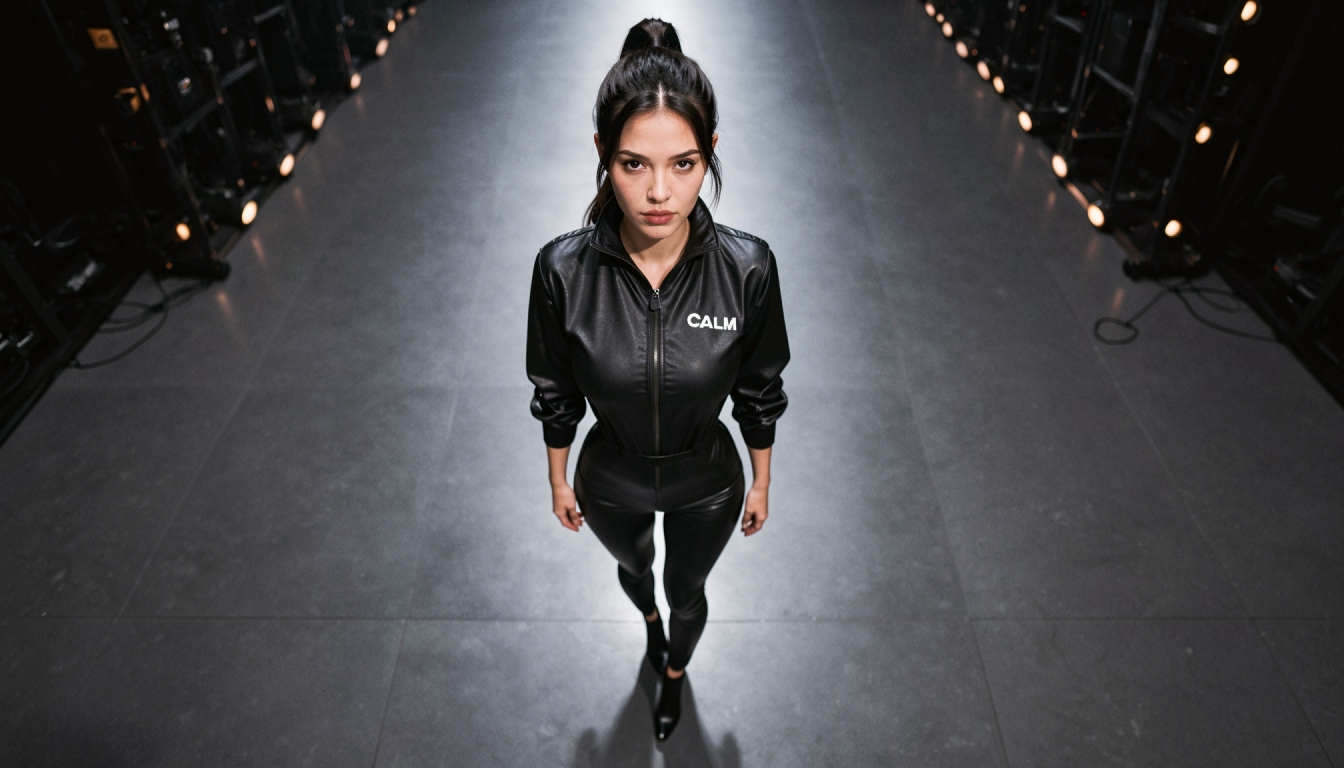
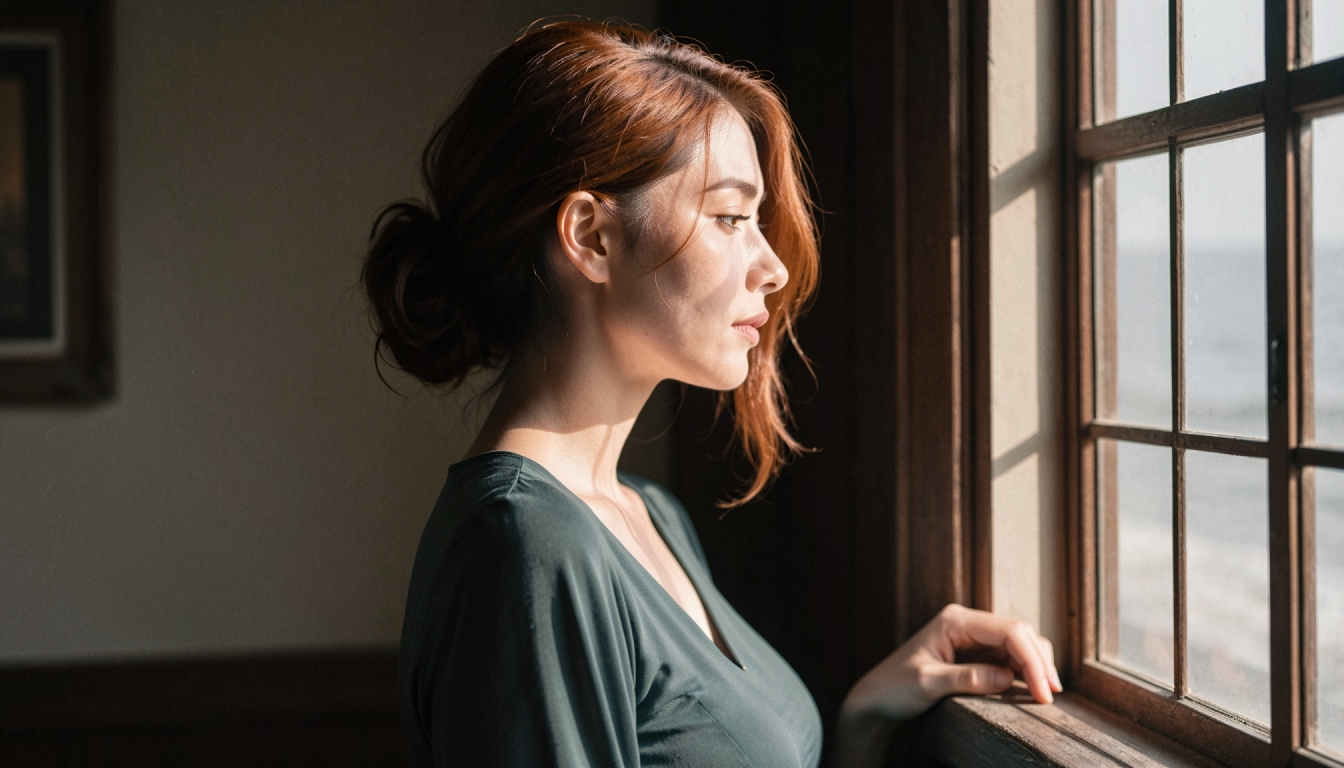
A useful motion brief might be “slow head turn toward the window, subtle hair movement, steady camera.” The first frame already determines clothing, face and setting, so writing another physical biography adds little. Start with one main subject movement and one camera instruction. Avoid contradictory commands such as “camera fixed” and “rapid circular tracking shot” in the same short clip.
Step 5: Review, retry and enhance only when appropriate
Generate the clip and compare it with the original image. Watch for face drift, warped hands and background movement that was not intended. If the motion feels wrong, refine the action while keeping the same first frame. If the movement is good but the output looks soft, use Enhanced Video as a separate quality pass; it will not change the composition or correct incorrect action. Remember that enhancement uses additional tokens.
Worked Example: A first-frame-to-video example
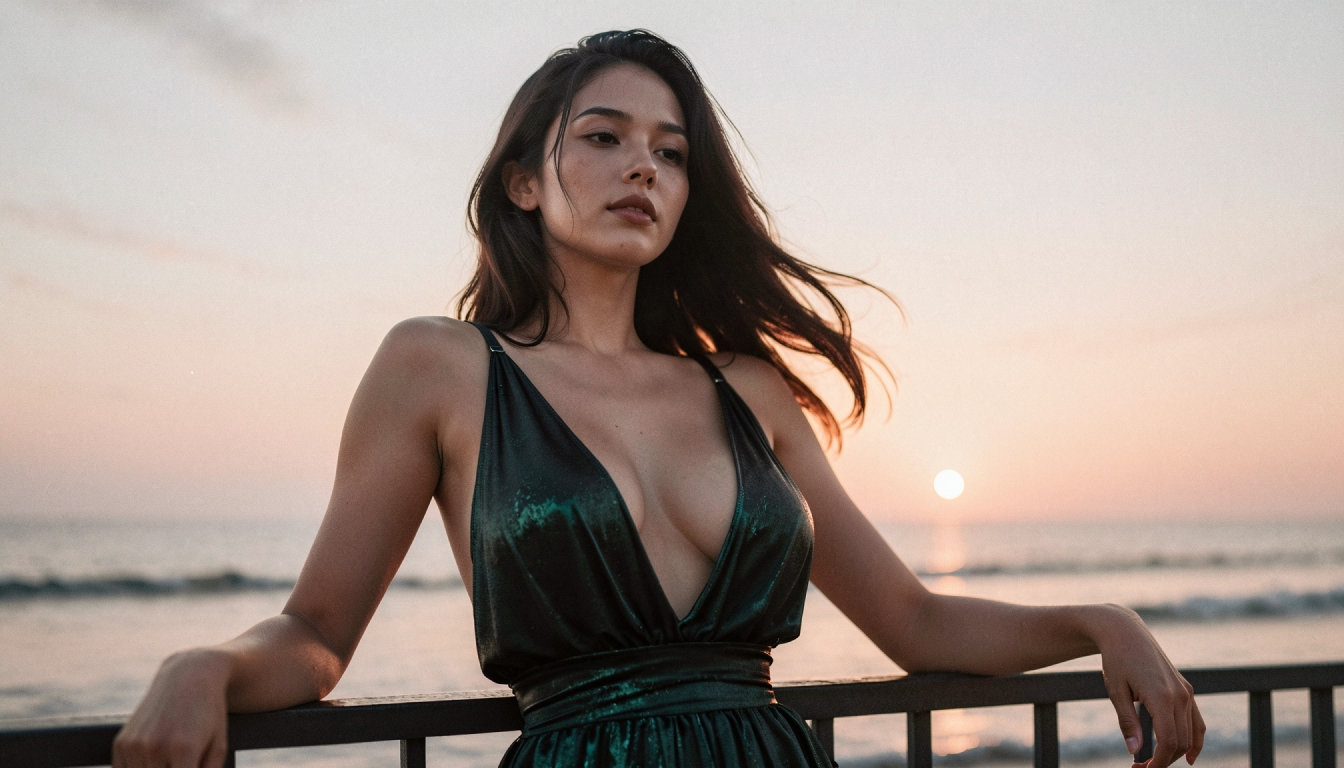
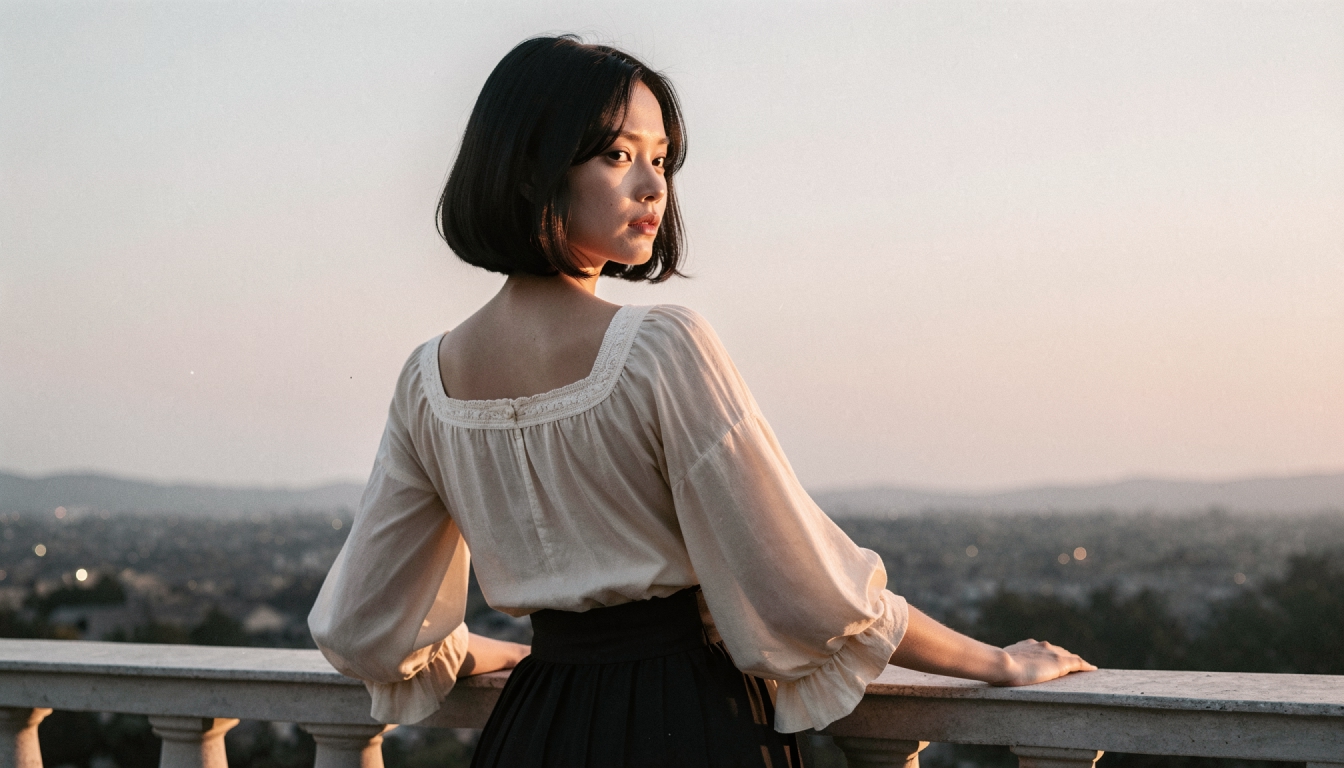
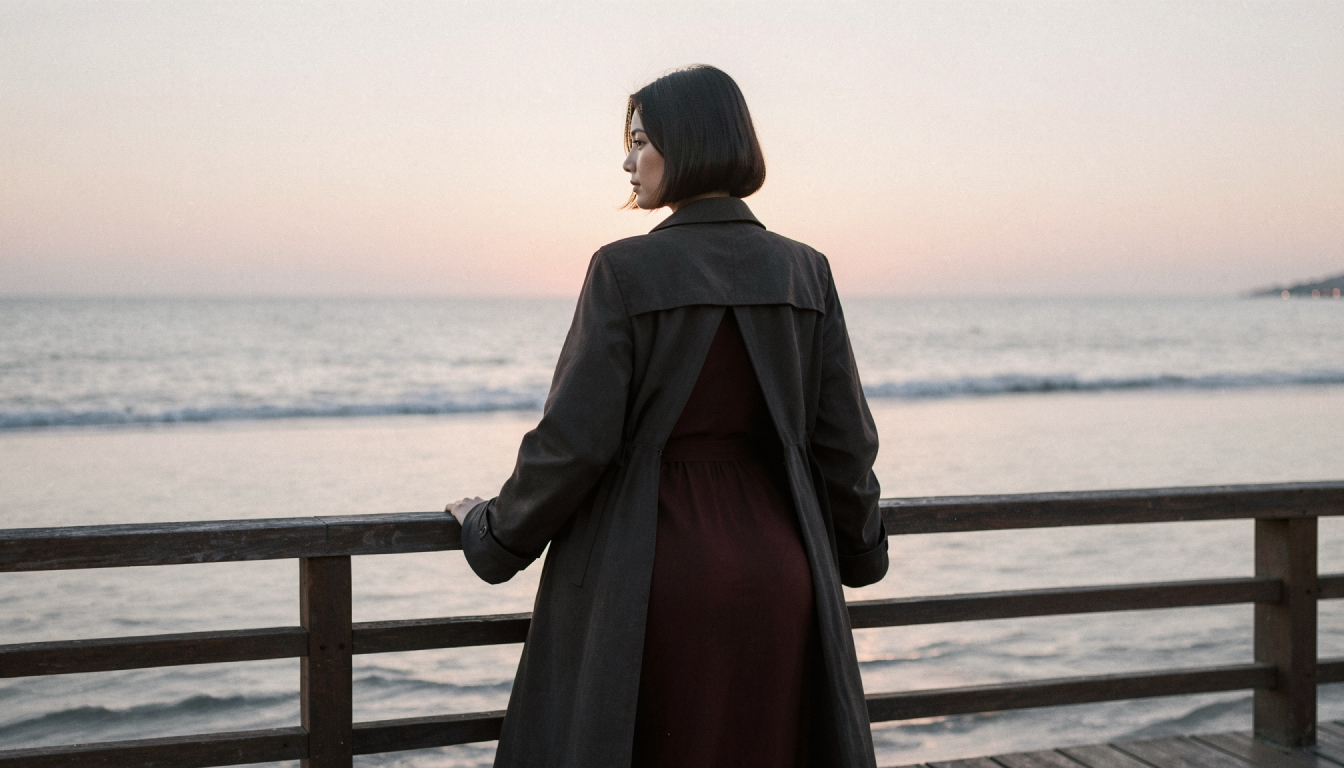
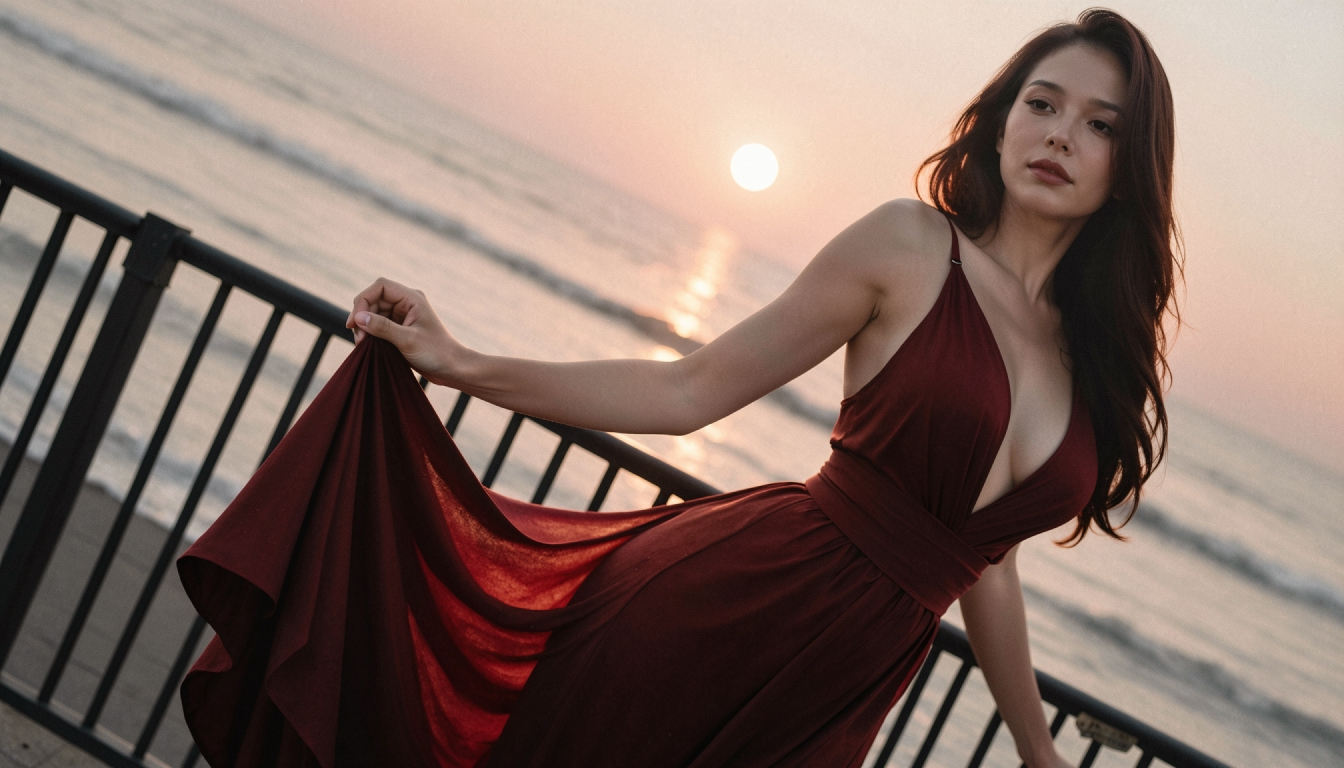
First frame: an original adult fictional traveler in a dark coat at a seaside platform, medium shot, light breeze, simple rail and distant horizon. Motion prompt: “slowly turns toward the horizon, loose hair moves in the breeze, gentle camera push in, stable lighting.”
This prompt does not repeat the coat, eye color or platform architecture because the frame already carries that information. If the result distorts the face, reduce the turn or use a more front-facing source image. If the movement is too subtle, increase the clarity of the main action without introducing several new events.
Common Problems and What to Change
If the system refuses the source, check image resolution and selection first. If the background flickers, simplify visual clutter in the original still. If the subject barely moves, make the action more explicit. If anatomy warps during a large movement, start with a smaller movement and steadier camera. Try at least two motion briefs before discarding a first frame that otherwise looks good.
Explore the Next Step
If your first frame is illustrated, read about animate anime images before animating it. For more control over motion and camera language, read writing AI video prompts.
For a focused adult image-led animation workflow, see the NSFW image-to-video creation. To animate photographic portraits specifically, review animate realistic AI images.
To structure subject, movement and camera in a separate tool, explore AI video prompt builder when available.
Frequently Asked Questions
Put the Guide into Practice
Use the approach above to make one careful test in PornX. Keep your subject fictional and clearly adult, review the result and change one thing at a time.
Animate an image in PornXDiscover more
Keep exploring with related tools, features and step-by-step guides.
AI Image to Video
Explore PornX Image-to-Video. Prepare a clear first frame, guide motion, make a short AI clip and find tips for improving animation quality.

AI Character Animation
Learn how to animate an original adult AI character in PornX, from consistent character design and first-frame prompts to short video generation.
NSFW Image to Video
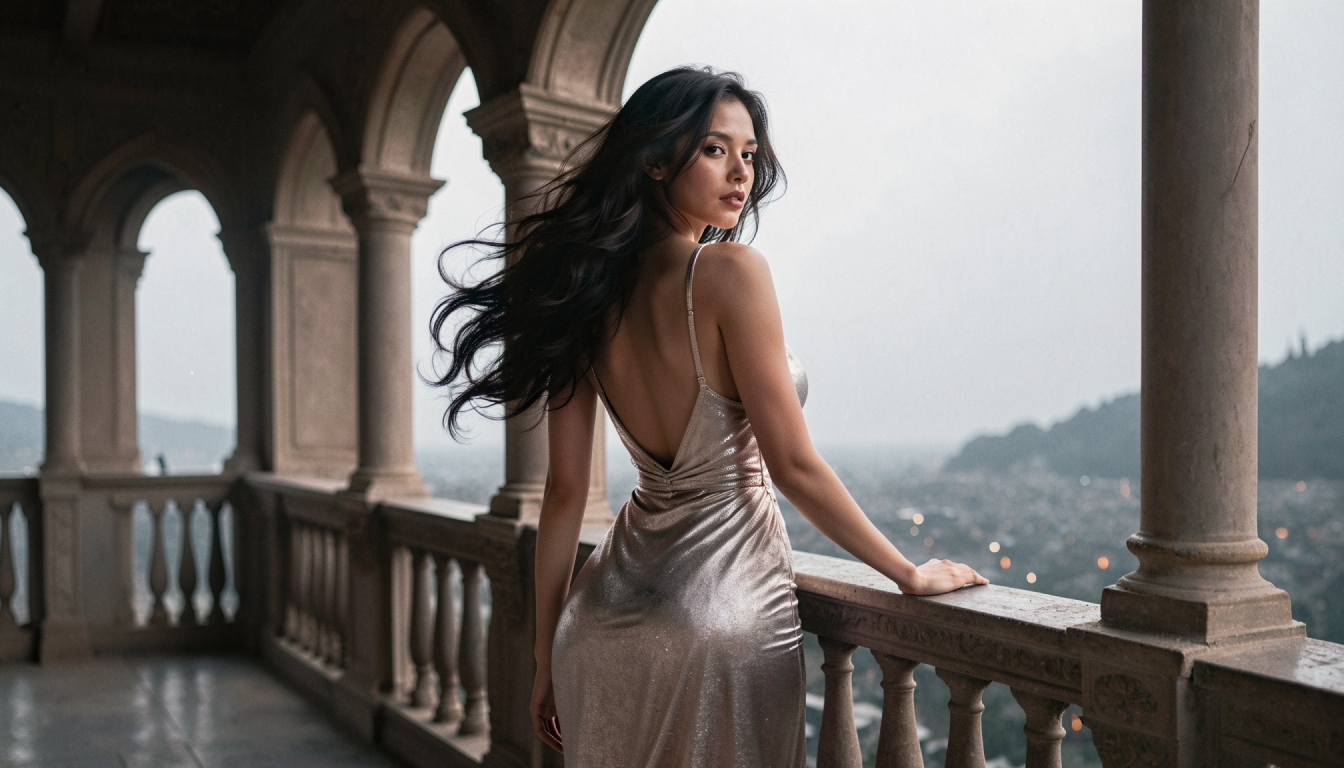
Turn original AI-generated adult images into short videos on PornX. Learn the first-frame workflow, write motion prompts and explore image-to-video tools.
Enhanced Video
Learn when to use PornX Enhanced Video after generation to sharpen a finished clip, reduce artifacts and compare the refined version with the original.