NSFW Text to Video: Create an AI Clip From a Prompt
Not every video idea begins with an image. Sometimes you know the scene you want but have not designed the first frame: a fictional adult character entering a room, a cinematic camera move or a brief atmospheric moment. NSFW text-to-video turns that written concept into a generated clip, using the prompt itself to establish the visual scene and the motion.
PornX documents a Text-to-Video mode that starts from text alone. Unlike Image-to-Video, it does not require a saved first frame. That makes it useful for exploring ideas quickly. It also means you give the model more creative responsibility: it must interpret the character, environment, composition and camera direction from your words.
Want to try a scene? create an AI video on PornX, select the available Text-to-Video workflow and review the token requirements before generating.
What Is Text-to-Video AI?
Text-to-video is a generation method in which a text description becomes a video clip. The prompt is a production brief. It needs to say what is visible, where the scene happens, what moves and how the camera behaves. Without those details, the model may choose a composition that differs substantially from what you imagined.
In PornX, the documented sequence is straightforward: open the video generator, start or reopen a Session, select Text-to-Video, enter your description, choose a resolution and generate. The text-to-video feature explains where this option fits among PornX's video tools, while the how to create AI video from text guide covers the complete workflow.
This page focuses on writing an effective prompt and choosing Text-to-Video for adult-oriented fictional concepts. For a broader overview of the category, see PornX's existing NSFW AI video generator page.
Write the Prompt in Four Parts
A reliable first draft can be written as a single sentence with four elements: subject → setting → action → camera. Each serves a different purpose.
1. Identify an original adult subject
Define a fictional adult character and only the most important visual traits. You might specify the character's style, outfit or general impression, but avoid long lists of competing details. Keep the description original. Do not use a real person's identity, image or name as a shortcut to a look.
2. Establish one clear setting
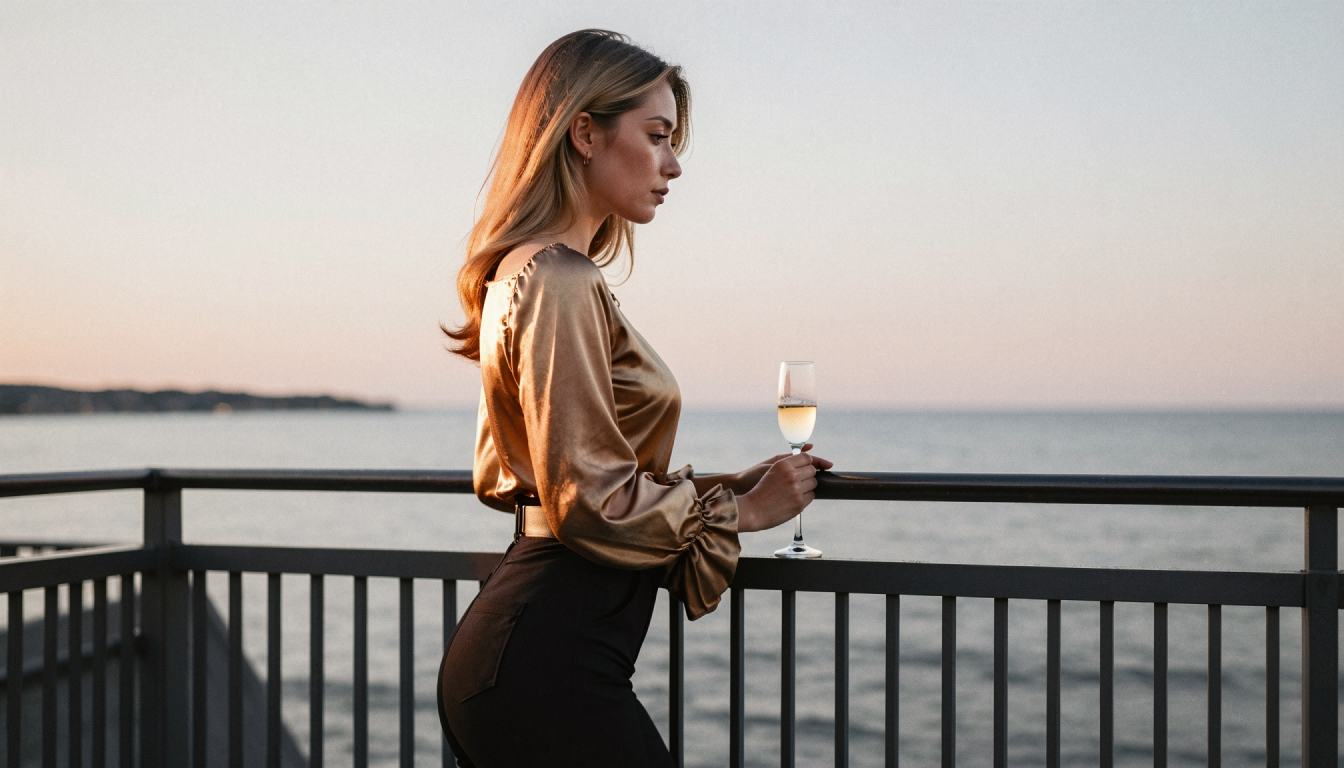
Give the clip an environment the model can understand: an art-deco lobby, an apartment balcony at dusk or a quiet studio with soft window light. One setting is usually enough for a short clip. A prompt that jumps through several locations invites visual instability.
3. Describe a visible action
Motion is what makes this a video prompt rather than an image prompt. Write an action that could actually be filmed: a character turns to face the camera, walks a short distance or adjusts their jacket. Small, specific actions are easier to evaluate than a list of unrelated movements.
4. Direct the camera and mood
Add one camera instruction such as “slow pan right,” “gentle push-in” or “steady medium shot.” Finish with a few lighting or atmosphere terms if they matter. Too many camera changes can work against the simplicity of a short generated clip.
For inspiration, the text-to-video prompt examples page collects reusable structures, and the guide to writing AI video prompts explains how subject and camera movement interact.
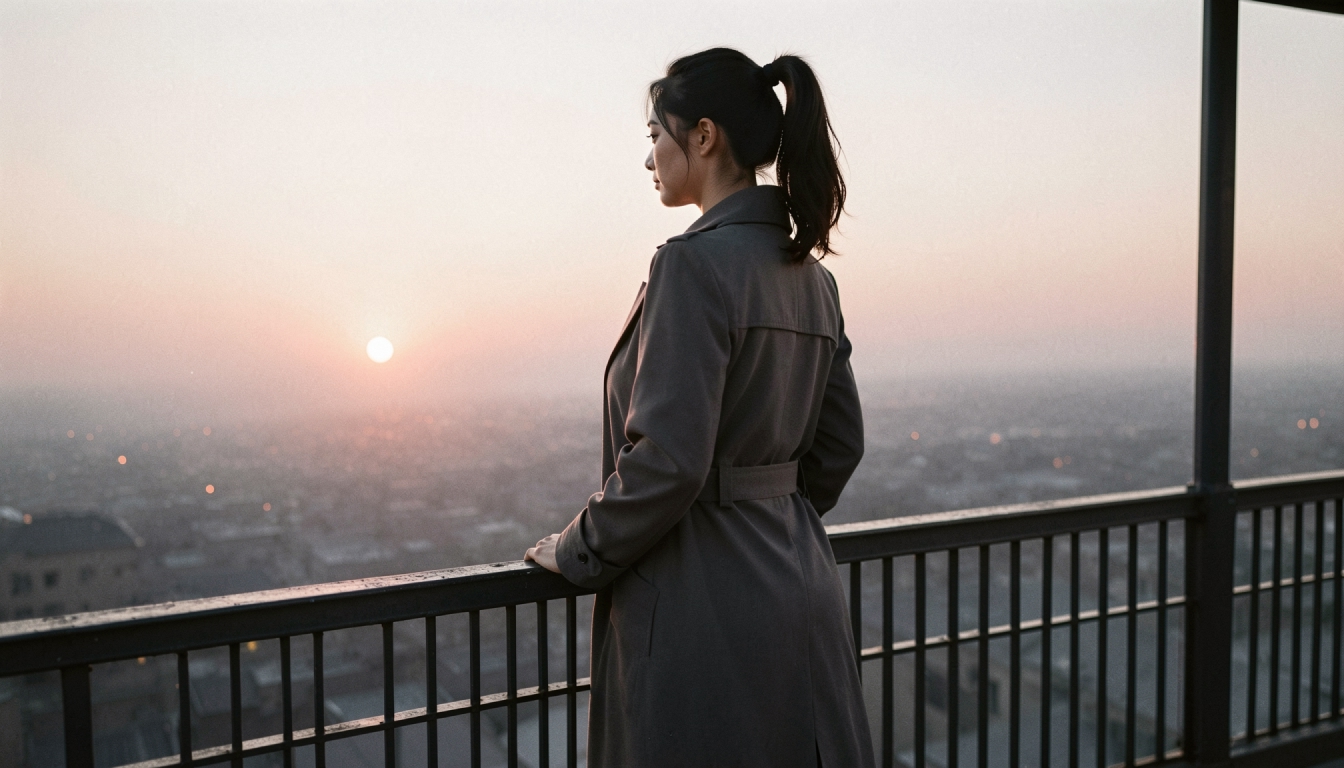
Three Text-to-Video Examples You Can Adapt
The following prompts describe permitted, non-graphic scenes involving original fictional adults. They are examples of prompt structure, not promises that every mode will produce an identical result.
Realistic close interaction
“An original adult fictional character with dark shoulder-length hair stands beside a softly lit apartment window, turns toward the camera and smiles, gentle push-in, natural movement, evening light, medium shot.”
Cinematic atmosphere
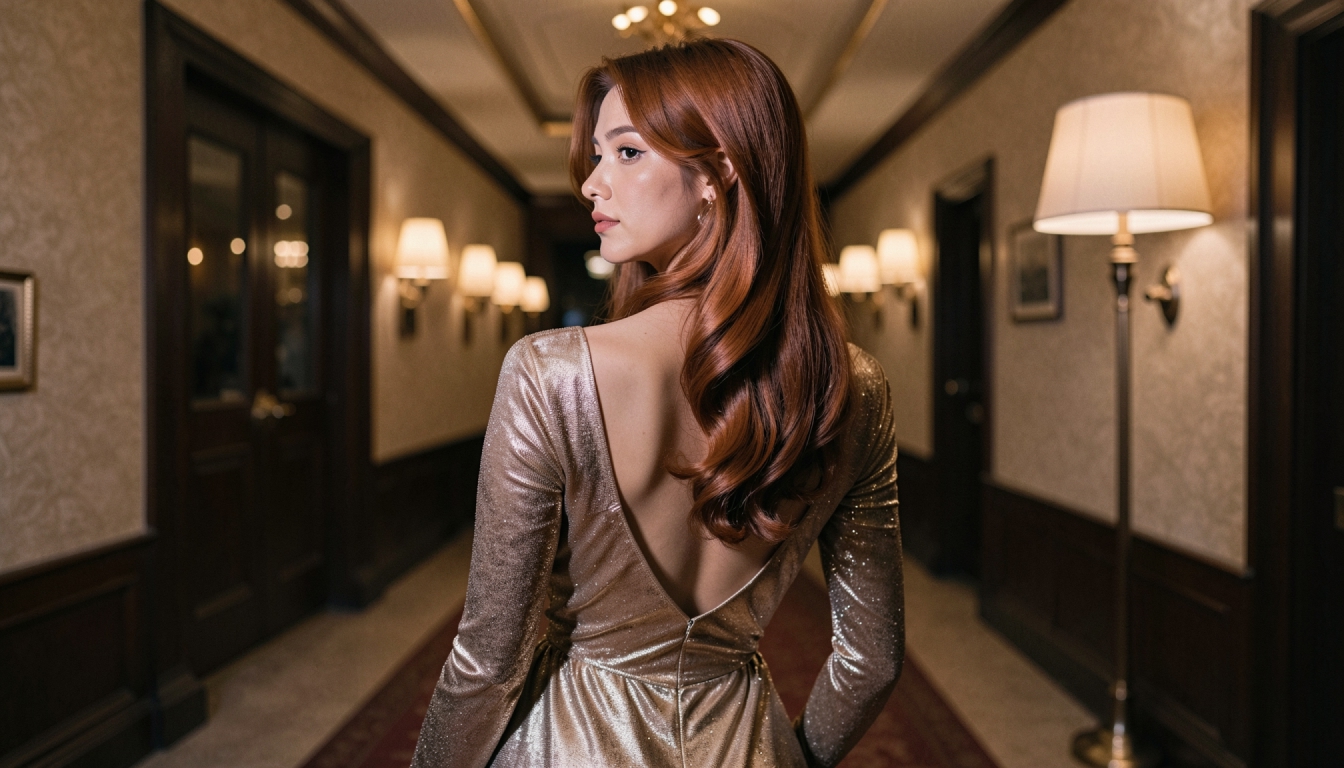
“An adult fictional traveler in an elegant jacket enters a quiet vintage hotel lobby, pauses near a lamp and looks over one shoulder, slow tracking movement, warm cinematic lighting.”
Anime-inspired motion
“An original adult anime-style character stands on a rooftop at dusk, the wind moves their coat as they glance toward the skyline, steady framing, subtle sideways pan, stylized sunset colors.”
Notice that each prompt includes a subject, setting, action and camera direction. Terms such as “beautiful” or “ultra detailed” can describe an image's appearance, but they cannot replace a request for visible movement.
Text-to-Video vs. Image-to-Video
The difference is control over the starting image. Text-to-Video asks the model to invent the composition from a written description. Image-to-Video starts from a selected image, which usually gives you more control over the character's appearance and shot layout.
Choose Text-to-Video when the goal is rapid exploration, a new concept or a scene whose first frame is not important. Choose Image-to-Video when the visual identity of a particular original character matters. If you have a reference image prepared, it may make more sense to animate an existing AI image rather than trying to reproduce the same character from words alone.
These two approaches can also be compared in the guide to best NSFW AI video generators, where model options, controls and access conditions are evaluated separately.
Common Problems and Practical Fixes
The video barely moves
A vague prompt may generate a visually attractive but static clip. Add a clear action and one camera instruction. For example, change “a stylish adult character, cinematic” to “the adult character takes a slow step forward while the camera moves slightly left.”
The face or clothing changes unexpectedly
Text-to-Video does not use a first-frame reference, so appearance can drift. Reduce complicated actions, make the subject description shorter and more consistent, or switch to Image-to-Video when maintaining a particular appearance is the top priority.
The framing feels wrong
Describe the shot distance and viewpoint explicitly: “medium shot,” “full-body view” or “eye-level camera.” If you need a precise composition, prepare an image first rather than repeatedly hoping the same framing will appear from text alone.
The prompt is too crowded
Several locations, rapid costume changes and multiple simultaneous movements are difficult to express in a short clip. Start with one subject, one setting and one action. Generate a separate concept when you want to change the direction dramatically.
What to Check Before Generating
PornX's Wiki states that Text-to-Video consumes tokens. Resolution choices, available video modes and account entitlements may change, so check the current product screen instead of relying on a fixed price or assuming free, unlimited creation. You should also confirm how the current Session workflow organizes generated clips, especially when you plan to compare multiple prompt versions.
All characters and scenarios must comply with PornX's adult-content policies. Work with original, unmistakably adult fictional subjects. Real-person deepfakes, nonconsensual intimate images and depictions of minors are prohibited, regardless of how the prompt is worded.
NSFW Text-to-Video FAQs
Turn a Written Idea Into a Short Video
Start with a clear, non-graphic scene involving an original adult fictional character. Give it a visible action and a simple camera movement, then review the output before increasing complexity. Text-to-Video is an efficient way to explore new ideas when you do not need to lock the first frame in advance. For your next experiment, try one concise prompt, inspect the output and refine the movement rather than rewriting the whole scene.
Create an AI video on PornXDiscover more
Keep exploring with related tools, features and step-by-step guides.
AI Text to Video
Learn how PornX Text-to-Video turns a written scene into an AI video clip. Structure subject, setting, movement and camera directions for clearer results.
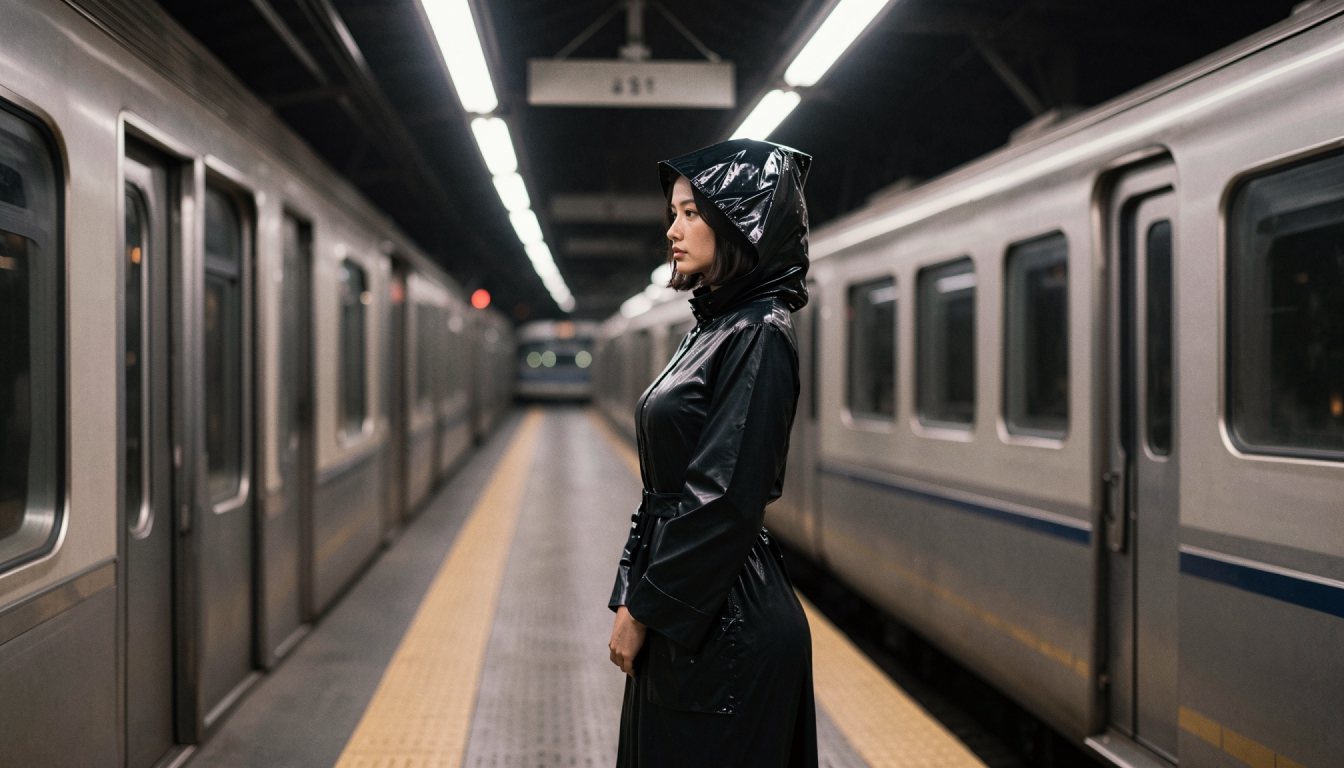
How to Generate AI Video from a Text Prompt
Create a short AI video directly from text with subject, setting, movement, camera direction and practical retry steps. No first frame required.
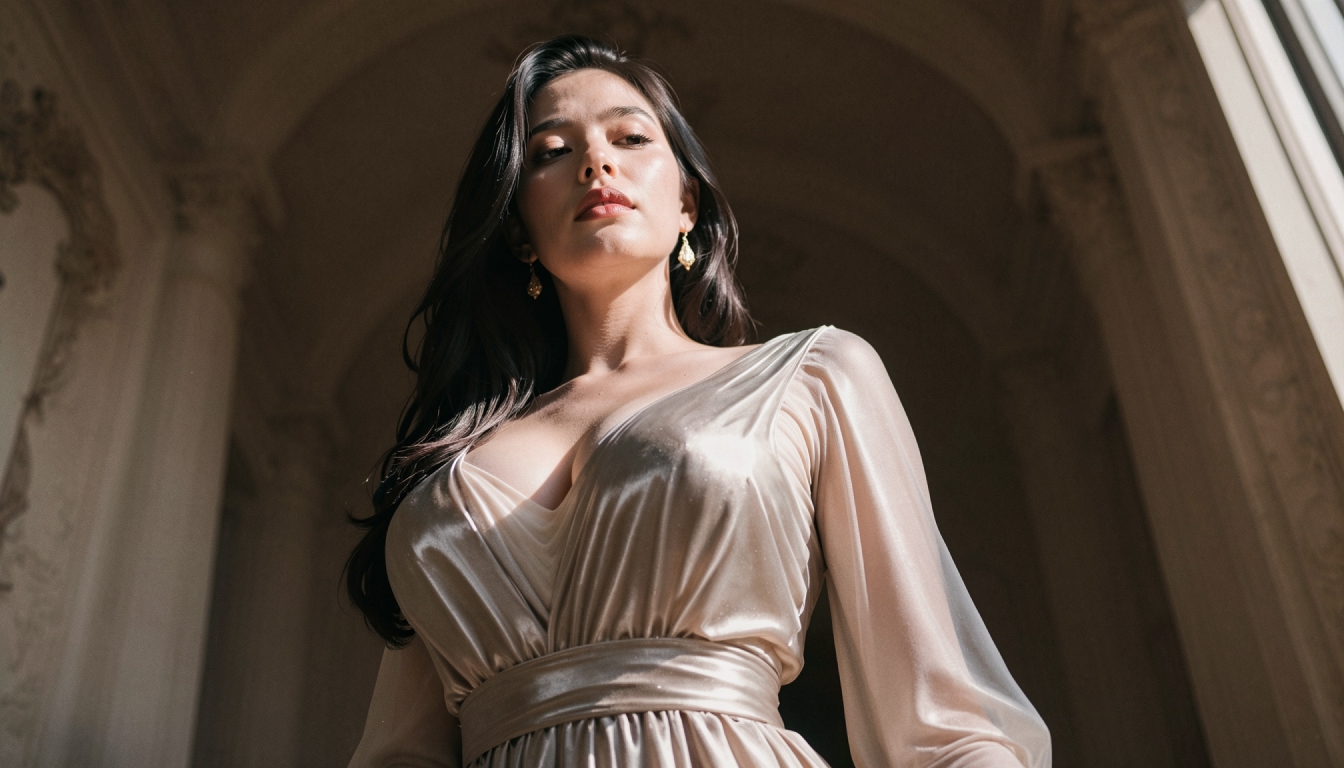
Enhanced Video
Learn when to use PornX Enhanced Video after generation to sharpen a finished clip, reduce artifacts and compare the refined version with the original.
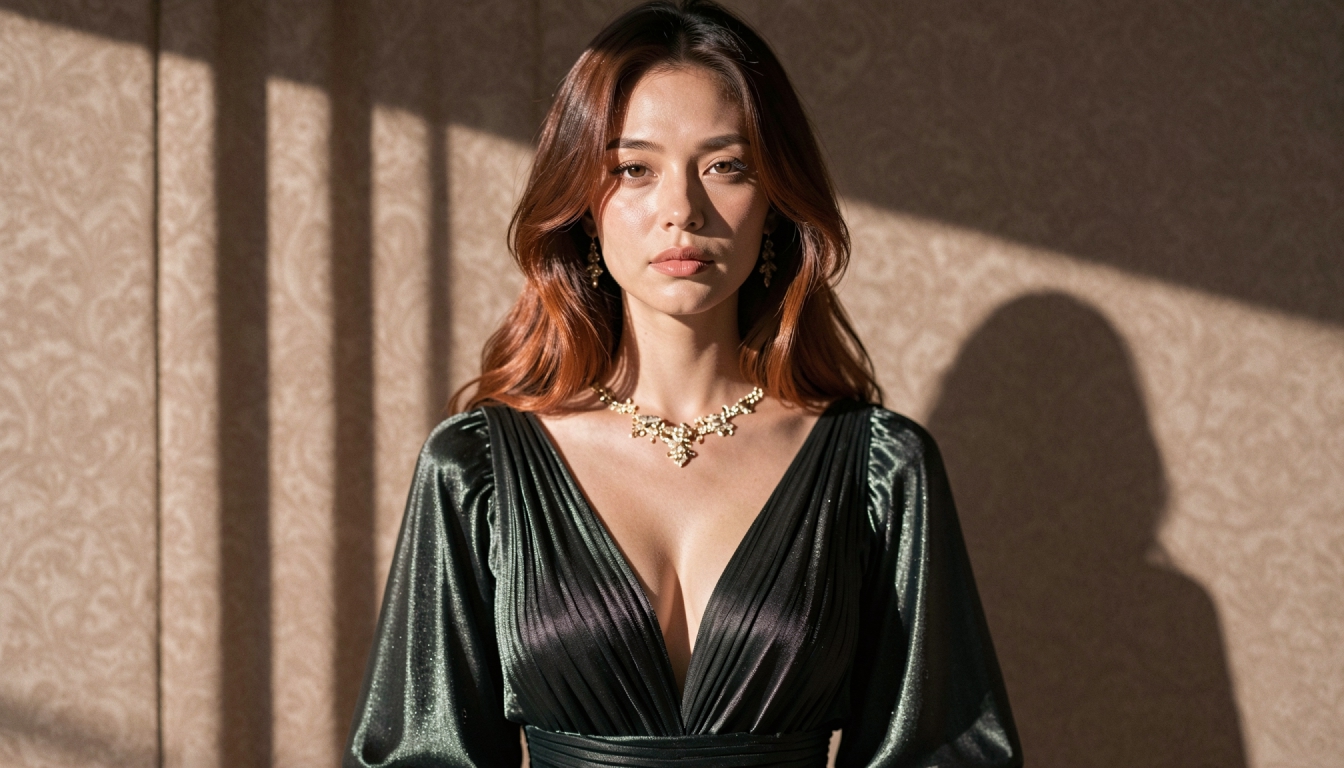
AI Prompt Enhancer
Explore PornX Prompt Enhancer and learn how to improve short image prompts, when to turn enhancement off and how to keep visual instructions intentional.