NSFW Image to Video: Turn an AI Image Into Motion
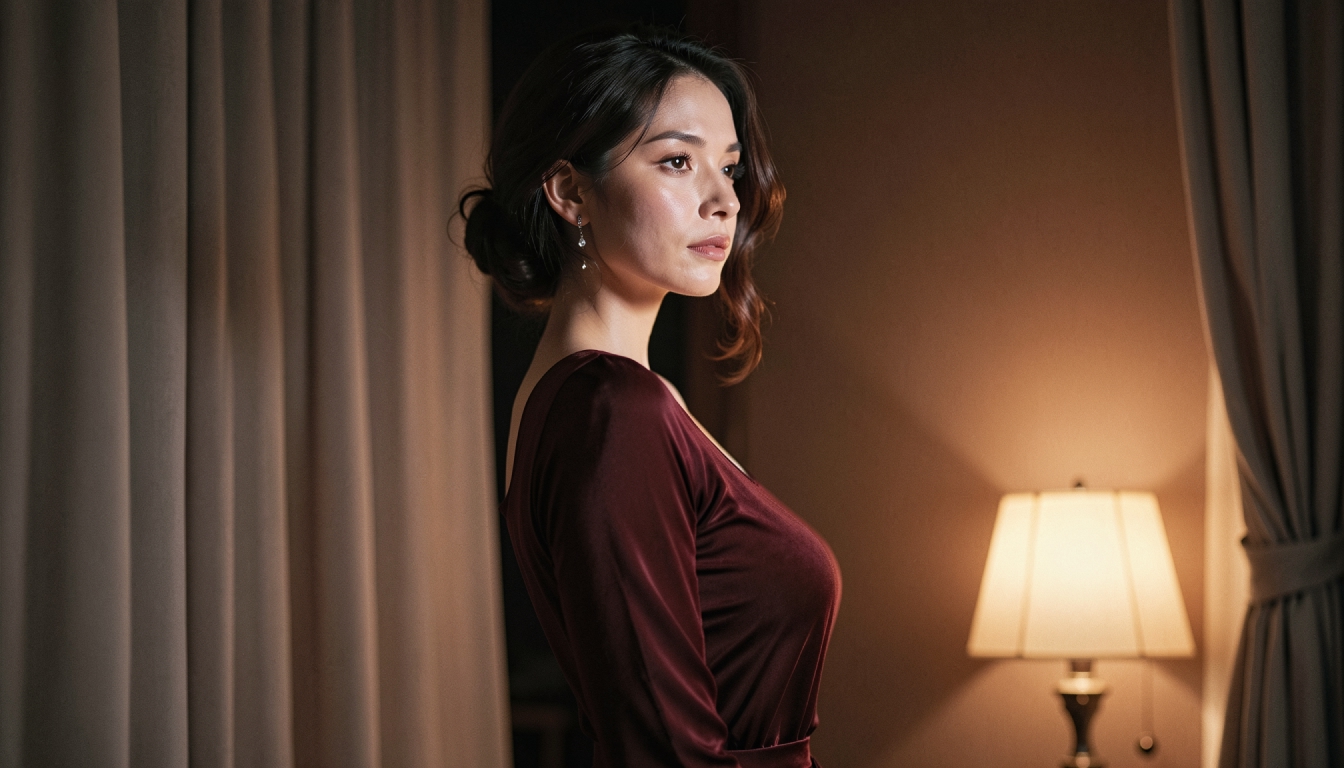
A single AI-generated image can establish a character, a setting and a visual mood. Video adds movement: a change in expression, the motion of fabric, a shift in camera position or a moment of action. If you already have an original adult character image that looks the way you want, NSFW image-to-video gives you a way to develop that still frame into a short animated clip.
PornX offers an Image-to-Video workflow built around a generated first frame. You create and save the image, open a video session, select Image-to-Video and write a prompt describing motion. That separation matters: the image establishes how the scene looks, while the video prompt tells the system what should change. Results remain AI-generated and can vary between attempts.
Ready to animate your image? create an AI video on PornX and check the available modes, token balance and current access terms before generating.
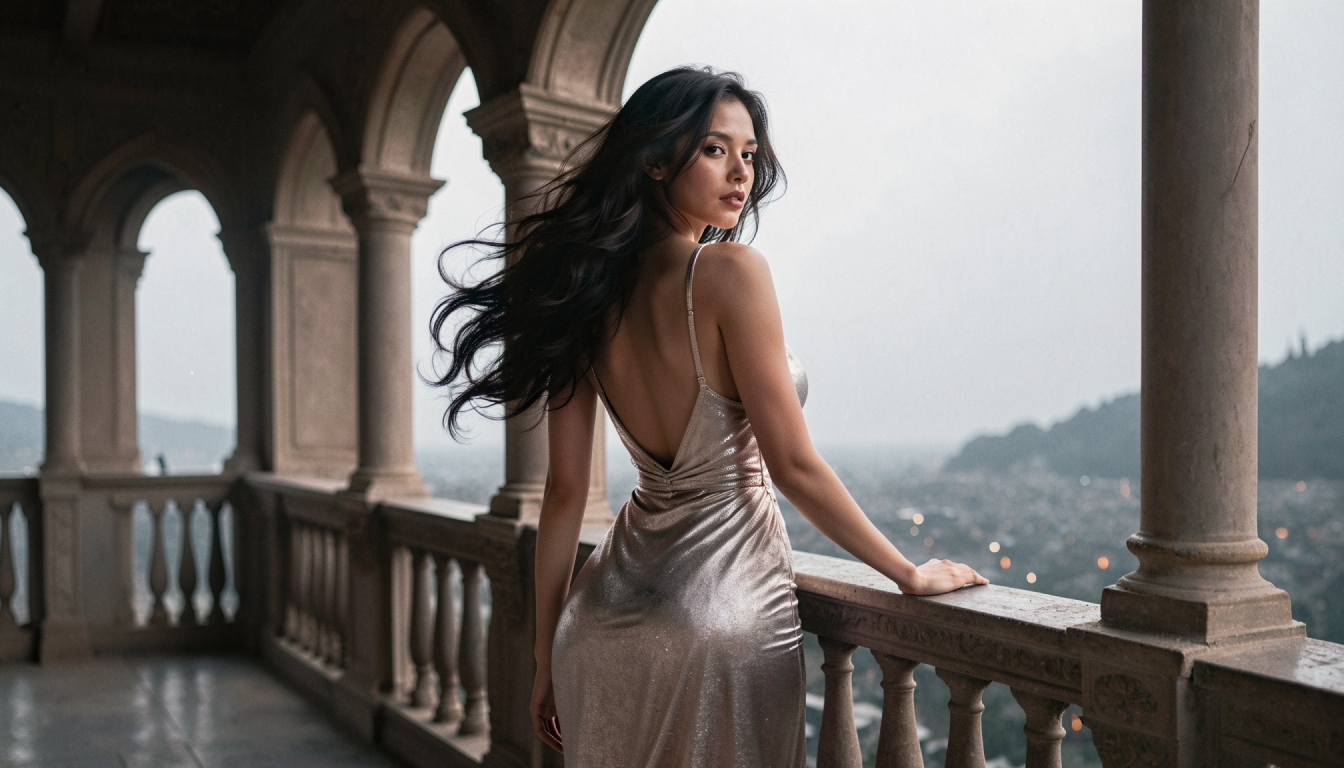
How Does NSFW Image-to-Video Work?
Image-to-video uses an existing AI image as the visual starting point for a clip. On PornX, the documented workflow animates a saved image from your gallery, rather than requiring you to describe every visual detail again. The current Wiki describes clips with a maximum duration of five seconds; check the live generator if that limit changes.
This is why image-to-video suits character-focused work. A prepared first frame helps preserve the initial composition, clothing, lighting and character appearance. It does not guarantee perfect consistency in every frame, but it gives the animation process a concrete visual reference. Read more about how image-to-video works if you want the feature overview before starting.
Image-to-video also differs from a general AI porn video generator landing page. Here, the intent is specifically to animate a pre-existing, original AI visual. If you do not have a suitable still frame and would rather describe a new shot from scratch, you can generate video from text instead.
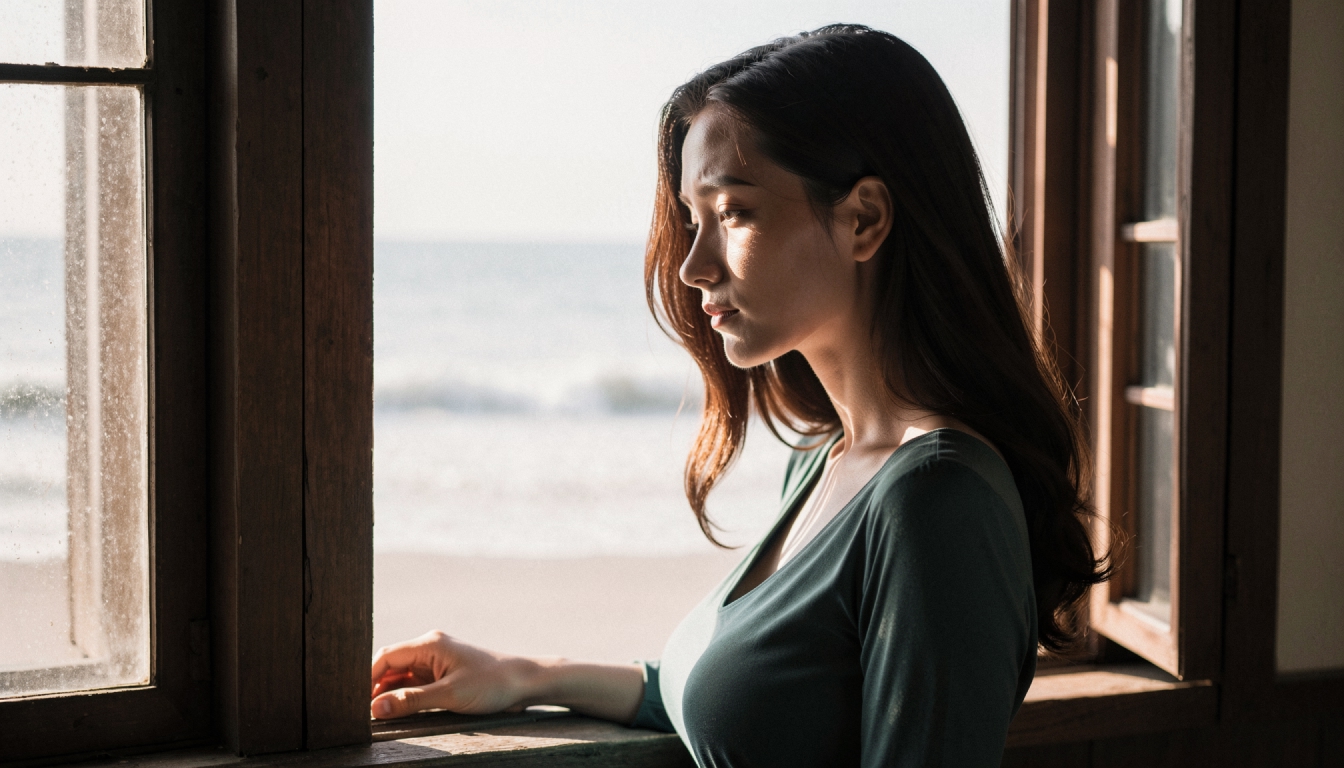
Create Your First Clip in Five Steps
Step 1. Prepare an image you want to animate
Start with an AI-generated image that clearly establishes an adult fictional character and an appropriate setting. For the first experiment, use a mid-shot or full-body view, a relatively simple background and soft lighting. Crowded scenes and extreme close-ups can be more difficult to animate smoothly.
Step 2. Save the first frame to your gallery
In the documented PornX workflow, you generate an image and save it to your gallery. That saved image becomes the first frame selected inside the video generator. Keep the image available while you test different movements; comparing variations is easier when the starting frame stays the same.
Step 3. Open a video session and select Image-to-Video
In PornX Video, create or open a Session, choose Image-to-Video and select the saved image. Follow any resolution matching instructions shown in the product. The Wiki notes that the chosen video resolution must match the source image, so check that before launching a render.
Step 4. Describe movement, not the entire picture
A useful motion prompt describes the action and camera behavior. It does not need to repeat the character's full appearance, because the image already supplies that information. Compare these examples:
- Subtle portrait animation: “The adult fictional character turns her head slightly, loose hair moves in a gentle breeze, slow camera push-in, steady natural motion.”
- Environmental movement: “The character looks toward the window, curtains shift softly, gradual pan to the right, stable framing.”
- Cinematic movement: “A slow step forward, a subtle change in expression, controlled camera pullback, soft background motion.”
If you want more variations to adapt, browse image-to-video prompt examples. For the full process, the guide to animating AI images explains how to prepare the first frame and refine a clip.
Step 5. Generate, review and refine
Inspect whether the subject moves naturally, whether the face stays recognizable and whether the background remains stable. A second attempt with a simpler motion request is often more useful than adding several actions at once. Video generation uses tokens; consult the live pricing and balance screens for current costs.
Make the First Frame Work Harder
The first image is the most important piece of input you control. The documentation recommends a simple background, an appropriate pose and gentle lighting, all of which can reduce visual confusion when the model animates the frame. Think about the intended motion before you generate the picture. A character who is already leaning toward a door is easier to animate walking into a new moment than one posed rigidly in a tightly cropped portrait.
Framing affects the result as well. A close-up can be useful for a small facial movement, but it leaves little room for larger actions. A medium shot creates space for gestures and shifts of posture. Where possible, keep the movement small enough to suit a brief clip instead of trying to describe a whole film sequence.
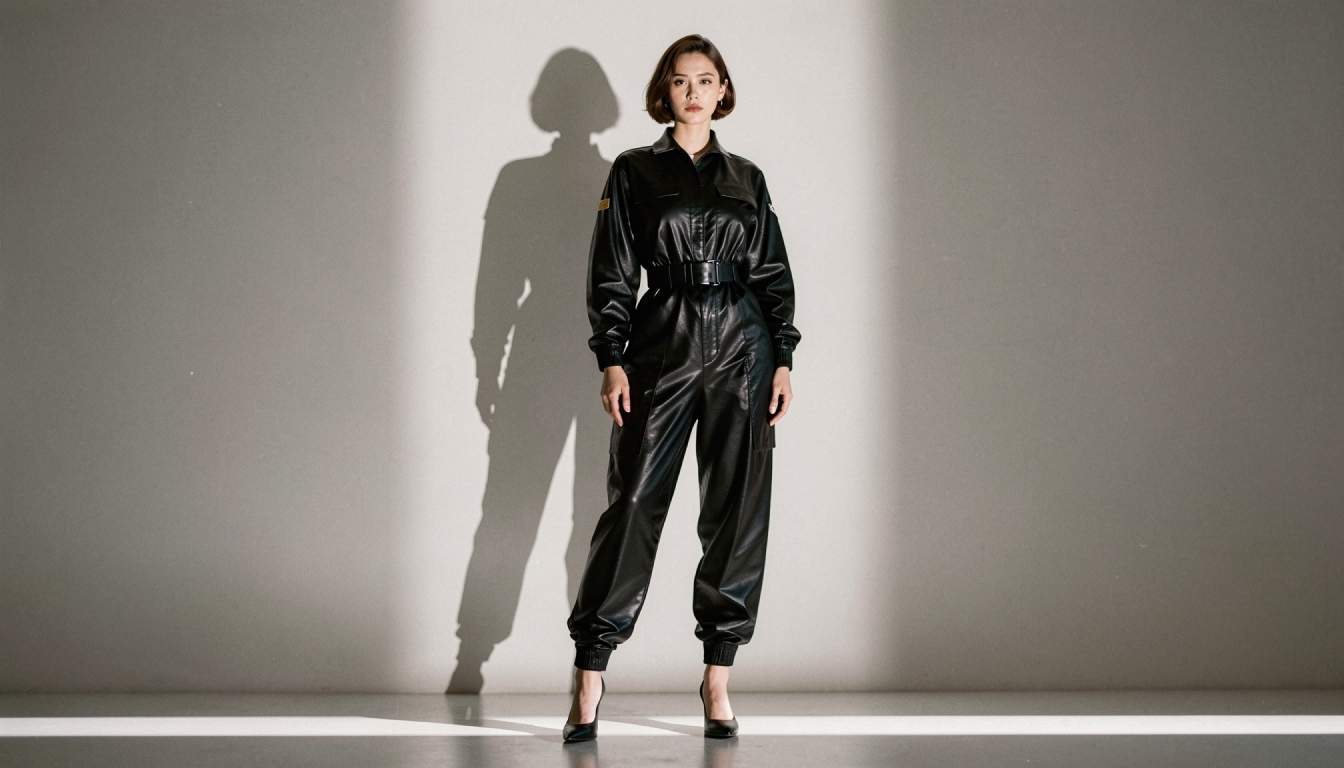
Anime or Realistic Image-to-Video?
The right visual approach depends on your first frame. If the image uses stylized illustration, explore anime image-to-video creation for techniques that preserve drawn shapes and expressive silhouettes. For photographic character concepts, realistic image-to-video creation focuses on natural-looking motion and a more lifelike presentation.
Neither look automatically guarantees better motion. Your character design, the complexity of the scene, the animation prompt and the available video mode all matter. Choose the style that matches the image you already have rather than converting the visual direction midway through an animation experiment.
How to Improve an Awkward Result
The motion is barely visible. Add a specific action such as “turns toward camera” or “takes one small step.” Abstract words such as “cinematic” do not tell the model what should move.
The character changes appearance. Keep the same first frame, reduce competing movements and try a simpler scene. AI generation cannot promise frame-perfect identity preservation.
The background distorts. Rebuild the first frame with fewer overlapping objects or softer lighting. Avoid unnecessary simultaneous camera and subject motion.
You are unsure which generator to choose. Start with the visual reference you need. A specific existing image favors Image-to-Video; a new scene idea without a reference image favors Text-to-Video. You can also compare workflows in the review of best image-to-video AI tools.
NSFW Image-to-Video FAQs
Start With a Strong First Frame
The easiest way to test NSFW image-to-video is to create one original adult character image, save it, write a simple movement prompt and evaluate the clip before making changes. Keep the first frame stable while comparing a few motion variations. It is a controlled creative process, not a guarantee that every video will be perfect on the first render.
Create an AI video on PornXDiscover more
Keep exploring with related tools, features and step-by-step guides.
AI Image to Video
Explore PornX Image-to-Video. Prepare a clear first frame, guide motion, make a short AI clip and find tips for improving animation quality.
How to Turn an AI Image into Video Step by Step
Animate a saved AI image with Image-to-Video. Learn first-frame preparation, matching resolution, motion prompts and useful troubleshooting.
Enhanced Video
Learn when to use PornX Enhanced Video after generation to sharpen a finished clip, reduce artifacts and compare the refined version with the original.
Private AI Generation
Learn how PornX Private Generation works, how to enable it before generating, what stays out of the public gallery and why Premium access matters.