NSFW AI Image Editor: Refine Your AI-Generated Images
A generated image can be close to the result you want without being quite right. Perhaps the outfit needs a small adjustment, the background feels distracting or a specific detail needs another pass. Starting from scratch may lose the composition you liked in the first place. An NSFW AI image editor gives you a more focused way to refine original AI-generated adult artwork.
PornX's editing experience is built around improving a generated image instead of replacing the entire concept automatically. Its documentation lists Inpaint, Reimagine, Upscale and Upscale Pro within the Edit page. These functions solve different problems: local adjustments, broader reinterpretations and detail or resolution improvements. The actual controls and availability may depend on the live editor and account.
Already have an image to improve? open the PornX image editor and choose the supported editing workflow that matches your goal.
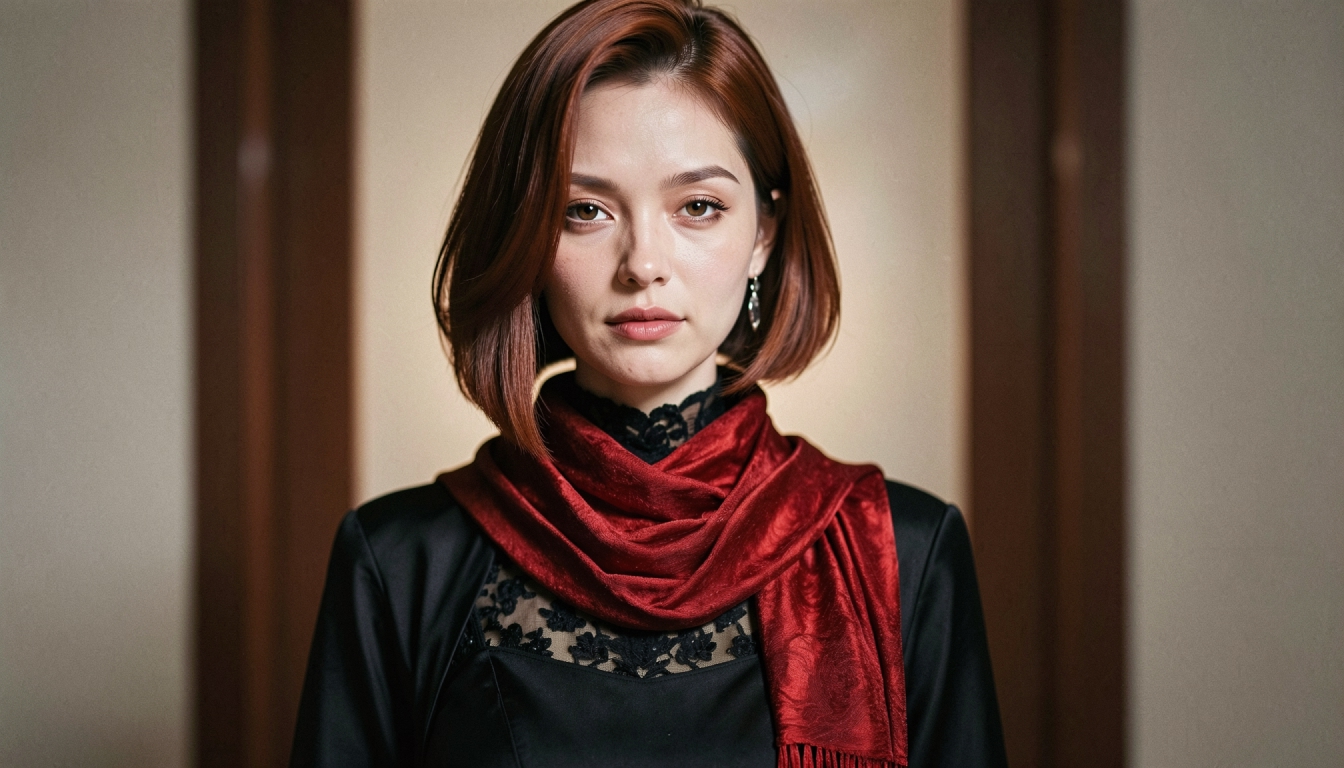
What Can You Do With an AI Image Editor?
The central benefit of editing is control over the revision. When the subject, framing and lighting are already close to your intention, you can focus on what needs to change. That is different from a new generation, where the model may alter the entire scene while trying to satisfy a revised prompt.
For example, you might want to adjust the color of a fictional adult character's jacket, simplify a busy background or make details appear sharper. Each goal suggests a different method. The basic choices are edit one area, reimagine the overall image or enhance the existing output.
If you want to generate a completely new scene instead of revising one, explore the existing NSFW AI image generator. That landing page is about making an image from a creative description; this page is specifically about the editing stage.
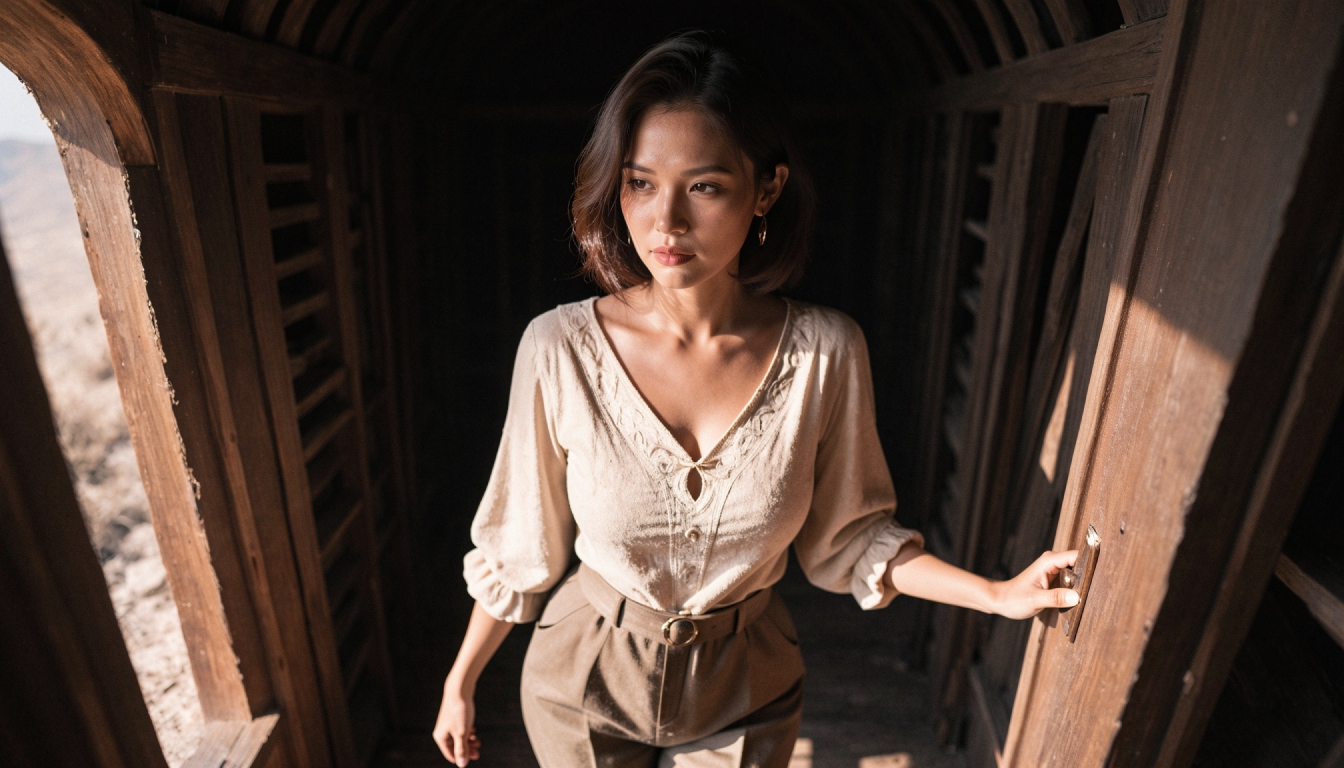
Inpaint: Change a Specific Part of an Image
Inpainting is useful when most of an image already works. It lets you identify a region to change while attempting to preserve the surrounding composition. On PornX, the public product overview describes selecting an area and asking AI to modify that part. The exact editing interface should be verified at launch.
A focused edit request is easier to evaluate than an open-ended instruction. For a fictional adult portrait, examples of non-graphic edits might be changing a sleeve color, refining the background around the character or adjusting a small accessory. Keep the requested change local and realistic for the composition. Broadly rewriting the entire scene while masking a tiny region can create mismatched results.
For a closer look at the tool, explore AI inpainting tools. The tutorial on how to edit a specific image area shows why selecting the right region and describing the change precisely matter.
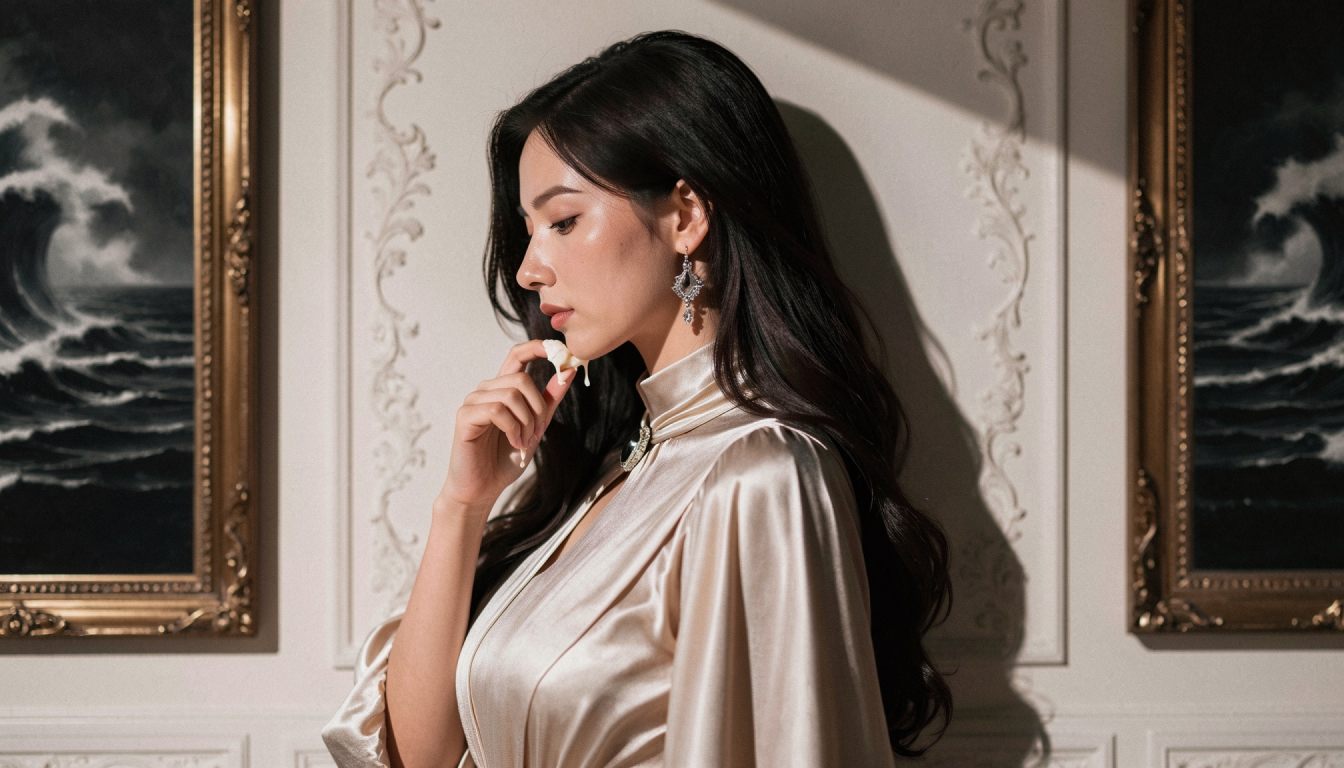
Reimagine: Explore a New Direction From an Existing Image
Sometimes one localized edit is not enough. You may want a different mood or creative interpretation while using the existing generation as a starting point. PornX's Edit documentation lists Reimagine for this broader kind of revision.
Before using it, decide what makes the source image worth keeping. Is it the character's general appearance, pose, palette or composition? Then describe the aspect you want to explore rather than giving an unrelated new prompt. Compare the result against the original and be prepared for larger differences than a small inpainting change would produce.
For example, an original adult fictional portrait with soft daytime lighting might inspire an evening variation with a warmer color palette and more atmospheric background. That is a change of presentation, not an invitation to use real photos or attempt to copy another person's identity.
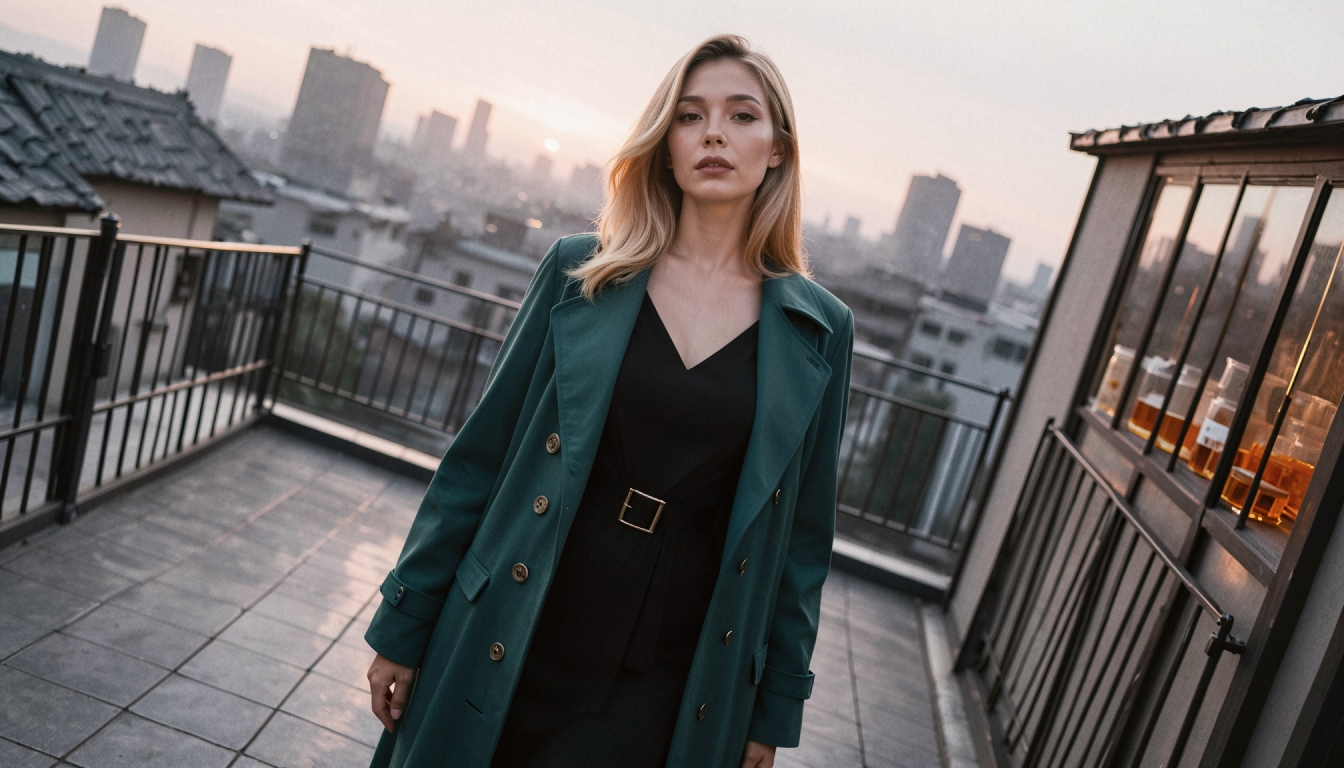
Upscale: Improve Detail and Presentation
When the composition is correct but the finished image looks soft or too small for the intended presentation, an upscaling workflow may be more useful than generating another scene. PornX lists Upscale and Upscale Pro on its Edit page. Their processing behavior, token costs and plan access must be checked in the current product.
Upscaling cannot magically recover every feature that was never clearly generated. It may make details look sharper, but the image can still contain structural issues that require a local edit or a new generation. Choose AI image upscaling for an overview of the enhancement approach, or explore the more targeted NSFW AI image upscaler page for that specific goal.
If the original output is visibly soft, the guide on how to fix blurry generated images can help you decide whether the issue is resolution, focus, excessive detail or an unsuitable starting image.
A Practical Editing Workflow
- 01
Inspect the generated image
Before touching the editor, identify the problem precisely. Ask whether the issue is local, global or related to sharpness. Editing becomes easier when each pass has one purpose.
- 02
Select the right mode
Choose Inpaint for a small region, Reimagine for a broader visual reinterpretation or an available upscaling mode when the goal is output detail. Avoid changing every aspect of the image at once; it becomes difficult to tell which revision helped.
- 03
Describe the intended difference
A good edit request is short and concrete. “Change the jacket from navy to dark green while keeping the surrounding lighting consistent” is more testable than “make everything perfect.” If the model is producing unwanted details, consult negative prompt examples to see how exclusions can be written where the particular mode supports them. Do not assume every editing mode accepts negative prompts.
- 04
Generate a version and compare
Review the edited region at normal viewing size and then at closer zoom. Look for inconsistent edges, mismatched lighting or unwanted changes outside the target area. Save the version you prefer before making another round of edits.
- 05
Finish rather than endlessly revising
If two or three small changes leave the image less coherent, return to a stronger earlier version. AI editing is an iterative process, and more modifications are not automatically an improvement. A simpler prompt or larger, cleaner source image may solve the problem better.
Editing and Safety: What Can Be Used?
Use original, fictional, unmistakably adult AI-generated images in accordance with PornX rules and any applicable rights. The platform prohibits real-person likenesses and nonconsensual intimate imagery, including attempts to alter real photographs into explicit images. Do not treat an AI editor as a tool for changing a real person's body, face or identity without consent.
PornX also applies content policies to images, videos and character media. Check the current Community Guidelines and publishing rules before starting or sharing an edited image. Editing controls are not a way to bypass moderation or restrictions.
NSFW AI Image Editor FAQs
Keep the Parts of Your Image That Already Work
The advantage of an editor is not that every image can be repaired perfectly. It is that you can make a targeted decision: change one detail, reinterpret a scene or improve the final output. Start by defining your problem, select the matching edit mode and evaluate each revision on its own merits.
For original adult AI imagery, a careful edit can be more efficient than abandoning a strong composition and beginning again.
Discover more
Keep exploring with related tools, features and step-by-step guides.
AI Inpainting
Explore AI inpainting on PornX. Select an area to refine, describe the replacement and keep the rest of your original AI image as a visual reference.
AI Image Upscaling
Explore image upscaling on PornX. Learn when to increase resolution, when to regenerate a flawed picture and how to prepare clearer output for reuse.
How to Use AI Inpainting to Edit an Image
Fix part of an AI image with inpainting. Learn how to select a region, describe the replacement and keep surrounding lighting and composition coherent.
AI Prompt Enhancer
Explore PornX Prompt Enhancer and learn how to improve short image prompts, when to turn enhancement off and how to keep visual instructions intentional.