AI Inpainting: Change Part of an Image, Not the Whole Scene
A generated image may be close to the result you wanted but still have one distracting detail: a distorted sleeve, a background object that looks out of place, or an unwanted mark on the floor. AI inpainting addresses this kind of localized revision. Rather than starting a new picture from scratch, you select an area to change and describe what belongs there.
PornX documents editing tools for existing AI images, including Inpaint, Reimagine, Upscale and Upscale Pro. These are different actions with different purposes. Inpaint focuses on a region; Reimagine revisits the interpretation of an image; upscaling addresses resolution and clarity. For more product capabilities, see PornX features.
Have a saved image that needs a targeted adjustment? use the PornX image editor to inspect the current editing tools. For new images rather than edits, the existing AI porn generator covers the generation workflow.
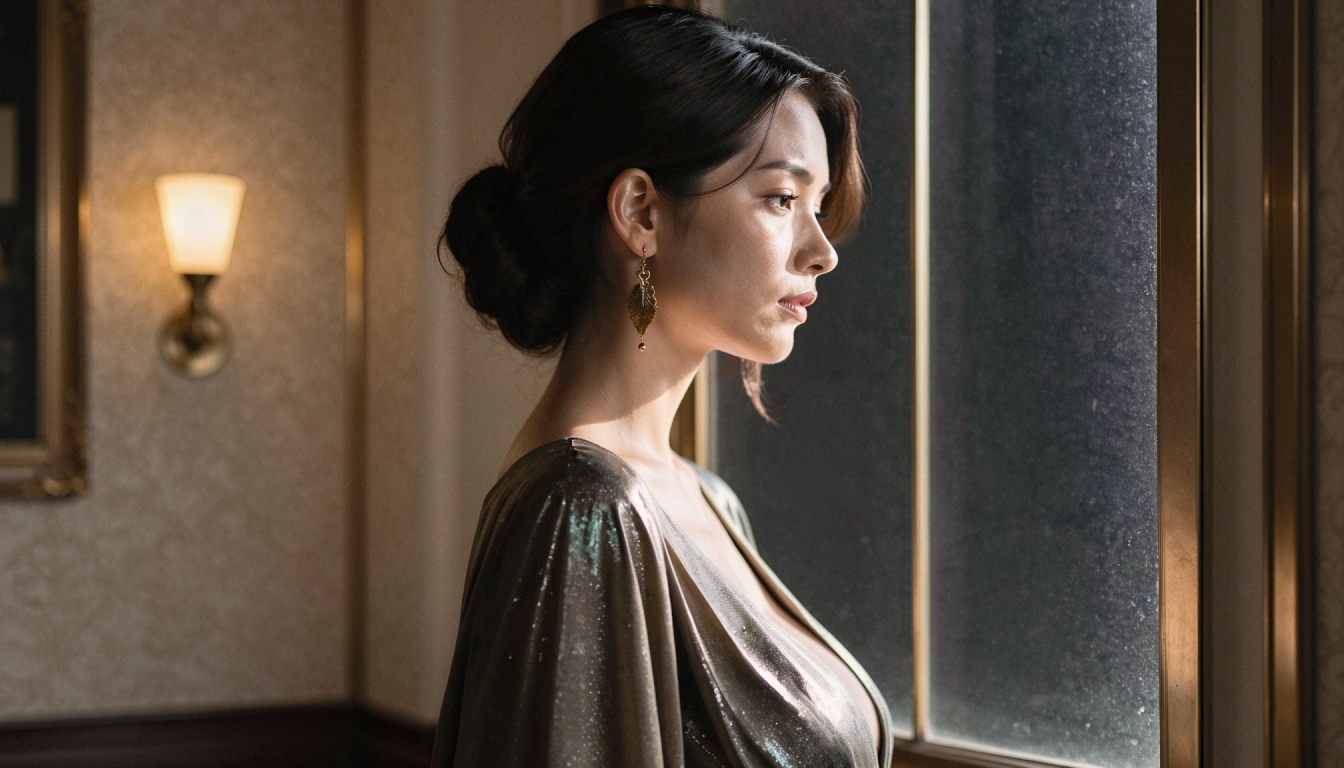
When Should You Use Inpainting?
Inpainting makes sense when most of the image already works. Maybe you like the character's expression and lighting but need to simplify the background, repair an accessory, or replace a small environmental detail. Re-running the whole prompt can change everything, including the parts you wanted to keep. A localized edit offers a more controlled first attempt, though generative output is still variable.
Do not expect a small painted region to solve a composition problem that affects the whole scene. If the camera angle, character pose or central subject is wrong, generating a new version may be easier than repeatedly patching many different areas.
The broader NSFW AI image editor page compares the possible editing tasks. This article is dedicated to the inpainting decision: what to select, how much context to give and when to stop refining.
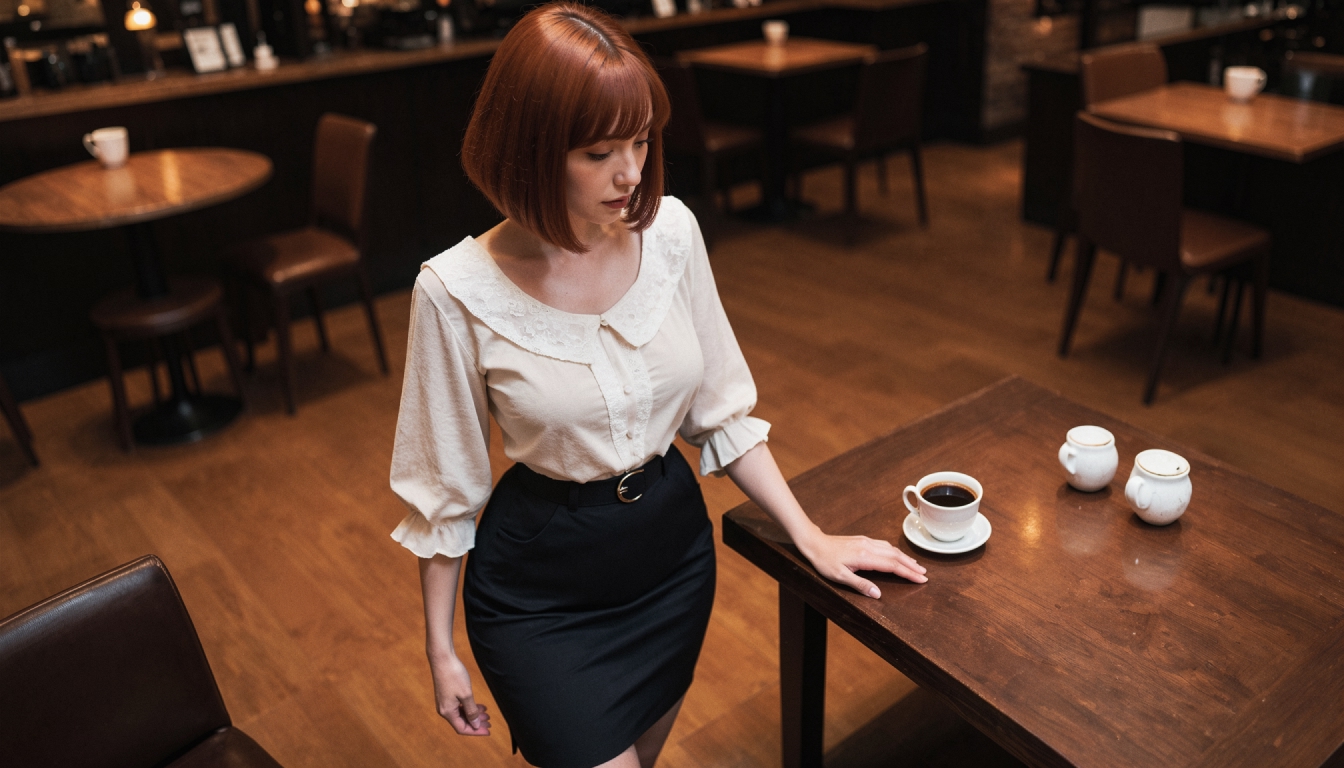
A Practical Inpainting Process
Choose the image and isolate the change
Open the image in the appropriate PornX editing workflow. Identify the smallest meaningful area that contains the unwanted detail, with enough surrounding context for the replacement to fit the scene. If you mask too narrowly, the replacement may have an awkward boundary; if you select too much, the model may alter content you intended to preserve.
Describe what should appear in the region
Use a direct statement about the replacement rather than rewriting the whole prompt. Example: "Replace the blurred object on the table with a small brass lamp; match the warm light and perspective." The sentence tells the model what to draw and how it should sit in the picture. Keep descriptions suitable for original fictional adults and avoid imitating identifiable real people.
Generate and compare against the original
After the attempt finishes, look at the boundary between edited and untouched areas. Does the lighting match? Are straight edges aligned? Does the replaced detail cast a plausible shadow? Keep the original so you can compare whether the local fix actually improves the image.
If you have not used this approach before, the step-by-step how to use AI inpainting guide focuses on the sequence of edits rather than the marketing overview.
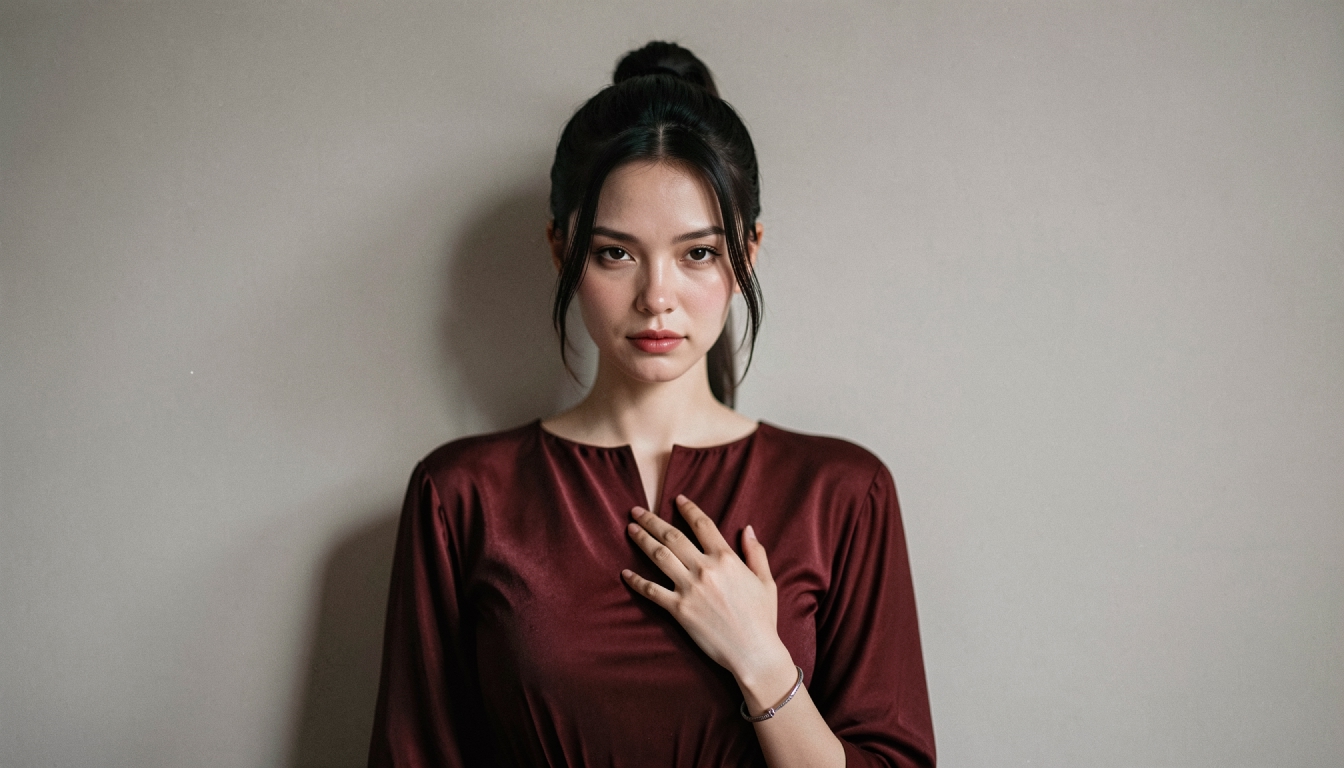
Inpaint, Upscale or Regenerate?
Choose Inpaint when a local feature is wrong, upscale when the overall picture looks soft but otherwise works, and regenerate when the whole composition is unsuitable. An enhanced-resolution image is not automatically a corrected image; a larger distorted hand is still distorted. The AI image upscaling page explains the separate role of resolution improvements.
If you are deciding between corrections because an output is unclear, read the practical guide to fixing blurry AI images. It helps distinguish an image that is too small or soft from one whose structure needs another generation pass.
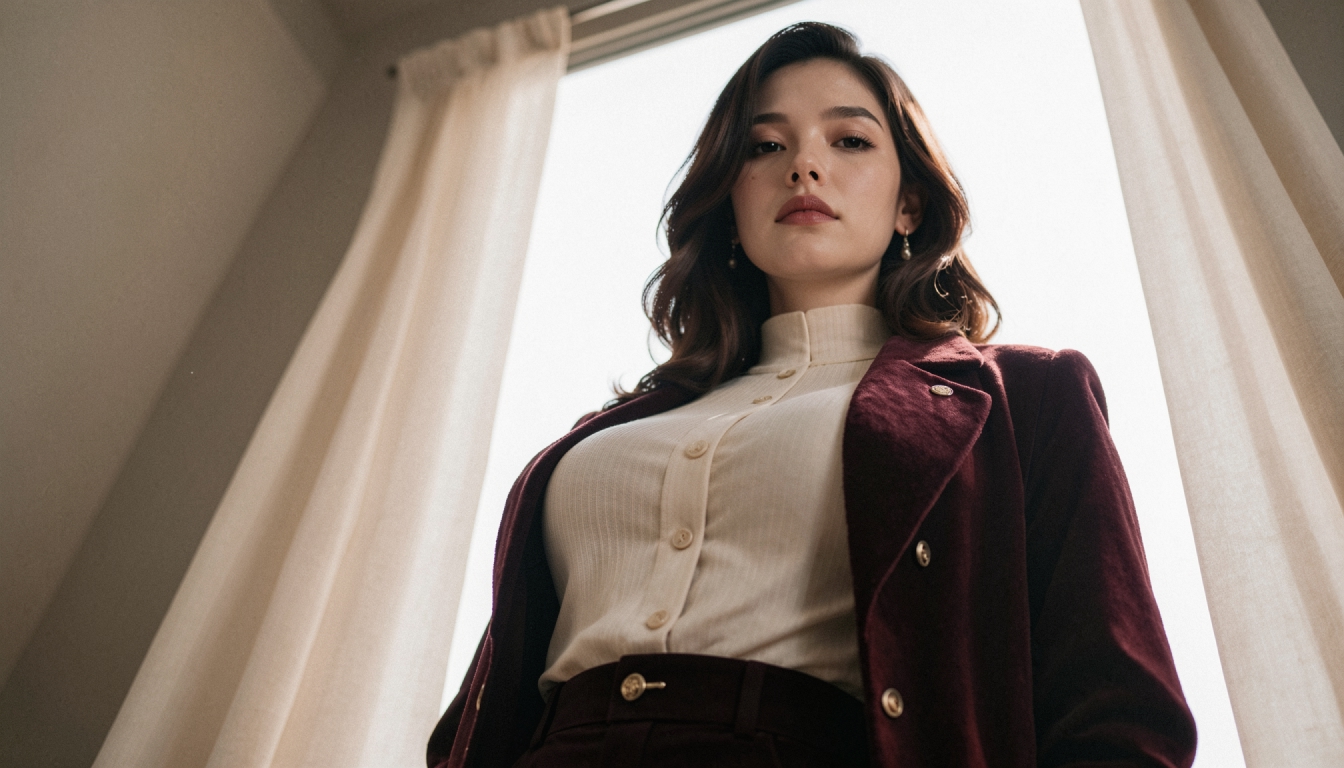
Example Edits That Keep the Scene Coherent
Background simplification. You have an original adult character portrait with a cluttered corner. Select the distracting objects and ask for a plain wall with lighting consistent with the rest of the room. This keeps the central character as the visual priority.
Accessory replacement. A character holds a distorted prop. Select the prop and its immediate surroundings, then describe a clear replacement that makes sense with the pose. Avoid changing the character's face and clothing at the same time unless the edit genuinely requires it.
Local texture repair. A jacket seam or piece of fabric has an unnatural edge. Request a corrected seam and compatible material texture. If the flaw repeats across the image, it may be better to go back to the image generation prompt and test a simpler composition.
For wider prompt repair techniques, negative prompt examples provides examples of constraints you can use when generating a new base image, though those are not a substitute for editing a specific region.
Why Some Inpainting Attempts Look Artificial
A replacement may fail because the selection is too large, the request ignores perspective, or the region does not have enough context. Try expanding the affected area slightly, simplifying the replacement description, or choosing an object with a form that fits the existing viewpoint. Check whether the problem is in the masked area or in an adjacent structure outside the selection.
If repeated local edits make the picture less cohesive, go back to the original. Editing is a process of informed experiments, not a guarantee that every pass produces a better result. For a cleaner starting image, consider image upscaling only when sharpness, rather than content, is the main issue.
AI Inpainting FAQs
Discover more
Keep exploring with related tools, features and step-by-step guides.
How to Use AI Inpainting to Edit an Image
Fix part of an AI image with inpainting. Learn how to select a region, describe the replacement and keep surrounding lighting and composition coherent.
AI Image Upscaling
Explore image upscaling on PornX. Learn when to increase resolution, when to regenerate a flawed picture and how to prepare clearer output for reuse.
NSFW AI Image Editor
Refine original adult AI images on PornX with Inpaint, Reimagine and upscaling options. Learn when to edit an area, adjust a scene or improve detail.
Private AI Generation
Learn how PornX Private Generation works, how to enable it before generating, what stays out of the public gallery and why Premium access matters.