How to Use AI Inpainting for Precise Image Corrections
A promising AI image can be ruined by a single odd detail: a warped accessory, an unwanted sign, or a background object that clashes with the rest of the scene. Regenerating the entire image may fix that detail but lose the expression, lighting and composition that made the original worth keeping.
AI inpainting is designed for local corrections. You select the area that needs changing and describe the replacement while using the rest of the image as context. The technique works best when the correction is specific and the selected area includes enough surrounding information for the new pixels to blend naturally.
For related tutorials on other parts of the workflow, browse AI generation tutorials.
Quick Answer
Open the image in the editor, select Inpaint, mark the affected region and write a short description of what should replace it. Keep the selection focused but include a little surrounding area for clean blending. Review edges, lighting and perspective; repeat with a refined mask only if necessary.
Get started: If a finished image needs refinement, use the PornX image editor and preserve the source for comparison.
Step 1: Choose an image worth preserving
First decide whether inpainting is the correct tool. If the subject, pose and lighting already work, local editing is a strong choice. If the entire frame is wrong, a fresh generation will be faster and more coherent. Save your original image before beginning so you can compare versions and return to a successful composition if the edit goes in the wrong direction.
To learn how resolution enhancement is offered in the product, review AI image upscaling.

Step 2: Mark only the area that needs changing
Select the unwanted object, distorted accessory or small region in the Inpaint interface. Include a narrow margin around edges that need blending, such as a sleeve near the hand or an object against a wall. An overly tight selection may leave a visible seam; an enormous selection can invite unnecessary changes in nearby details. Avoid covering the subject's face when the problem is only a background prop.
When a defect is localized, consider AI inpainting feature instead of rewriting the full scene.
Step 3: Describe a concrete replacement
Use a short positive instruction such as “a plain cream-colored wall with soft side lighting” or “one natural hand resting on the table.” Match the existing scene rather than introducing a completely different camera angle. You do not need to repeat the whole original prompt; the visible context already carries much of the information. Focus on what should occupy the edited area and how it should connect to its surroundings.
For examples of targeted exclusions, explore negative prompt examples.
Step 4: Check the seam and surrounding light
After the edit, inspect where the new area meets the old picture. Do shadows match? Does fabric texture continue naturally? Is the perspective consistent with the room? Small seam issues may improve by slightly widening the selection and simplifying the instruction. If the edited object introduces a new light source or a different lens perspective, remove those conflicting words from the replacement text.
Step 5: Compare versions and stop when it works
Keep a before-and-after view and avoid endless re-editing once the result is visually coherent. If each attempt makes the area worse, return to the best version and reconsider the mask. Only after the local geometry looks right should you consider upscaling for a larger final image. The goal is an image that reads naturally at normal size, not a flawless close-up of every pixel.
Worked Example: Example: removing an unwanted poster
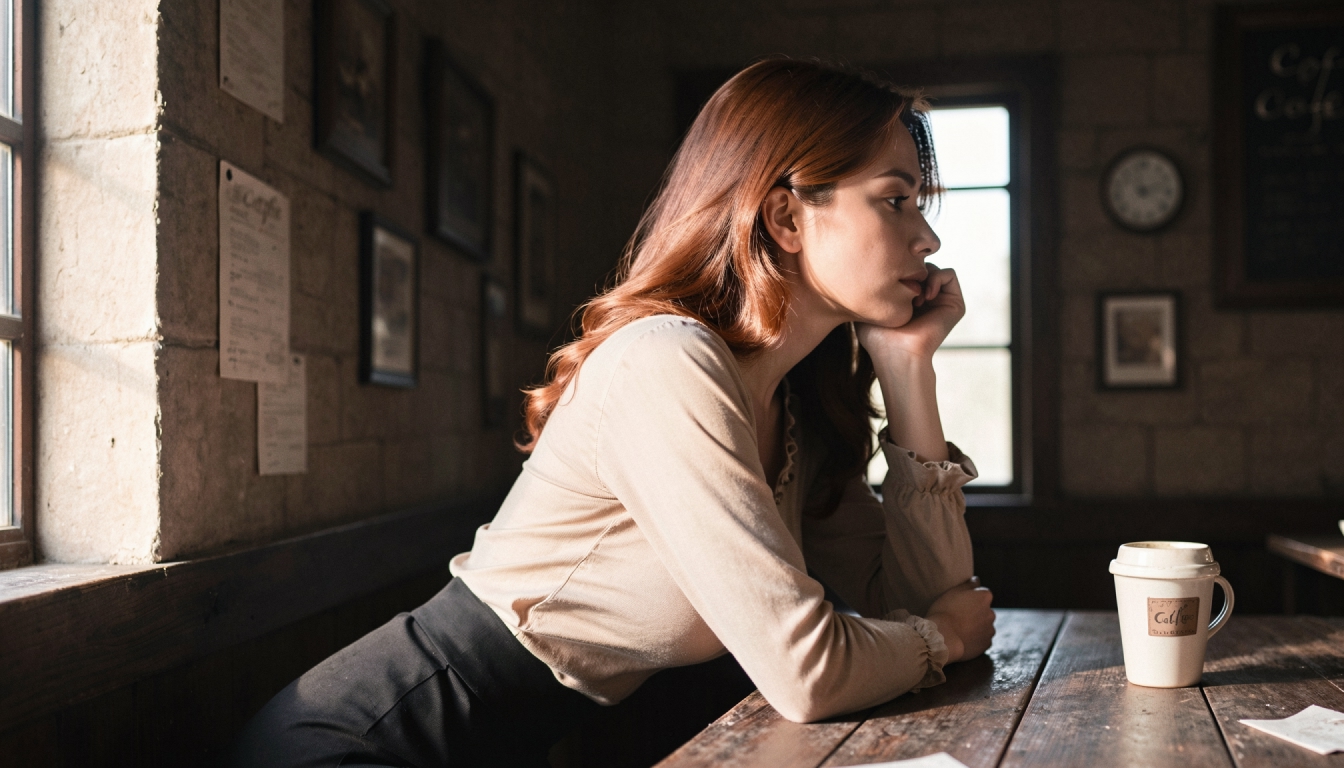
An original adult character portrait shows a café wall with a distorted text poster in the background. Select the poster and a small amount of surrounding wall. Inpaint prompt: “Simple warm plaster wall, gentle window shadow, no lettering.” Keep the character and table outside the selected region.
If the new wall is much brighter than its surroundings, repeat with “matching the room's soft afternoon light.” This is a targeted correction, so there is no reason to change the character's face or outfit.
Common Problems and What to Change
If the correction creates a visible patch, increase the margin and use a simpler replacement phrase. If the same unwanted object keeps returning, remove any reference to it from the original positive prompt. If a hand or arm joins the edited area, make sure the selection gives the model enough boundary information. Avoid using an upscaler as a substitute for replacing malformed geometry.
Explore the Next Step
To diagnose unwanted softness before editing, read fixing blurry AI images. For editing an existing mature-themed image, explore NSFW AI image editor.
Frequently Asked Questions
Put the Guide into Practice
Use the approach above to make one careful test in PornX. Keep your subject fictional and clearly adult, review the result and change one thing at a time.
Open the PornX image editorDiscover more
Keep exploring with related tools, features and step-by-step guides.
AI Inpainting
Explore AI inpainting on PornX. Select an area to refine, describe the replacement and keep the rest of your original AI image as a visual reference.
NSFW AI Image Editor
Refine original adult AI images on PornX with Inpaint, Reimagine and upscaling options. Learn when to edit an area, adjust a scene or improve detail.
Private AI Generation
Learn how PornX Private Generation works, how to enable it before generating, what stays out of the public gallery and why Premium access matters.
How to Upscale AI Images Without Losing Detail
Learn when to upscale AI-generated images, how to prepare the source and why higher resolution does not automatically fix anatomy or composition.