How to Upscale AI Images and Keep the Original Look
AI image upscaling aims to produce a higher-resolution version of an existing picture. It is most useful when the scene already looks right but needs additional size or apparent definition for close viewing. The important word is “already”: enlarging a faulty face or unnatural hand will not fix the original mistake.
A sensible upscale workflow begins with evaluating the source. Is the subject sharply defined enough to preserve? Are important edges visible? Does the lighting look intentional? Once these are sound, an upscale pass can help. If not, generation or localized editing should come first.
For related tutorials on other parts of the workflow, browse AI generation tutorials.
Quick Answer
Save a clean original, correct structural problems, then open the image editor and use Upscale when available. Compare both versions at equal size. Keep the enlarged result only if the extra detail supports the picture rather than introducing halos, plastic texture or exaggerated noise.
Get started: If a finished image needs refinement, use the PornX image editor and preserve the source for comparison.
Step 1: Select the best original image
Choose a result with the strongest face, pose and composition, not simply the largest existing file. High-resolution processing works better when the original shapes are credible. If there are duplicate objects or impossible anatomy, resolve those first. Preserve the initial image so that you can compare the processed version without losing the untouched source.
To learn how resolution enhancement is offered in the product, review AI image upscaling.
Step 2: Check your intended output dimensions
Decide where the image will appear: a compact gallery preview, a tall mobile wallpaper or a wider desktop display. More pixels help only when they serve a real size requirement. Choose a crop or ratio before generation when possible; an upscaler should not have to rescue a portrait from an unsuitable wide framing. Also avoid stretching the image after upscaling, which changes proportions rather than adding useful detail.
When a defect is localized, consider AI inpainting feature instead of rewriting the full scene.
Step 3: Run Upscale in the image-editing workflow
Open the selected image in the PornX editing area and use the available enhancement or Upscale option. Review any settings actually shown in the current interface rather than assuming that an arbitrary 2x, 4x or custom target size is supported. Preserve the source file, and let the operation finish before comparing. A larger image should still communicate the same pose and visual mood.
To diagnose unwanted softness before editing, read fixing blurry AI images.
Step 4: Inspect edges, textures and artifact growth
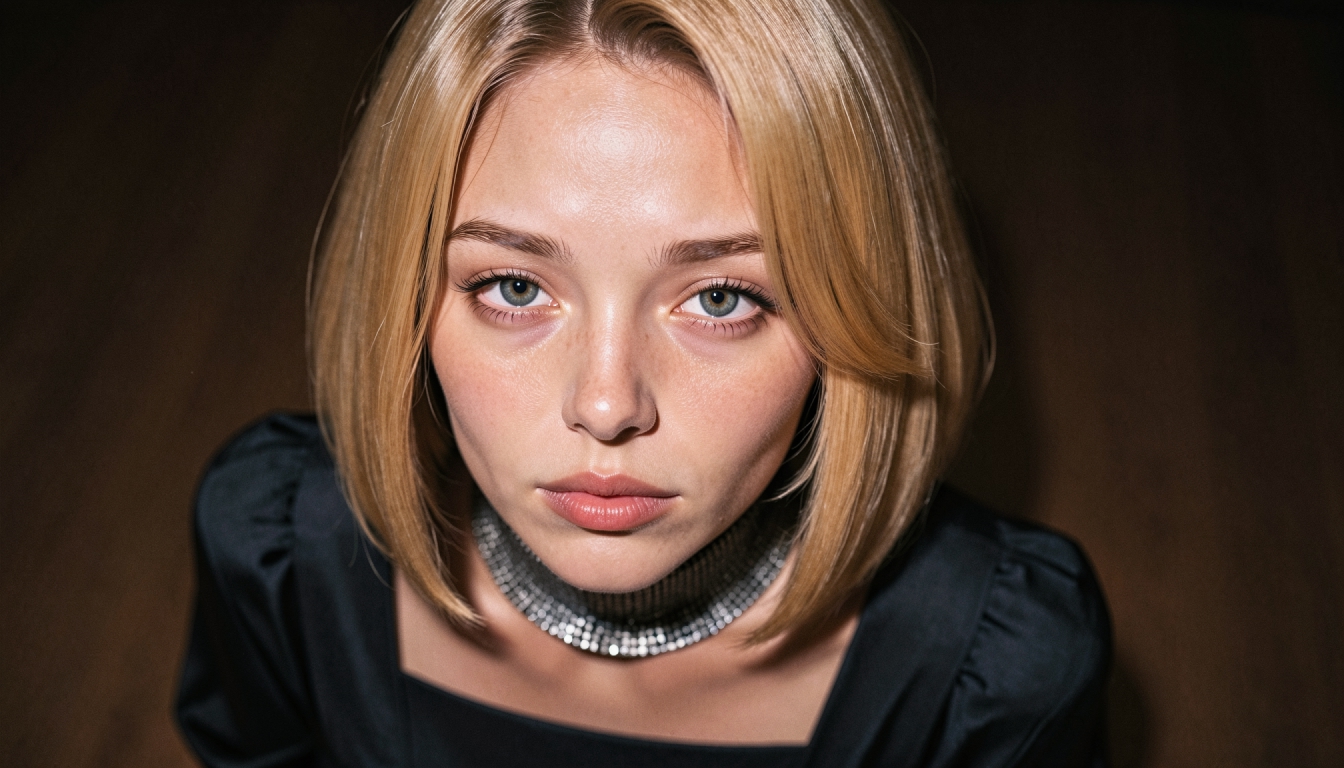
Compare the original and enhanced result at matched display sizes. Look for hair edges, eye details, fabric texture and background noise. Upscaling can produce sharper-looking detail, but it can also emphasize compression artifacts or fabricate fine texture. If the subject becomes too smooth or oversharpened, keep the original or try a cleaner base image instead of stacking additional processing passes.
Step 5: Correct remaining localized flaws separately
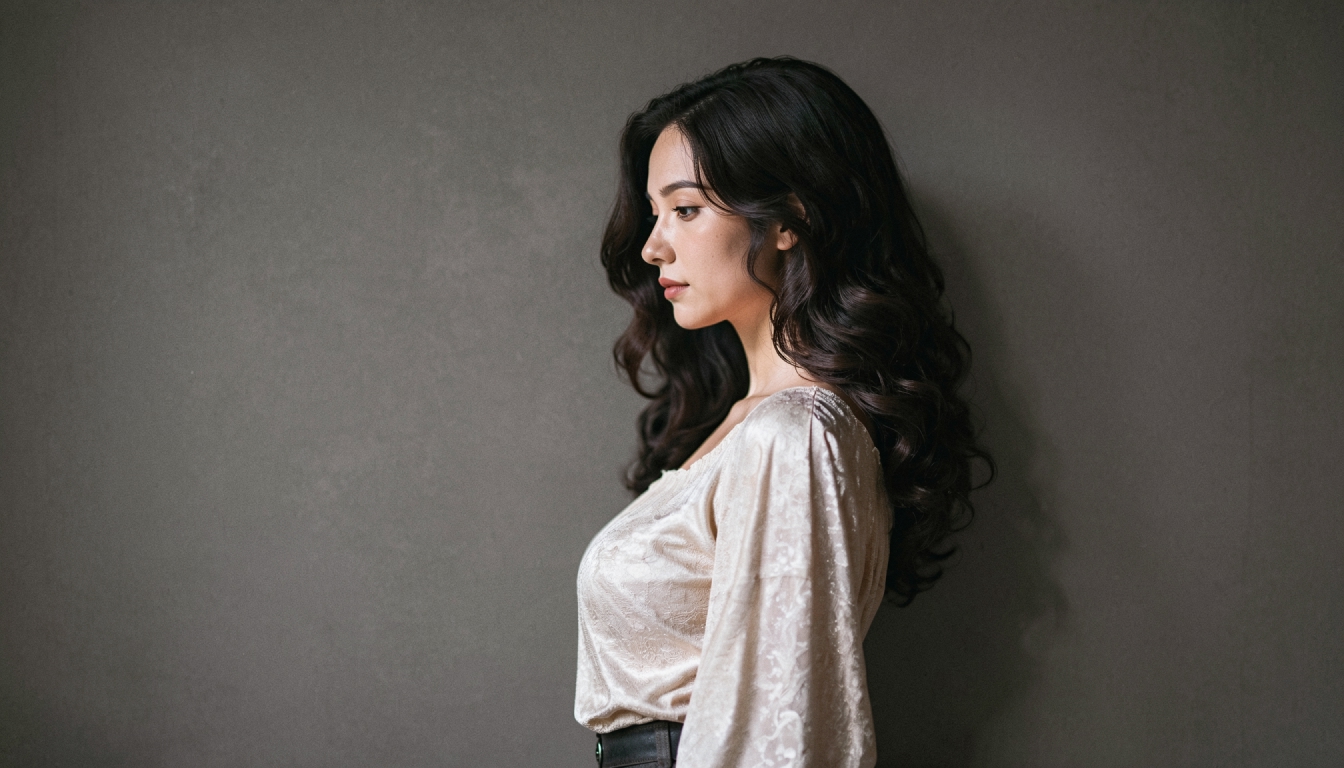
If one detail becomes more visibly wrong after enlargement, return to the source or use Inpaint on that particular area. Do not expect sharper outlines to change an incorrect hand pose or warped accessory. Save the improved version only when it is genuinely more useful. For future generations, improve the starting resolution or framing so you need less corrective work at the end.
Worked Example: Example: preparing a portrait for a larger screen
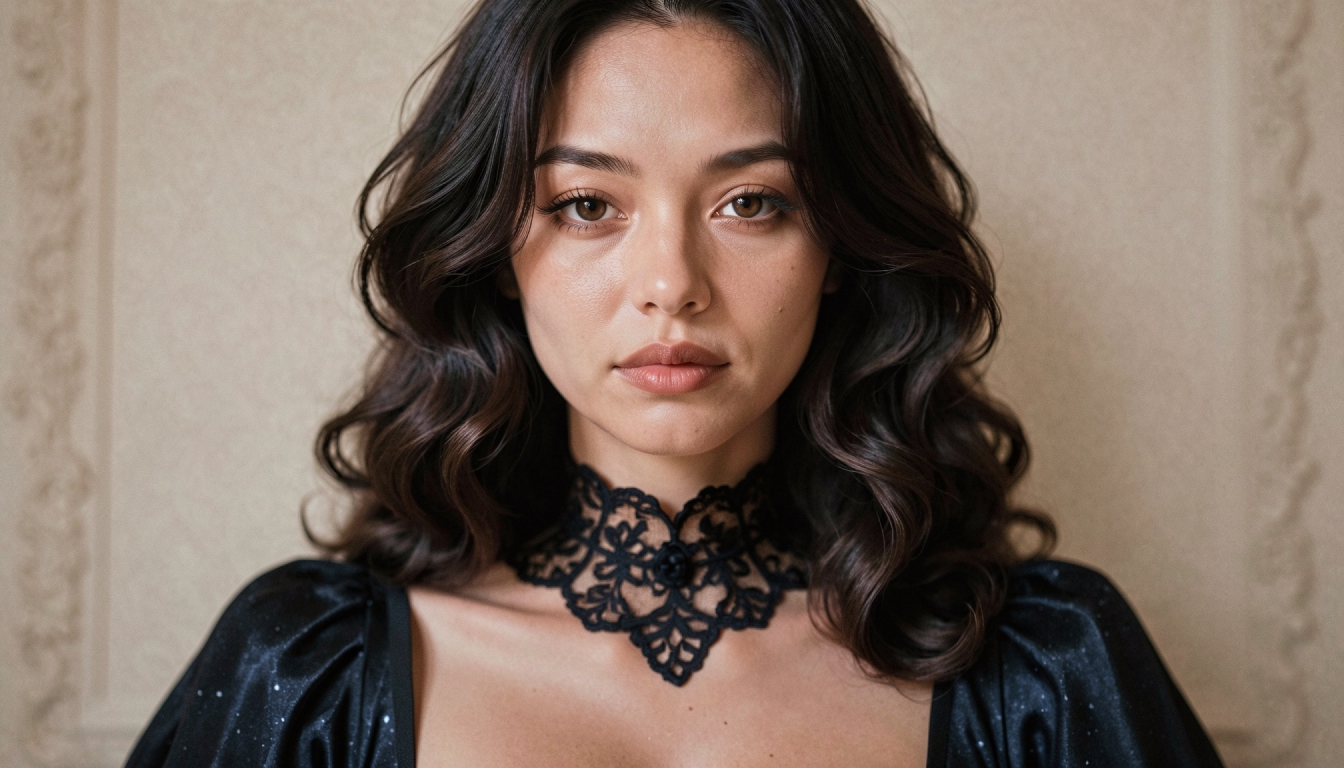
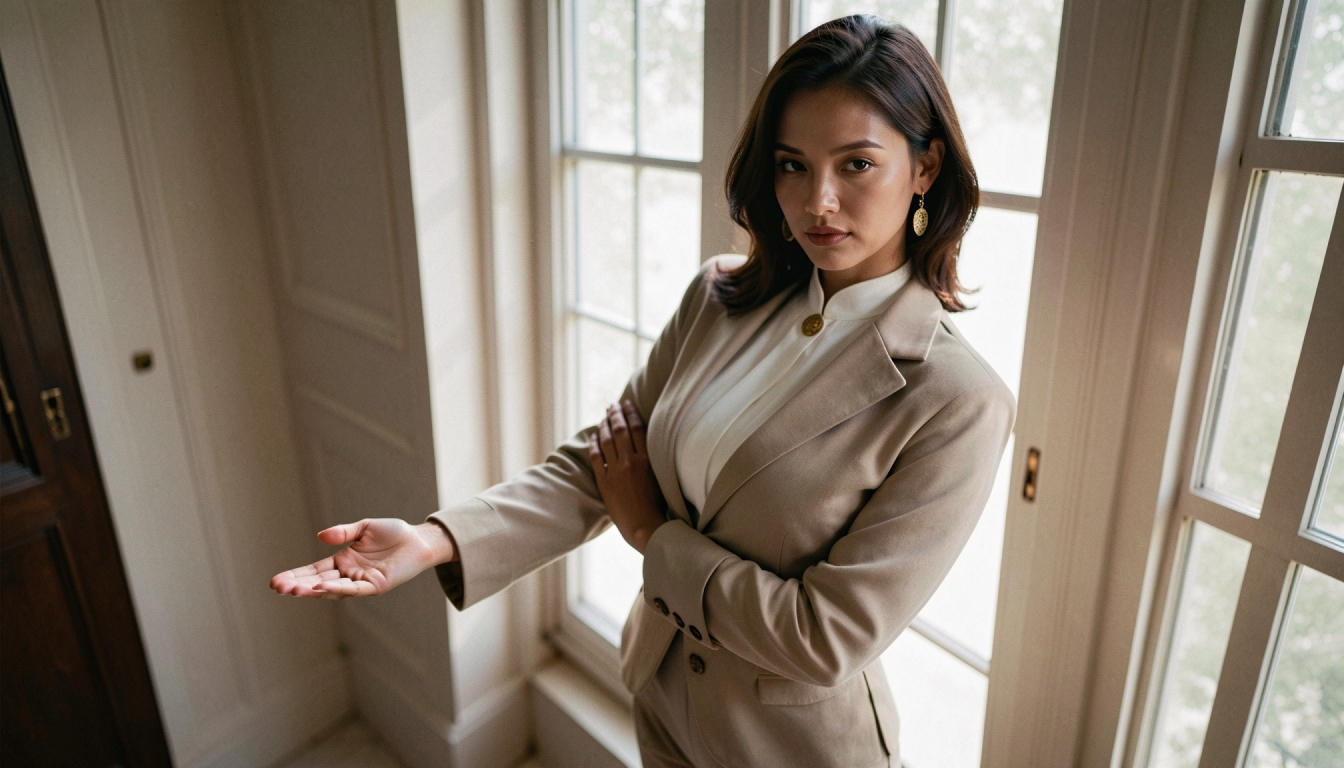
An original adult character portrait looks natural in the gallery but soft when displayed full-screen. The pose, clothing and face are coherent. Save the original, open the editor and create an upscaled copy. Examine the eyes, hair boundaries and jacket stitching at normal viewing size, then decide whether the increase in resolution is worth keeping.
If the enlarged image invents odd fabric patterns, return to the base result and prioritize better source generation instead of pushing the upscale further.
Common Problems and What to Change
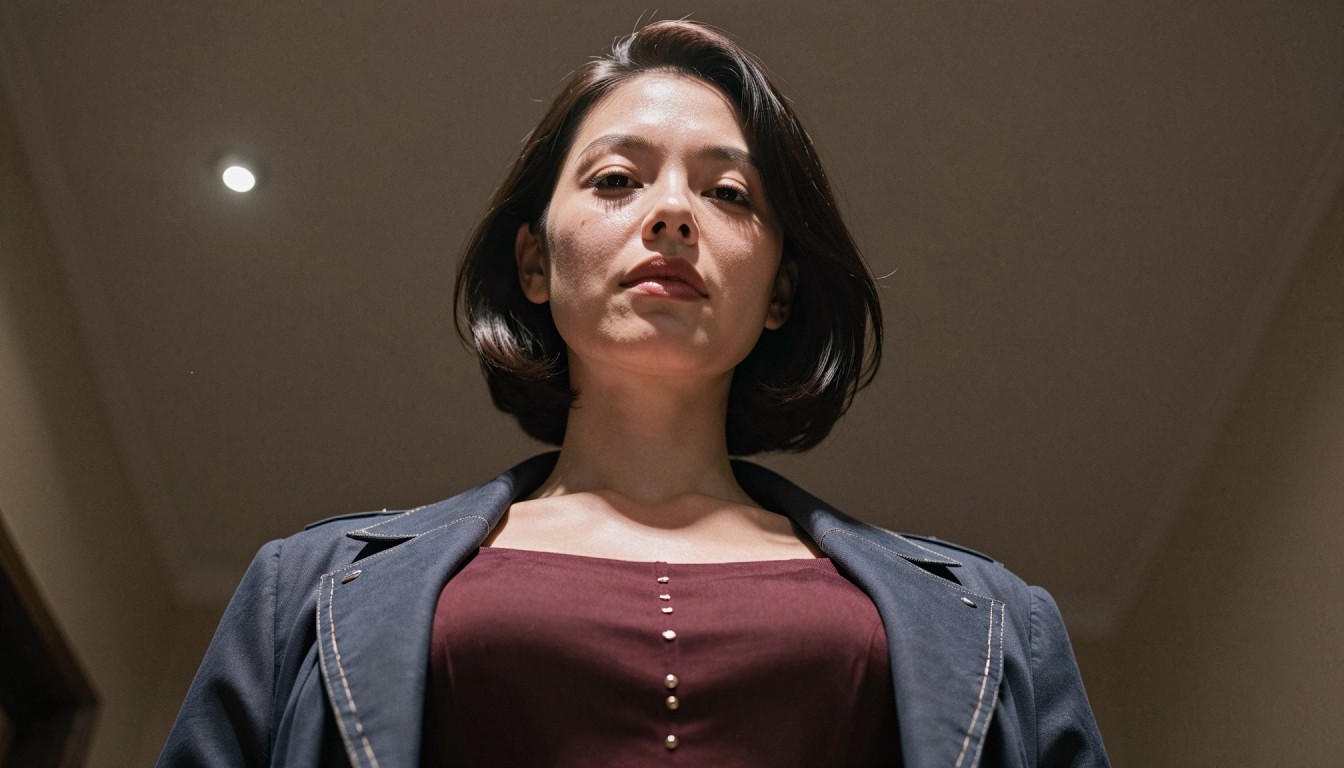
If the entire image is out of focus because the prompt requested haze, correct the visual brief before enlarging. If the background is intentionally blurred, do not force it into equal sharpness with the subject. If the problem is a locally broken feature, edit that region. Upscaling is an output-quality stage, not a replacement for thoughtful model and composition choices.
Explore the Next Step
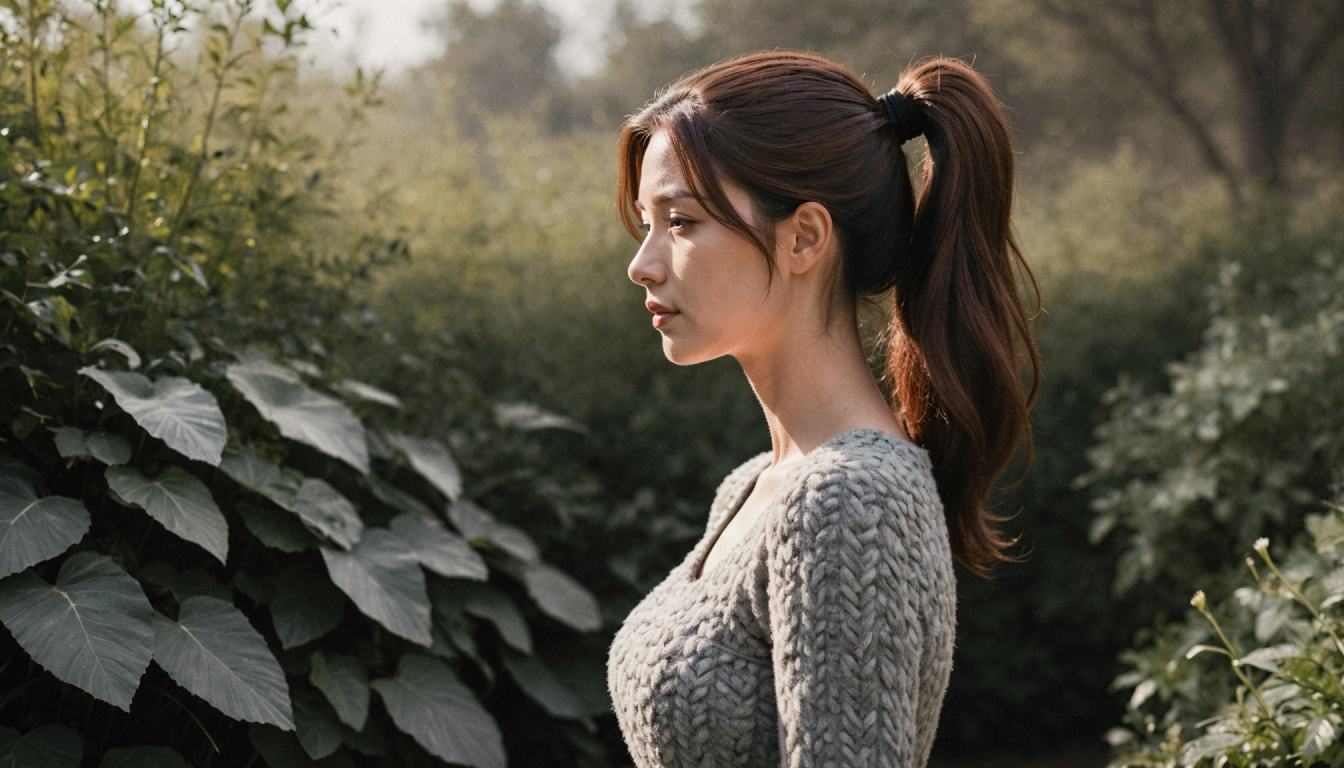
To choose a frame that suits the subject, read about AI image aspect ratios. For a dedicated image-size improvement destination, see upscale NSFW AI images.
Frequently Asked Questions
Put the Guide into Practice
Use the approach above to make one careful test in PornX. Keep your subject fictional and clearly adult, review the result and change one thing at a time.
Upscale an image in PornXDiscover more
Keep exploring with related tools, features and step-by-step guides.
AI Image Upscaling
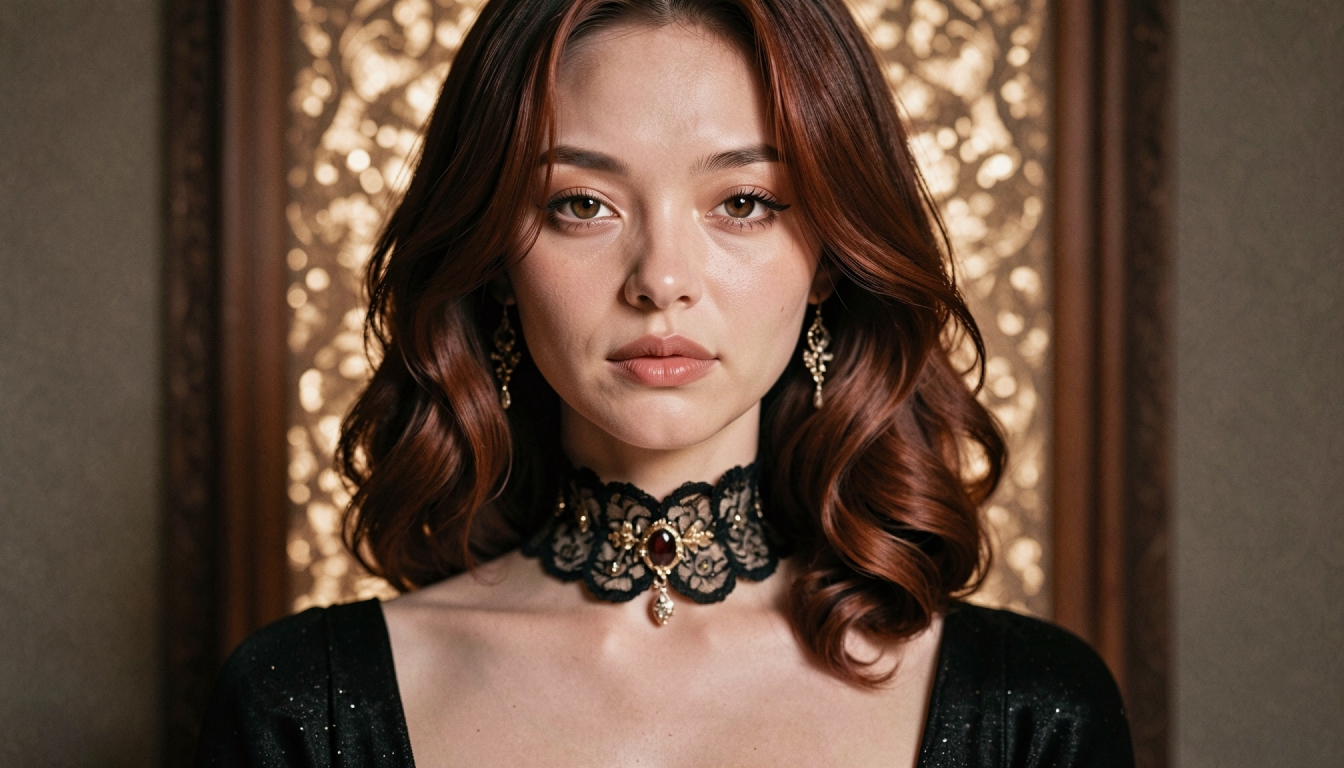
Explore image upscaling on PornX. Learn when to increase resolution, when to regenerate a flawed picture and how to prepare clearer output for reuse.
NSFW AI Image Editor
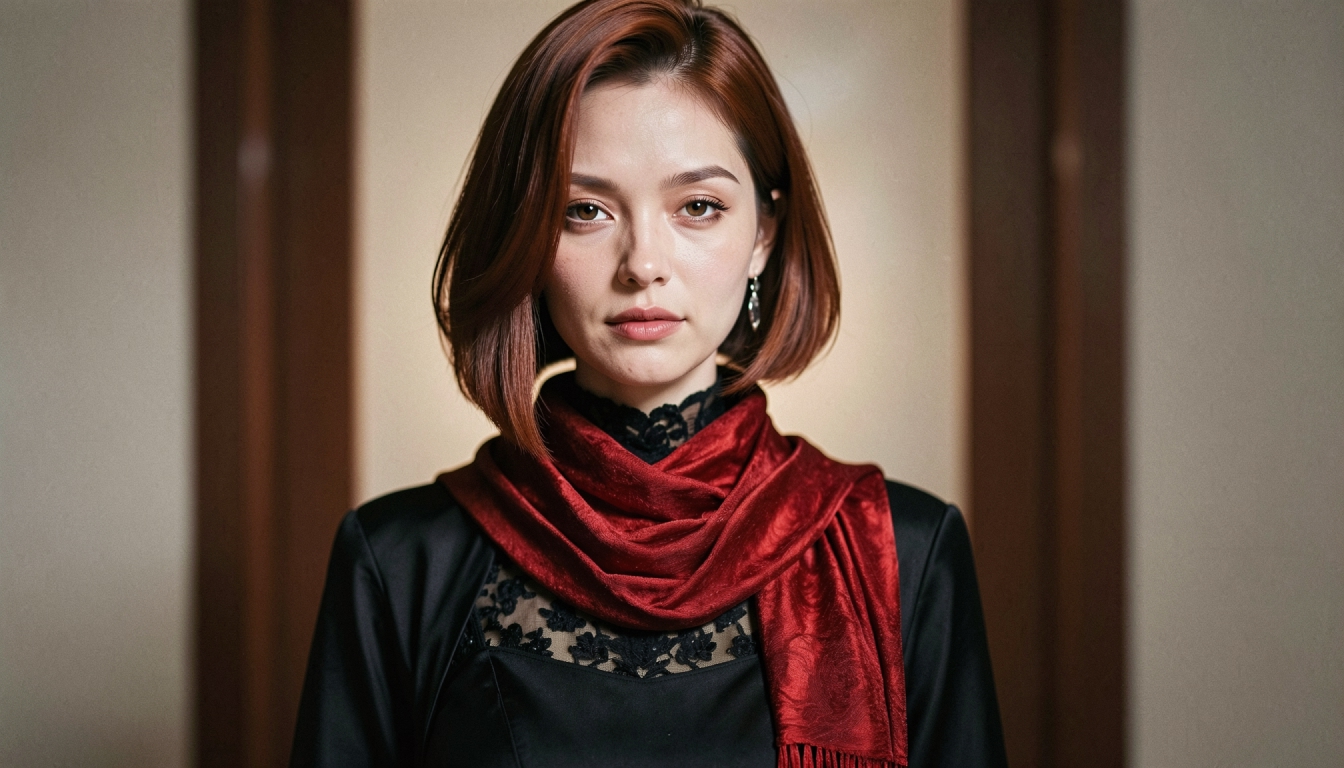
Refine original adult AI images on PornX with Inpaint, Reimagine and upscaling options. Learn when to edit an area, adjust a scene or improve detail.
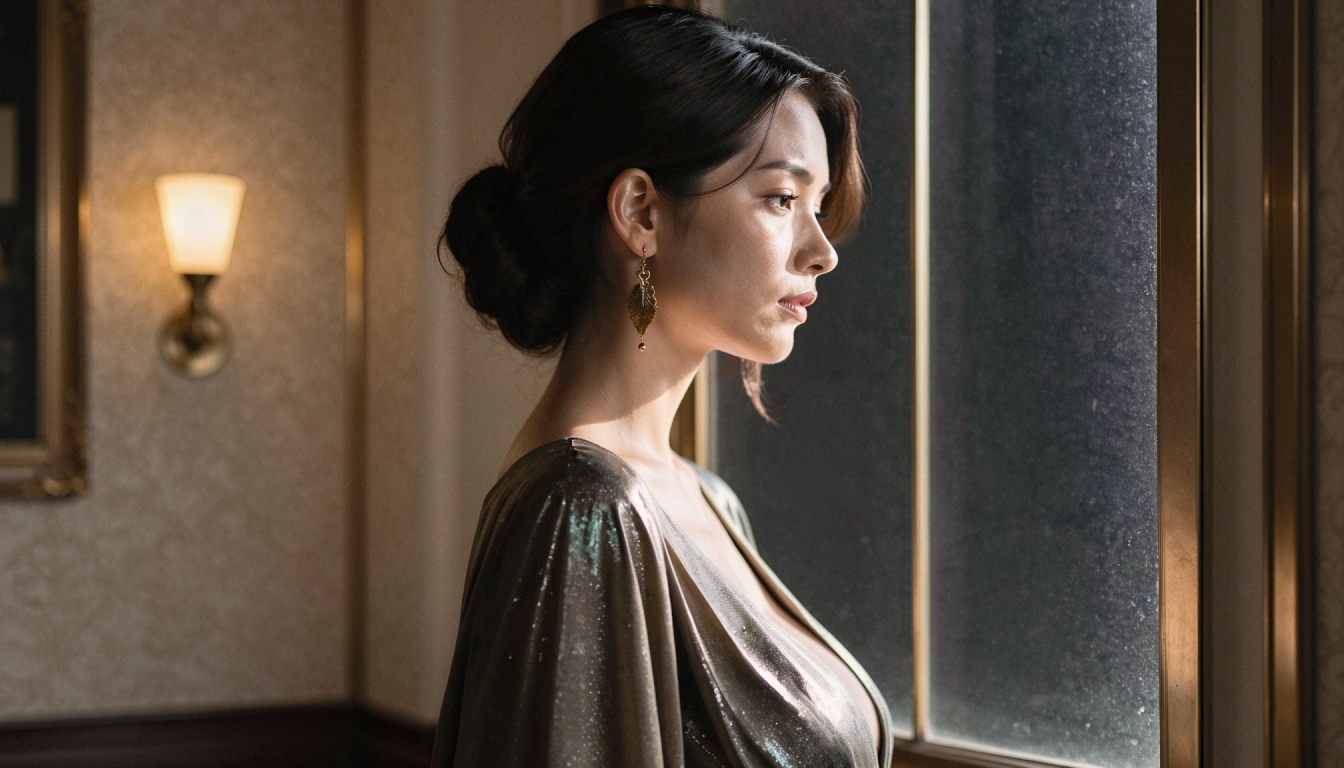
AI Inpainting
Explore AI inpainting on PornX. Select an area to refine, describe the replacement and keep the rest of your original AI image as a visual reference.
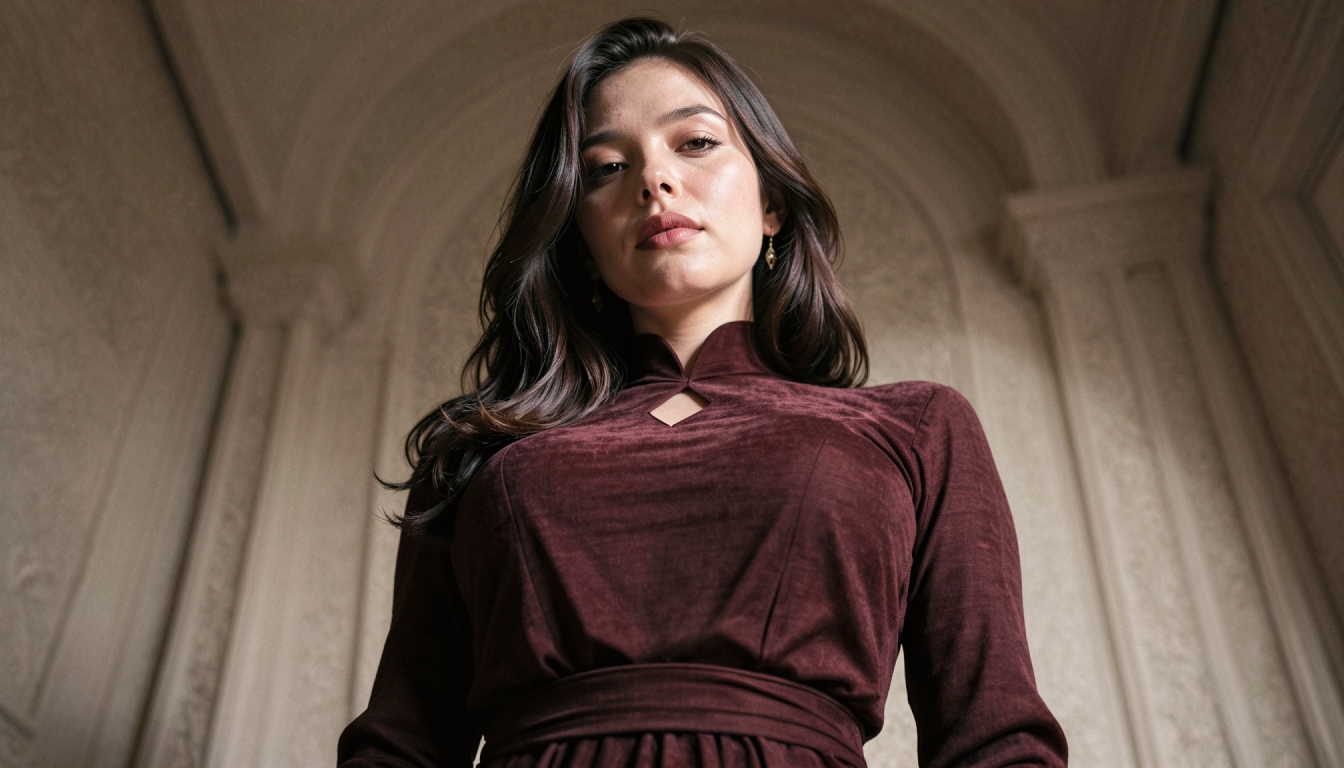
AI Image Models
Compare PornX AI image model styles for realistic portraits, anime art, cinematic scenes and graphic illustrations, including model and Premium considerations.