Realistic Image to Video AI for Fictional Adult Characters
A convincing still portrait can capture the direction of light, facial features, clothing and the atmosphere of a place. Video adds another challenge: those details need to look believable while the subject moves. Realistic image to video AI offers a way to animate an original, photorealistic adult character image without starting the visual design again from text.
On PornX, you can build an AI-generated first frame, save it to the gallery and select it in the Image-to-Video workflow. A motion prompt then describes the action or camera movement. This page focuses on the photographic considerations: framing, lighting continuity, subtle facial movement and how to recognize artifacts. If you want to start immediately, create an AI video on PornX after you have a prepared fictional adult image.
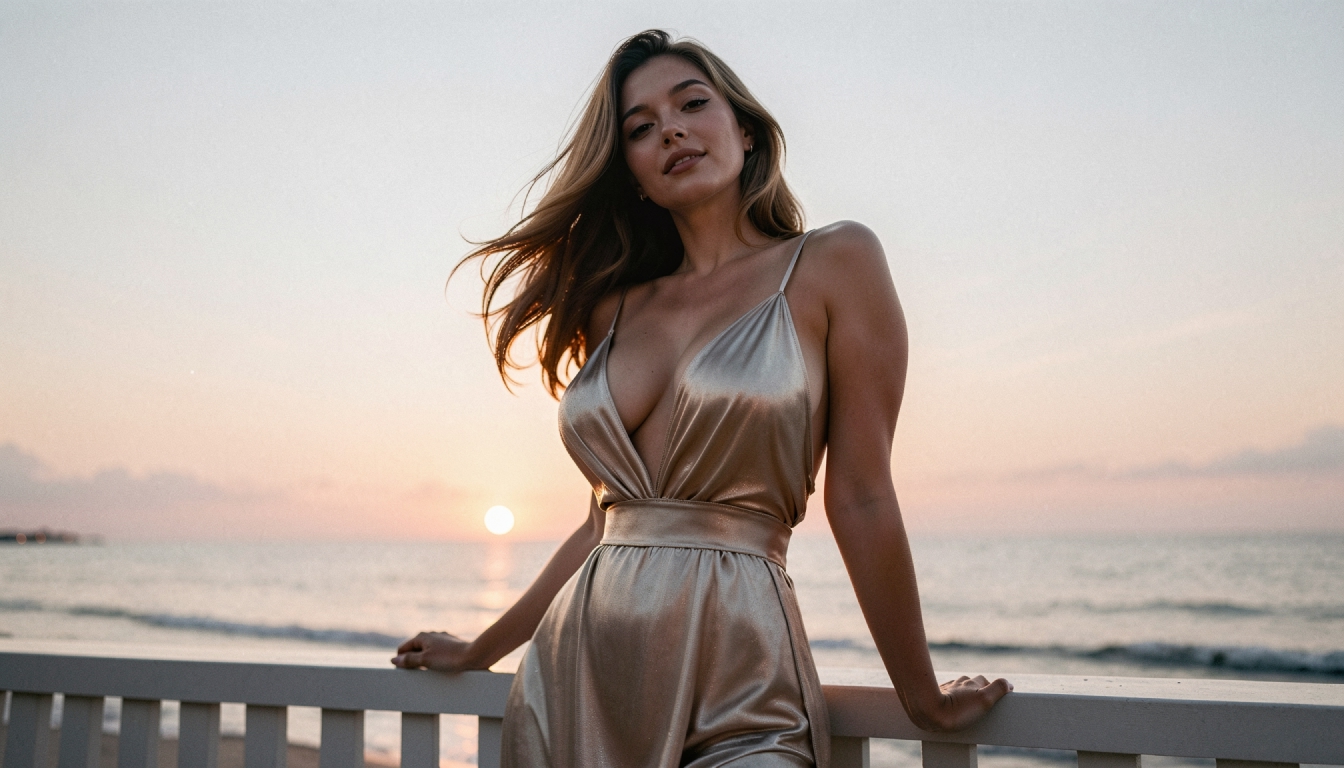
Why Realistic Animation Needs a Good First Frame
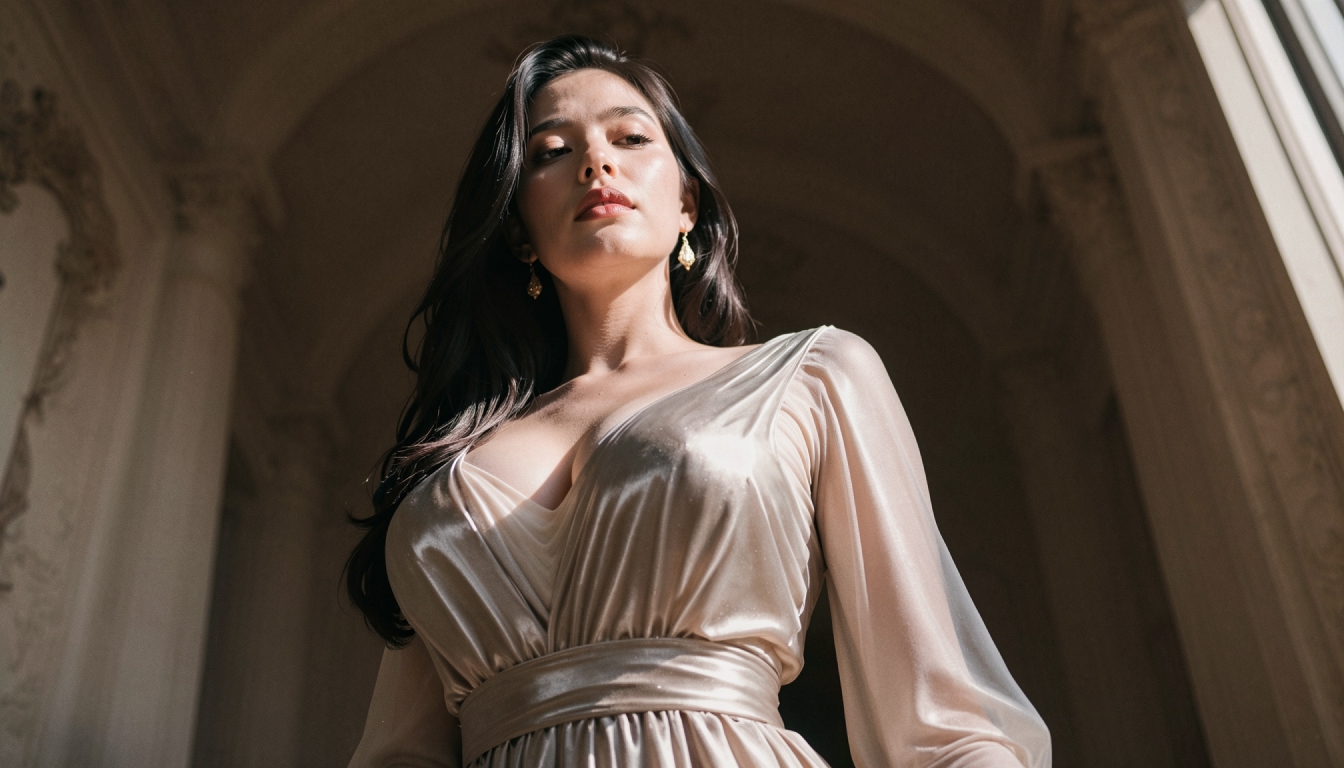
Photorealistic images make small changes easy to notice. A misplaced highlight, distorted fingers or abrupt shift in facial proportions can break the illusion of a continuous shot. The best first frame is not necessarily the most detailed one: it is the image whose composition tells the model clearly what is in front, what is behind and which movements are plausible.
The PornX documentation recommends medium or full-body framing, an uncomplicated background and soft lighting. Those choices are especially helpful for realistic subjects. A neutral pose is a safer start than a dramatic action pose. Avoid overly complex reflections, occlusions or numerous overlapping objects when learning the workflow.
If you do not yet have a suitable image, use the existing realistic AI porn generator as a starting point for a permitted original adult fictional character. Keep the image AI-generated and do not use the likeness of an identifiable real person.
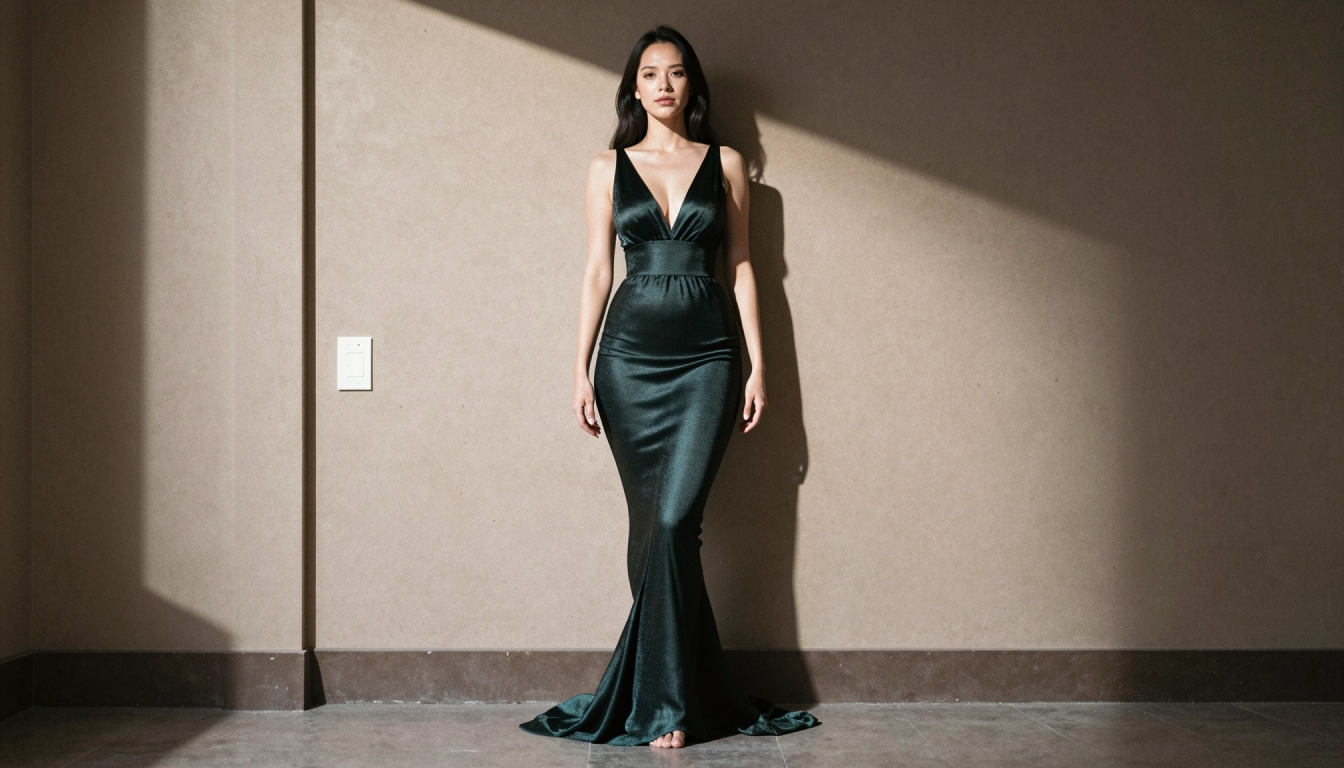
From Still Portrait to Natural Movement
The first frame should already show the wardrobe, environment and overall style you want to keep. The animation prompt is then free to describe the change: “the subject slowly looks toward the window,” “the camera moves closer,” or “a strand of hair moves in a gentle breeze.” Start with one event rather than a sequence of unrelated actions.
For the general tool description, read the image-to-video feature overview. For a more detailed walkthrough from gallery image to finished clip, see how to animate an AI portrait. This page instead helps you choose a visually plausible action for photorealistic scenes.
A useful basic experiment is to use the same first frame for two video versions. One has a small subject movement; the other uses only a gentle camera push. Compare how reliably the face and lighting remain stable. That makes it easier to decide whether the frame needs simplifying or the motion prompt needs rewriting.
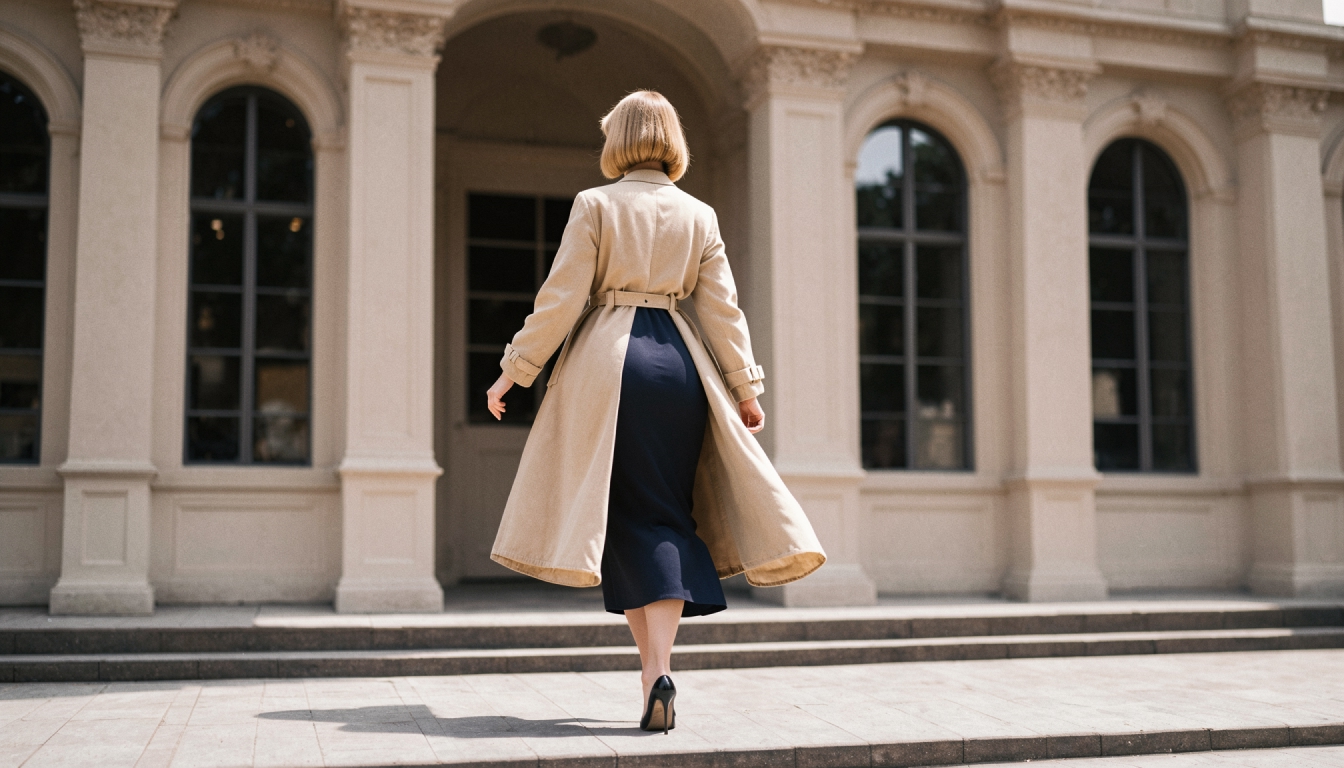
Prompt Examples for Realistic Image-to-Video
Keep examples concrete, modest and within the content rules. For an original adult fictional character, these instructions give a starting direction:
- Portrait close-up: “Adult fictional woman turns her gaze toward the camera, subtle natural expression, soft window light stays consistent, slow camera push-in.”
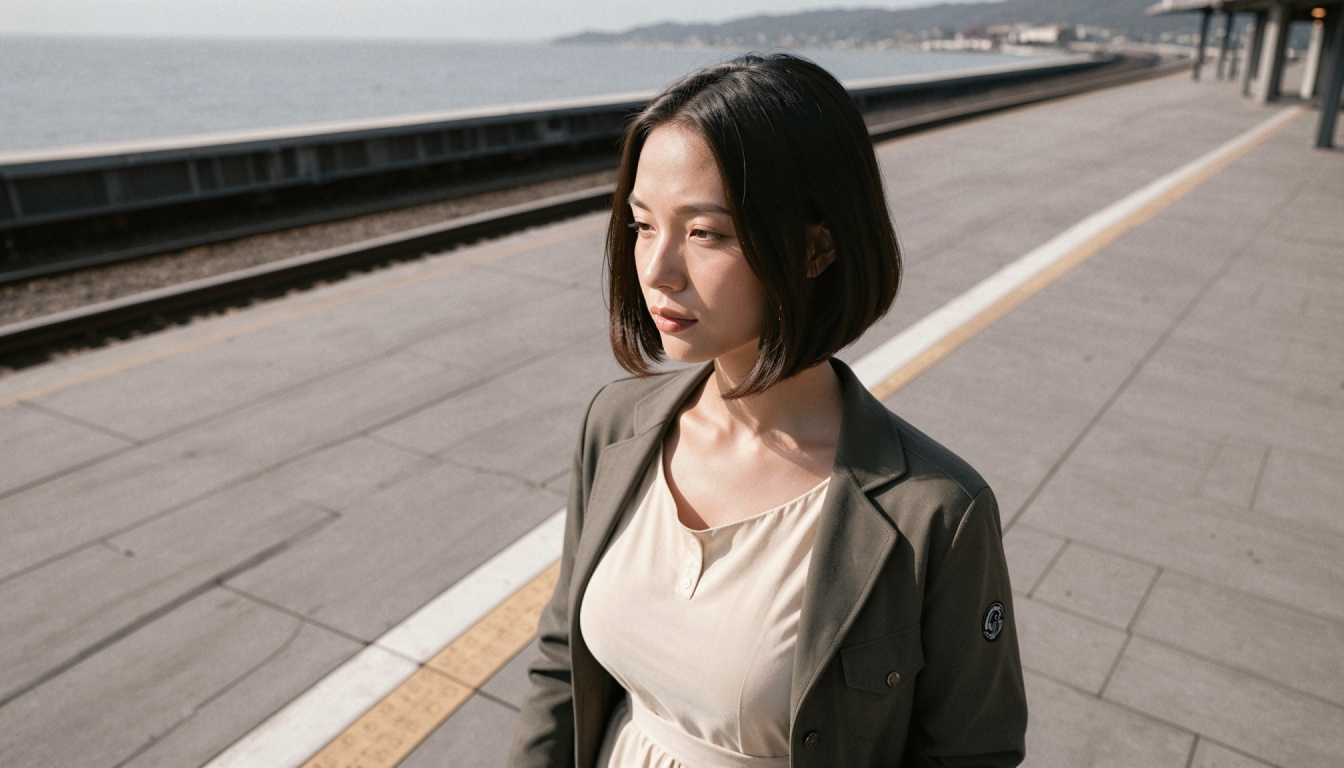
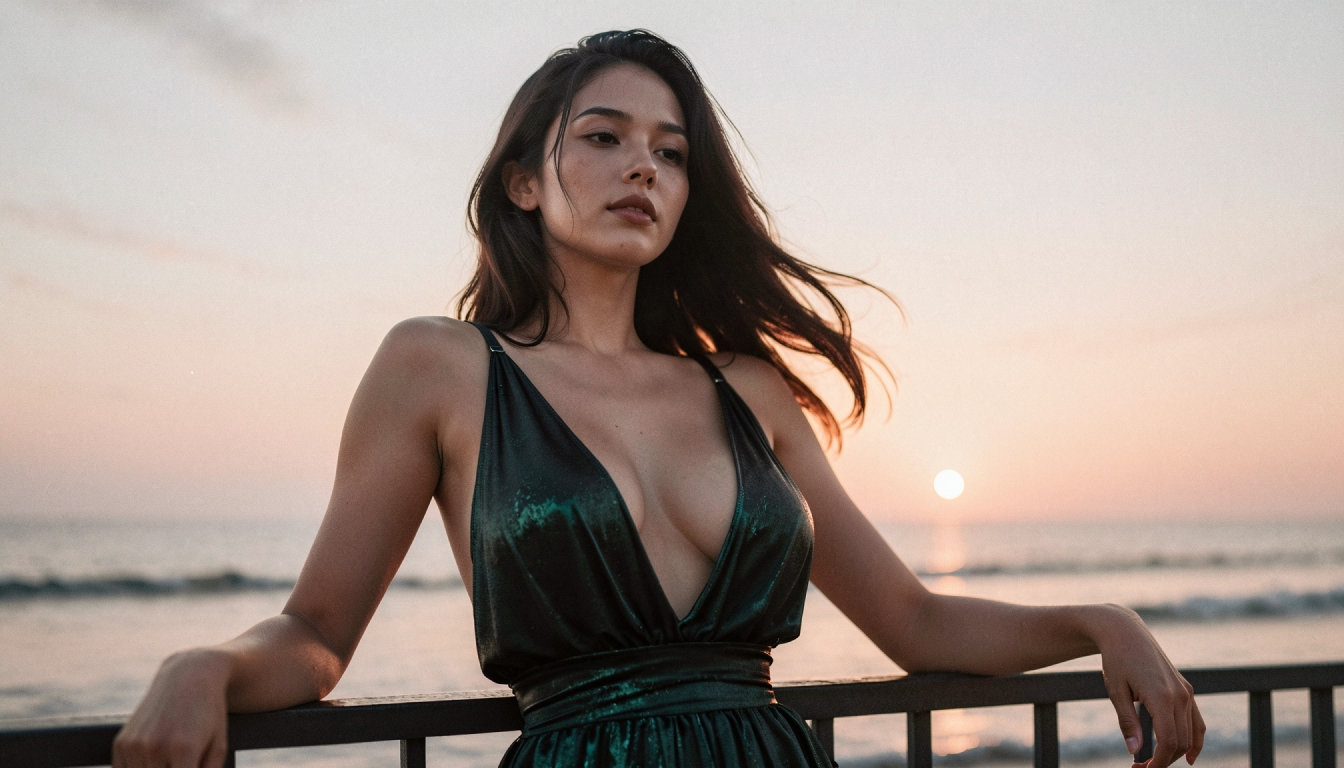
- Outdoor scene: “A fictional adult character takes a small step along a quiet terrace, light wind moves her coat, camera remains steady.”
- Studio composition: “The character shifts her weight and gently turns one shoulder, even studio lighting, controlled mid-shot, no fast camera movement.”
These do not represent guaranteed settings. The rendered video may interpret even specific instructions unpredictably. If you need more options for cinematography, explore video camera-motion prompts, keeping motion descriptions separate from the appearance already visible in the first image.
When preparing the image itself, realistic AI image prompts can help describe lighting, lens mood and composition. A detailed portrait prompt belongs in image generation; a concise action belongs in Image-to-Video.
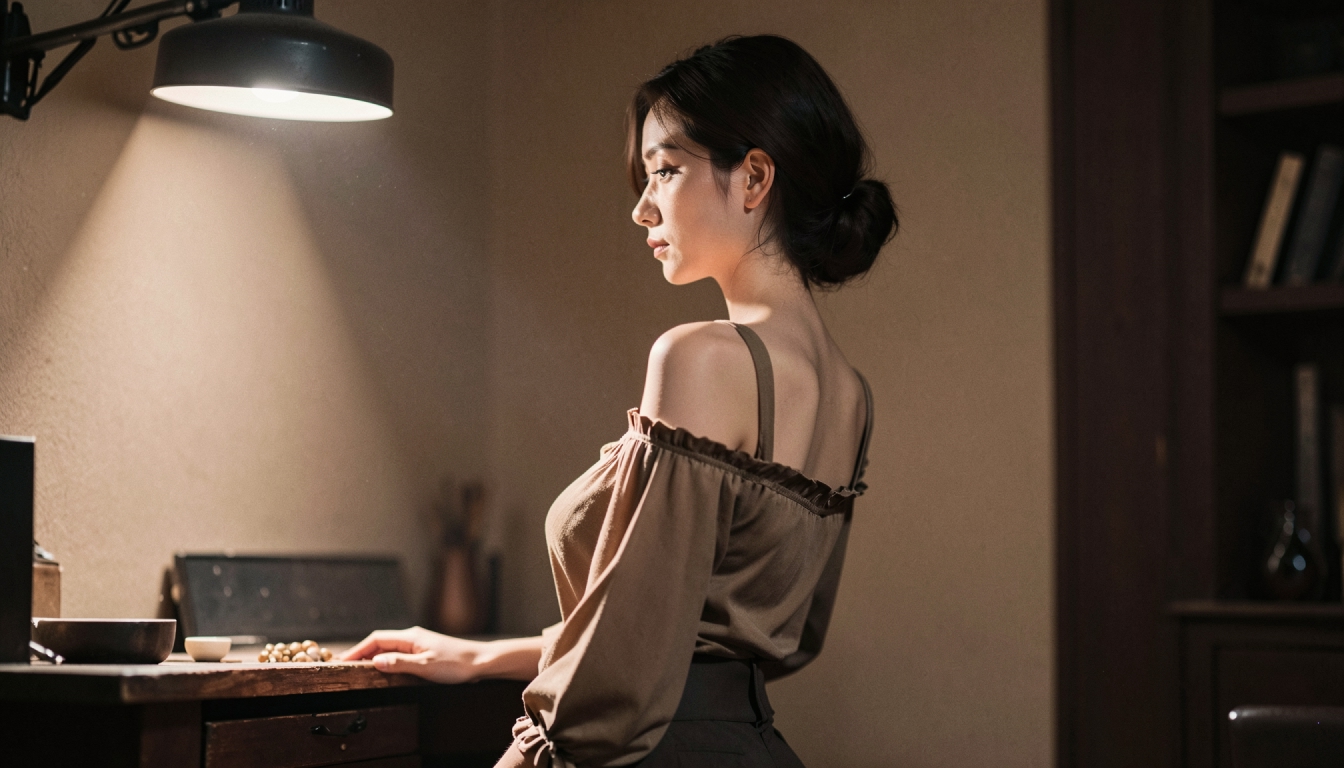
Avoid the Most Common Continuity Problems
A face changes shape. Use a simpler first frame and reduce the amount of head rotation. Strong changes of viewpoint are more demanding than a slight turn. A calm expression can be easier to animate than a very complex one.
The background ripples. Remove highly reflective surfaces or detailed intersecting patterns from the source image. Consider replacing a complex street scene with a cleaner interior or a simple wall before animating.
Movement feels robotic. Ask for one clearly observable action in natural language. Avoid a long chain of competing verbs, and review the outcome before increasing complexity.
The lighting jumps. Choose a source with a single dominant light direction. Soft, coherent light makes it easier for the result to retain the intended mood.
Enhancement tools can improve a completed video's sharpness, but they are not a reliable fix for the wrong movement or an inconsistent face. Correct the source image or prompt first.
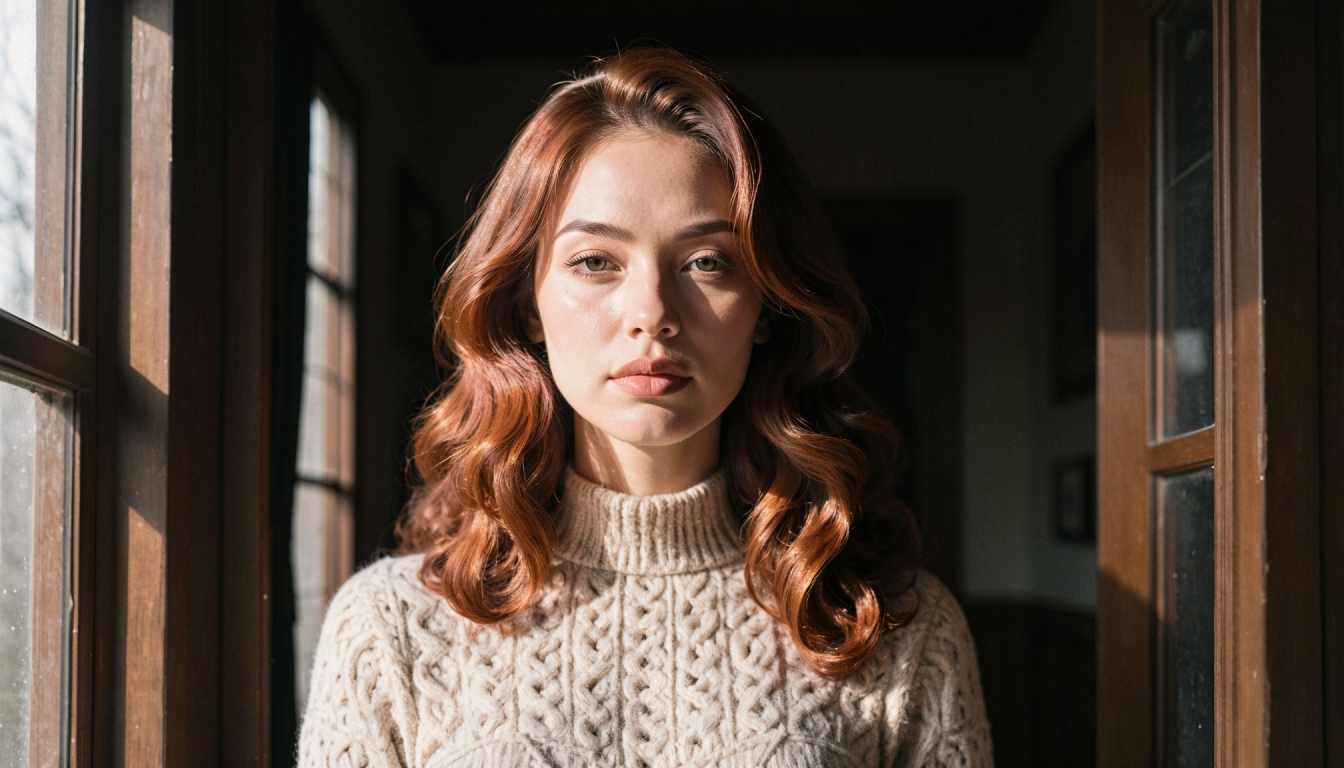
Reusable Characters and Realistic Image-to-Video
If you plan to animate the same fictional adult persona in several scenes, establish that identity before producing the clips. The realistic AI character generator page explains the saved-character route. PornX's Wiki describes reusable Characters for Premium subscribers; the feature is meant to improve consistency, not guarantee exact identical results across every image and frame.
A reusable character can help the still-image stage. For each new clip, however, you still need a suitable first frame and a motion prompt. The general NSFW image-to-video tool covers the shared animation workflow when you do not need style-specific guidance.
Frequently Asked Questions
Can a realistic portrait be animated on PornX?
Yes, if it is a supported image generated and saved in the PornX gallery. Choose the image inside Image-to-Video and add a motion prompt.
Does “realistic” mean the character is a real person?
No. The visual style can be photographic while the subject remains entirely AI-generated and fictional. PornX prohibits real-person likenesses and deepfakes.
How long can the animation be?
The current documentation describes a five-second maximum for Image-to-Video. Live limits and token costs should be checked in the product.
What should I change if the face distorts?
Try a simpler composition, softer lighting and a smaller head movement. Frame-perfect facial consistency is not guaranteed.
Create a Natural-Looking Motion Test
Generate one original photorealistic adult still, save it, and write a motion prompt with one subtle movement. Compare the result to the first image before changing multiple settings. The goal is a believable short moment, not a complex film sequence in a single clip.
Discover more
Keep exploring with related tools, features and step-by-step guides.
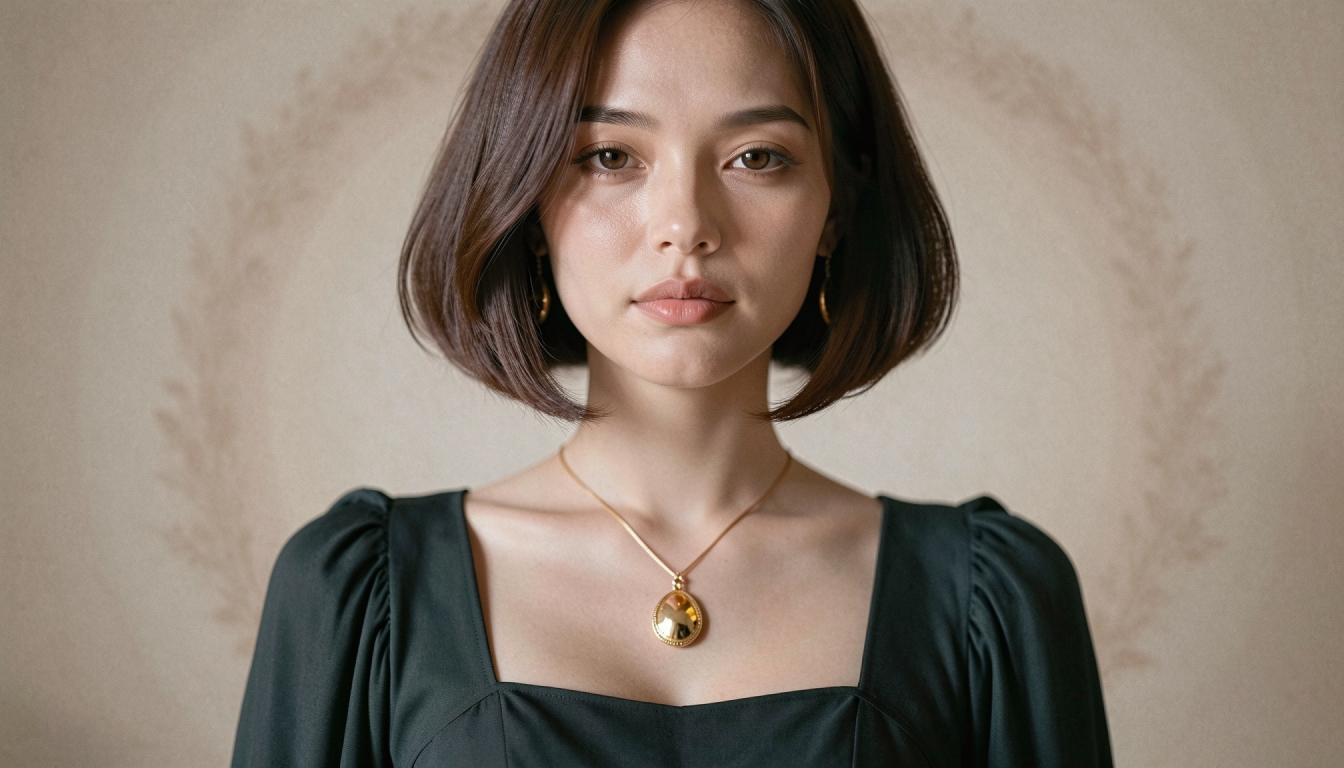
Realistic AI Character Generator
Create a recurring original photorealistic adult AI character on PornX. Explore saved Characters, realistic appearance, prompt workflow and Premium access.
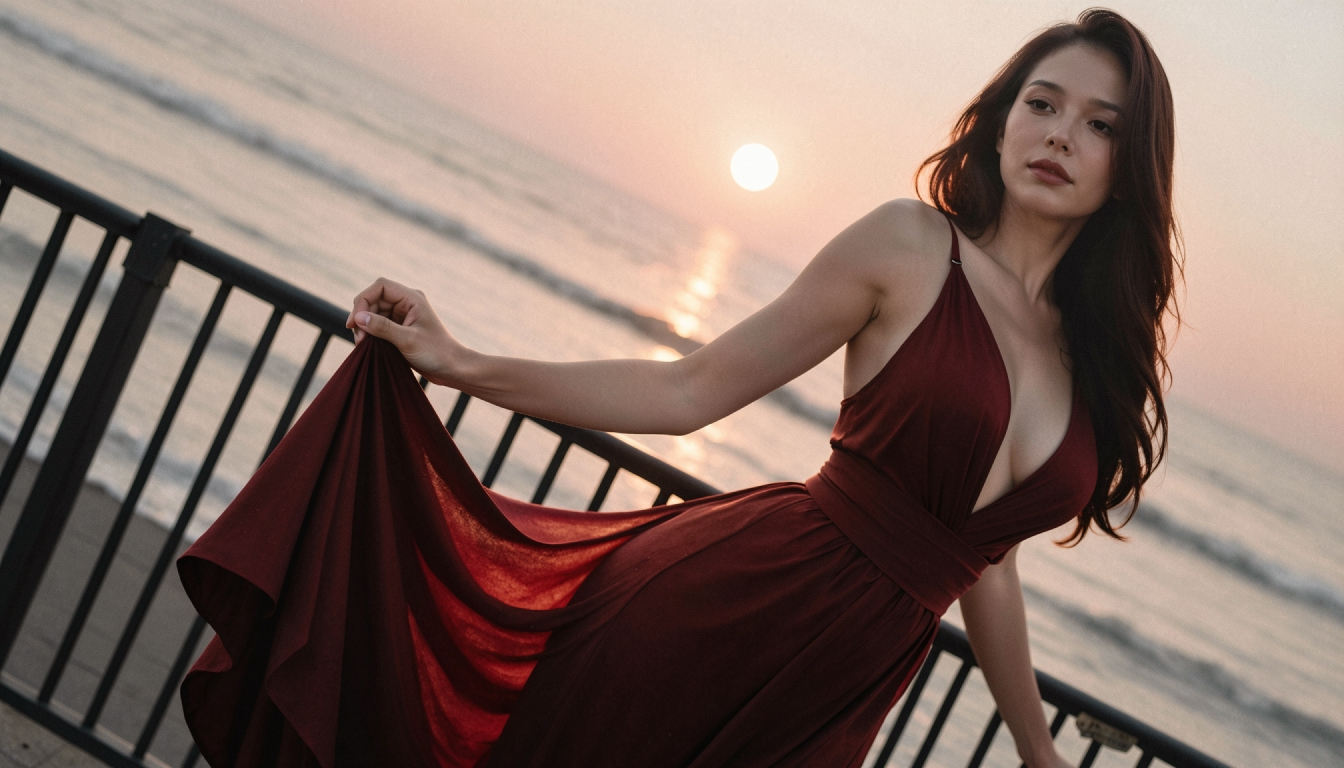
AI Image to Video
Explore PornX Image-to-Video. Prepare a clear first frame, guide motion, make a short AI clip and find tips for improving animation quality.
Enhanced Video
Learn when to use PornX Enhanced Video after generation to sharpen a finished clip, reduce artifacts and compare the refined version with the original.
How to Turn an AI Image into Video Step by Step
Animate a saved AI image with Image-to-Video. Learn first-frame preparation, matching resolution, motion prompts and useful troubleshooting.