How to Build a Consistent AI Character Across Images
A recognizable AI character needs more than the same name in every prompt. Distinct hair, face shape, clothing and general style must remain coherent while backgrounds, camera positions and actions change. Without a repeatable identity, each generation can turn into a different person even when the words sound similar.
PornX offers saved Characters for Premium subscribers. A saved Character carries its appearance into later image generations so the creative prompt can focus on the scene or action. This guide explains the full workflow and shows what to do if you are drafting an identity before saving it, or preparing a clean image for animation.
For related tutorials on other parts of the workflow, browse AI generation tutorials.
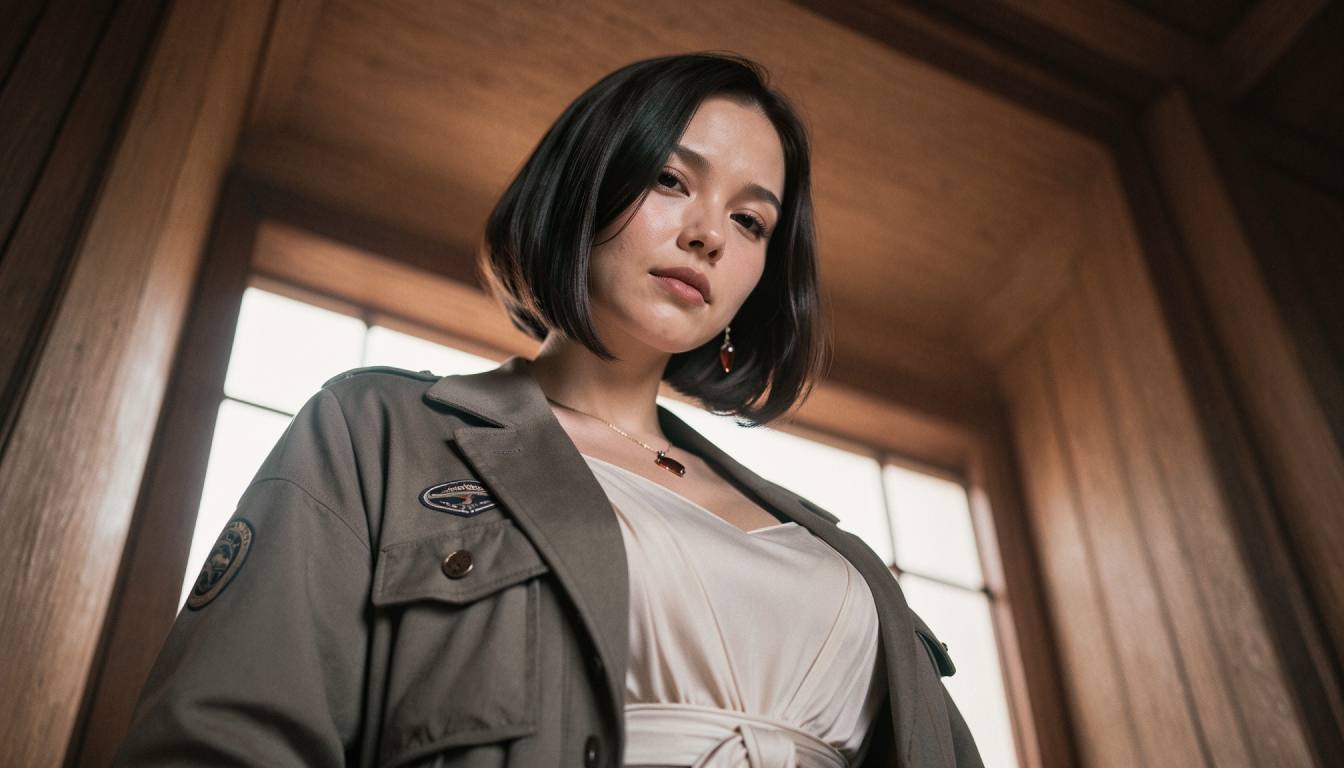
Quick Answer
Create an original adult character with a stable visual brief, select Realistic or Anime, define the available identity and appearance attributes, review the preview and save the Character with an eligible Premium account. After saving, select it before generating and write prompts about action, location and light—not a second contradictory physical description.
Get started: To try a copy-ready still-image prompt, open the PornX AI image generator.
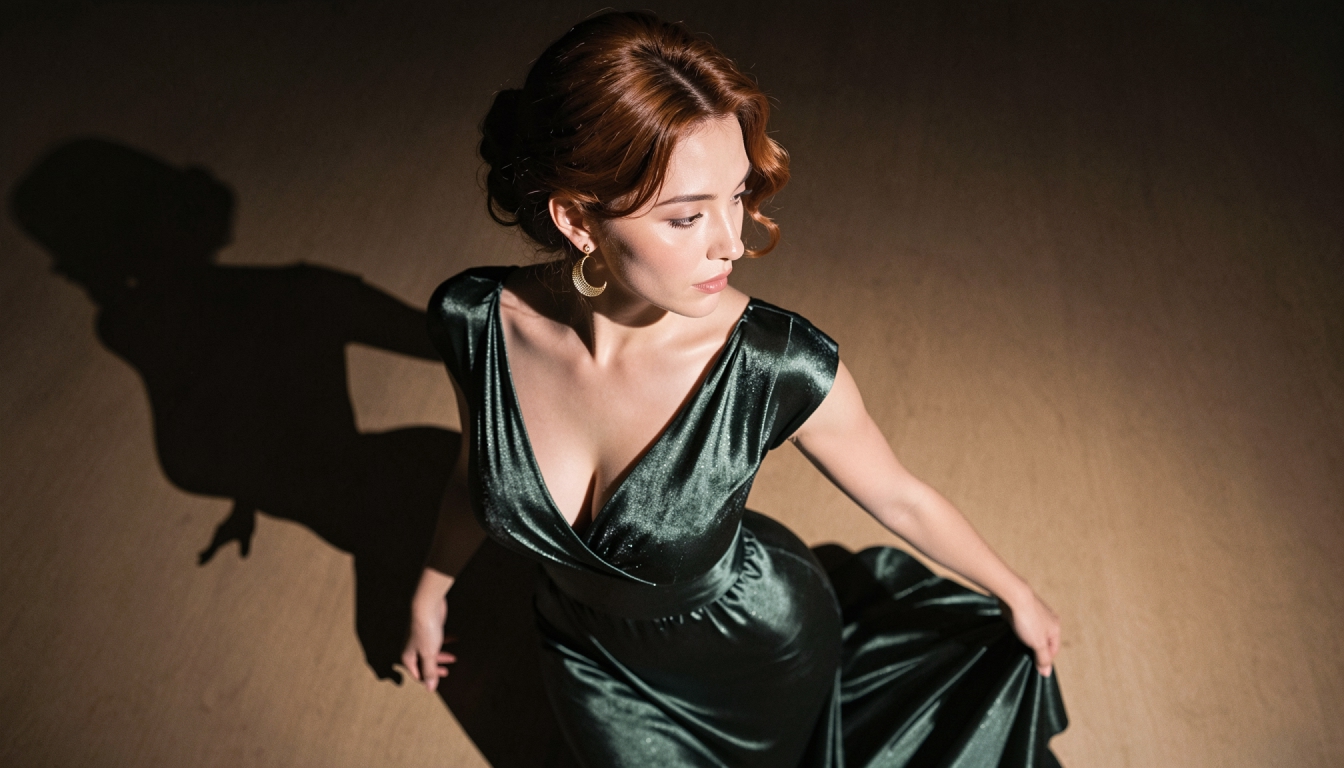
Step 1: Define an original adult identity
Start with a recognizable concept, not a borrowed celebrity or established franchise character. Choose whether the visual direction is Realistic or Anime. Prepare a short reference note with a name, hairstyle, hair color, eye color, signature clothing style and general visual mood. Keep the age clearly adult. Treat this note as your own creative checklist; it is not a separate magic “identity-lock” control.
To reuse a fictional adult design more reliably, explore consistent AI characters.
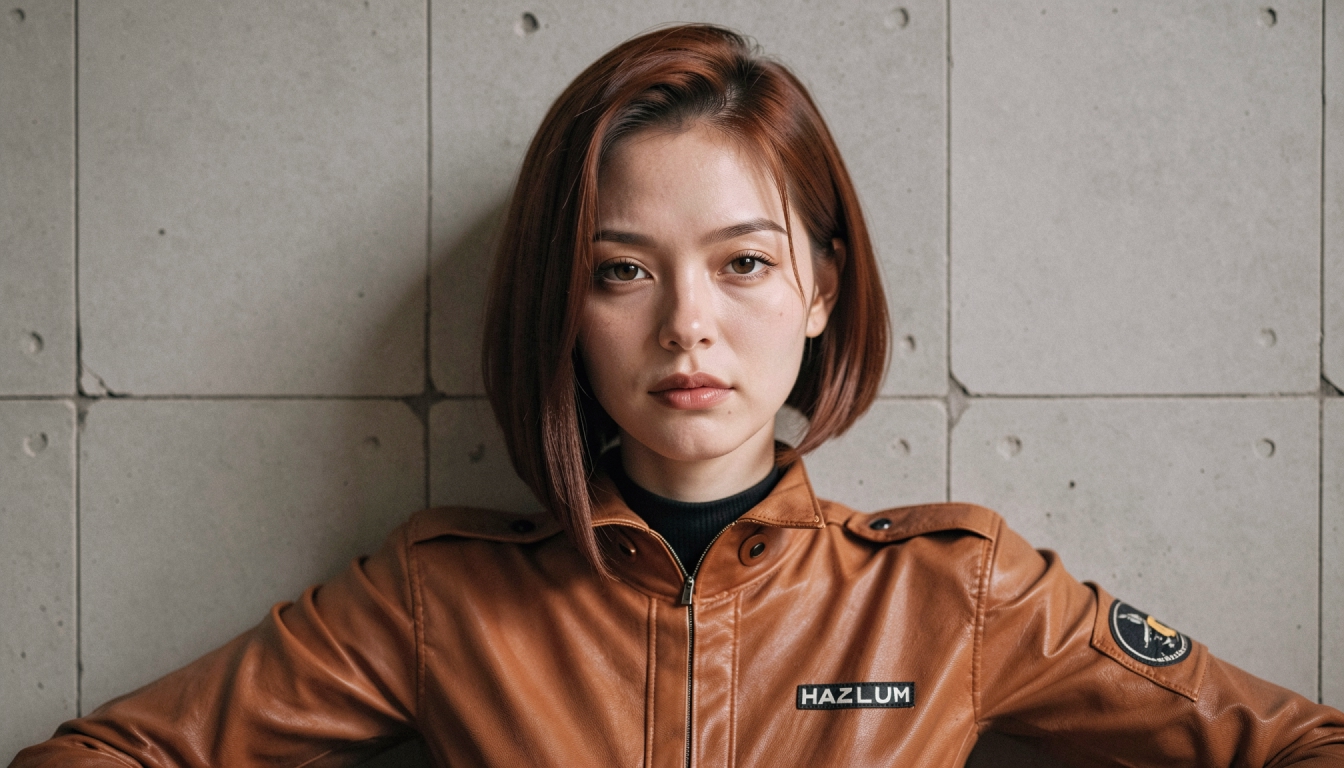
Step 2: Create the Character in the editor
Open the Characters panel in the image generator and select Create New if your account has the feature. Choose the style, complete the identity fields shown by the editor, then configure appearance options such as body type, hair and eyes. Review each selection against the original brief. The current documented creator describes female characters and Premium-only creation, so do not assume every identity option is available to all accounts.
To keep a persona visually recognizable, use character appearance prompts as a starting point.
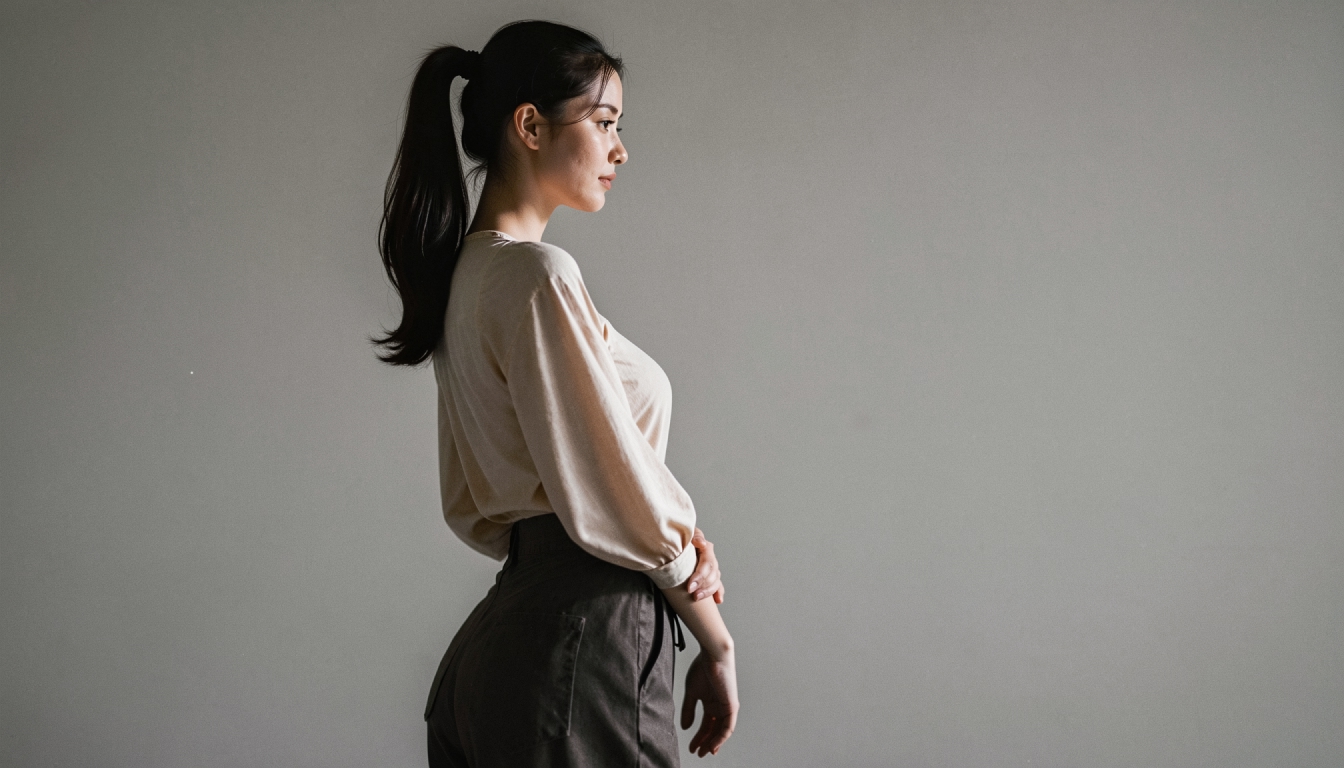
Step 3: Review the preview before saving
Check whether the preview matches your desired hair, face and general silhouette. If one trait is essential to recognition, fix it before saving rather than planning to override it in every later prompt. Use Regenerate where available and compare results carefully. Once the preview is suitable, save the Character. Keeping a copy of your own original brief helps future editing or recreating a design.
For a reusable character identity anchor, see consistent character prompts. For saved-character and account requirements, check PornX Premium plans.
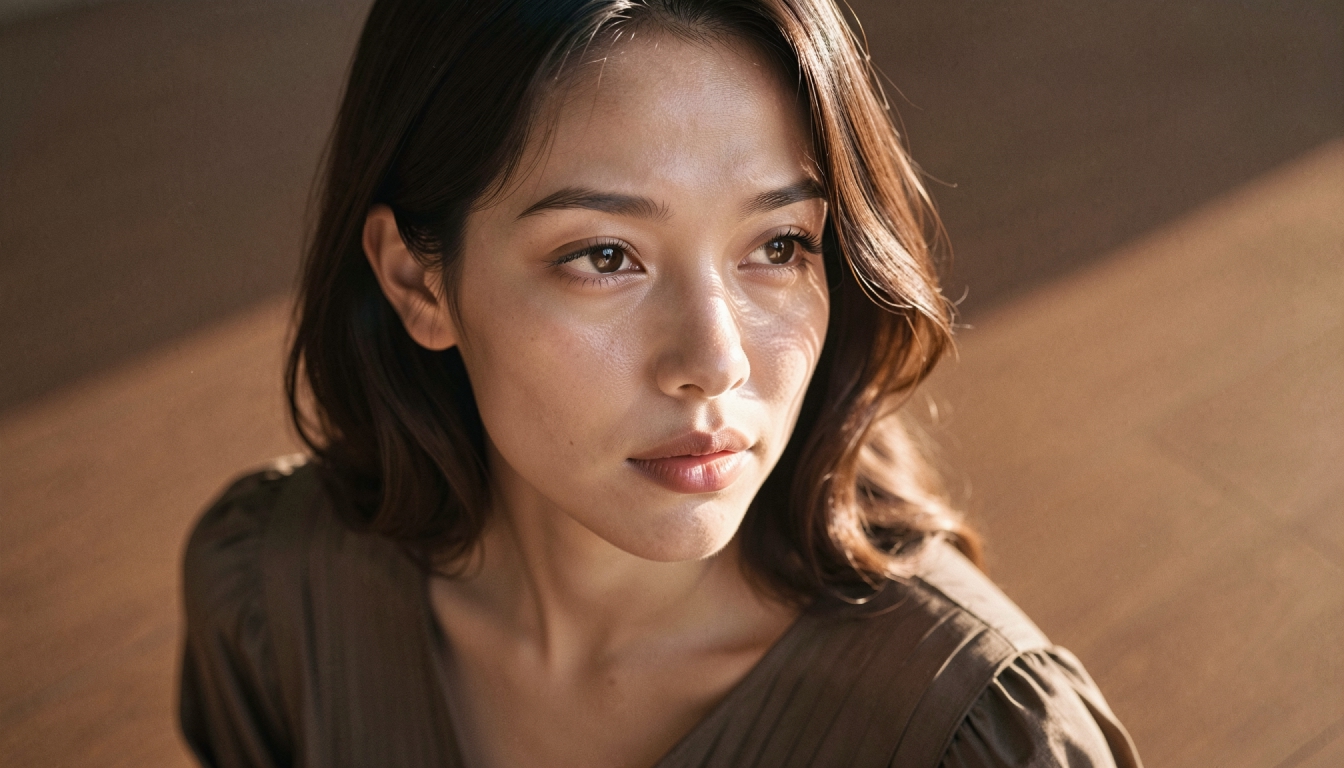
Step 4: Generate scenes without redescribing the character
Select your saved Character in the image generator before writing a scene prompt. A useful prompt might be “walking through a coastal market at sunrise, three-quarter view, soft warm light.” Avoid adding a conflicting hair color or different face description: the selected Character already carries the appearance. Vary the environment or clothing cautiously and review multiple outputs before assuming the appearance will be perfectly identical in every frame.
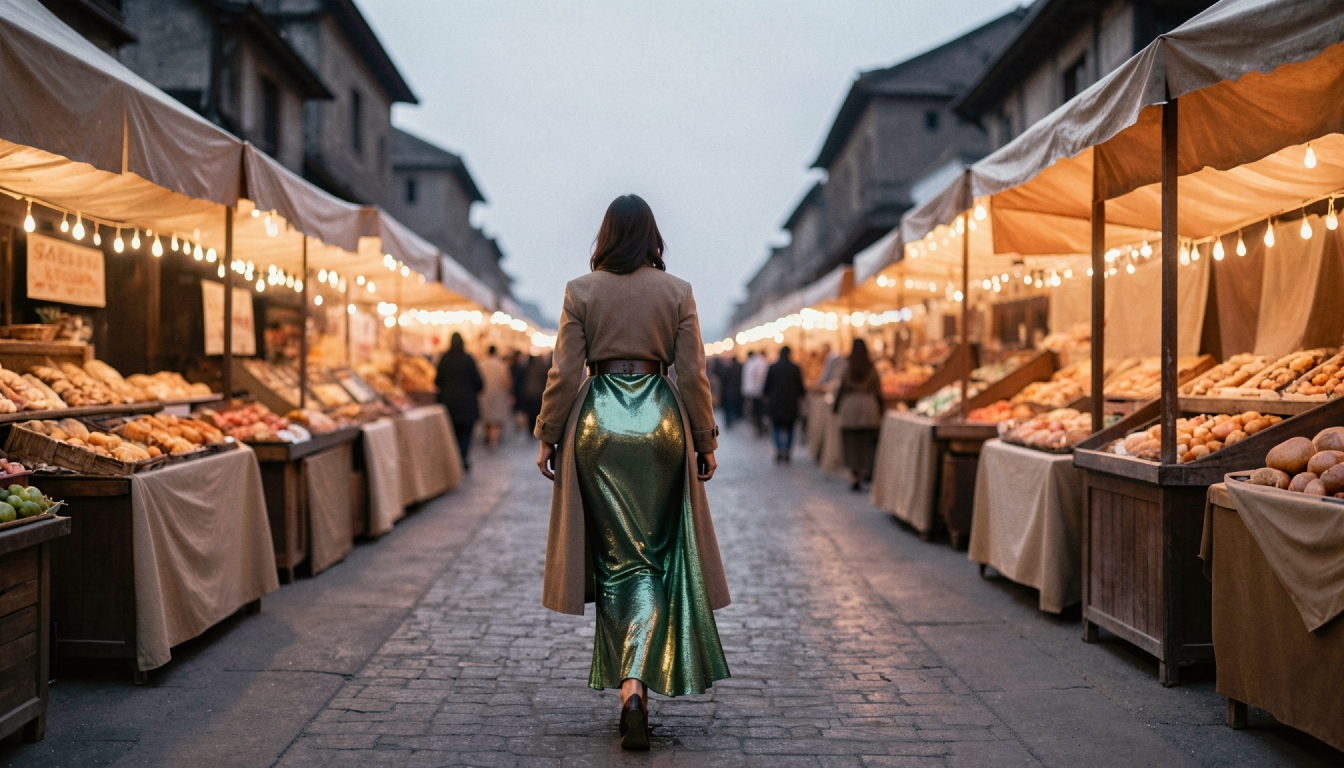
Step 5: Move to animation with a clean reference frame
Choose a good still with readable pose and a relatively simple background. Save it to the gallery and use Image-to-Video. Describe movement and camera direction rather than inventing a different appearance. Generated video can still change details, so start with subtle movement and inspect the result. If the face drifts, try a simpler first frame and less abrupt motion. Keep the source image as the visual reference for any retry.

Worked Example: Example: one character, three scenes
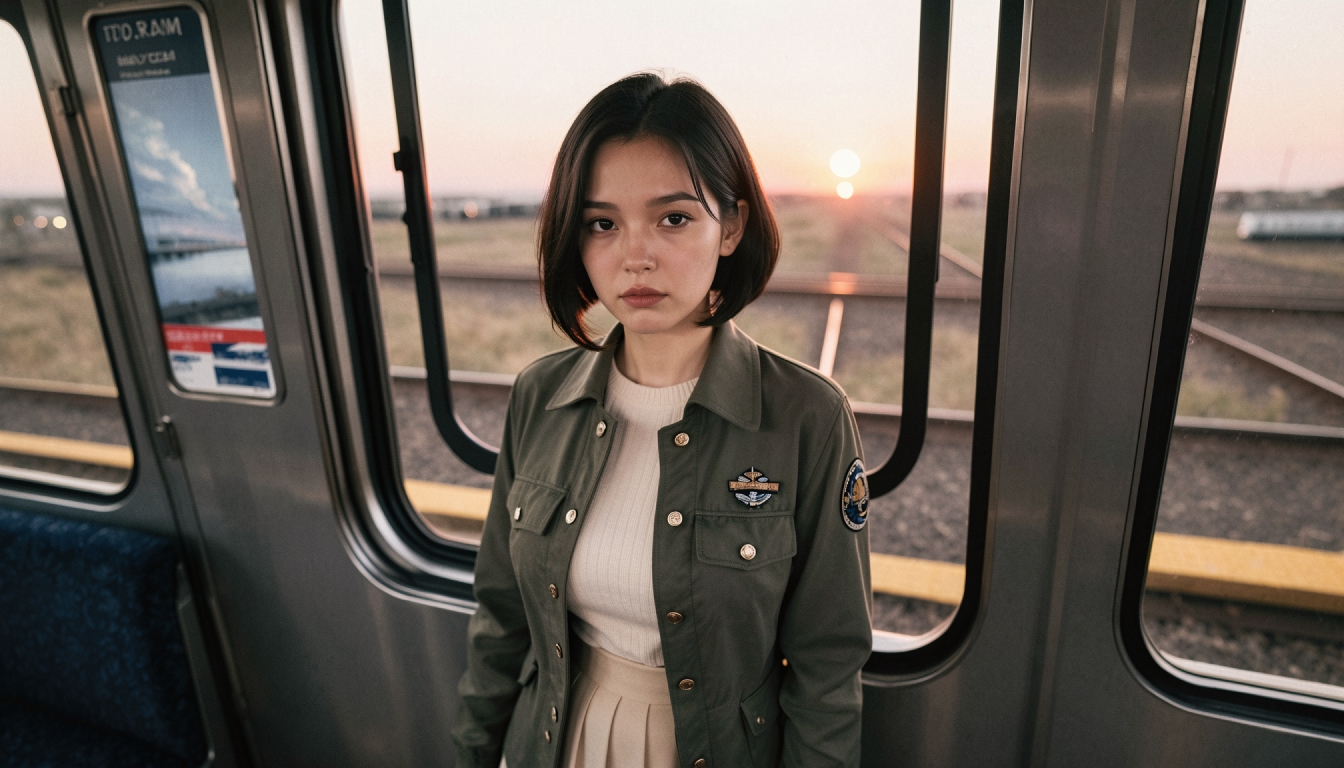
Design an original adult character called Alina with a short dark bob, gray-green eyes and a recognizable navy travel jacket. Save the Character after reviewing the preview. Then generate three images using only different scene instructions: “reading a menu in a quiet café”; “standing beside a train window at sunset”; and “walking through a gallery hallway, soft overhead light.”
Compare the face and hair across all three results. When one image works particularly well, save it as a potential first frame for animation. This test isolates whether the character identity remains useful across different environments.
Common Problems and What to Change
Repeating the name without a saved Character is not an identity guarantee. Random seed can reproduce a similar starting state, but different prompts and compositions can still change the result. If a particular shot looks inconsistent, check the selected Character and remove contradictory appearance words. If a video loses facial details, reduce the motion instead of trying to solve it with a longer biography.
Explore the Next Step
For motion-focused character projects, continue with animate an AI character. To turn an original design into an anime persona, see anime character generator.
To build an original reusable adult persona, explore NSFW AI character creator. For animation-oriented character ideas, use AI character animation prompts.
To turn a photographic brief into a recurring persona, explore realistic character generator. To draft a concise visual identity more quickly, use AI character description generator when available.
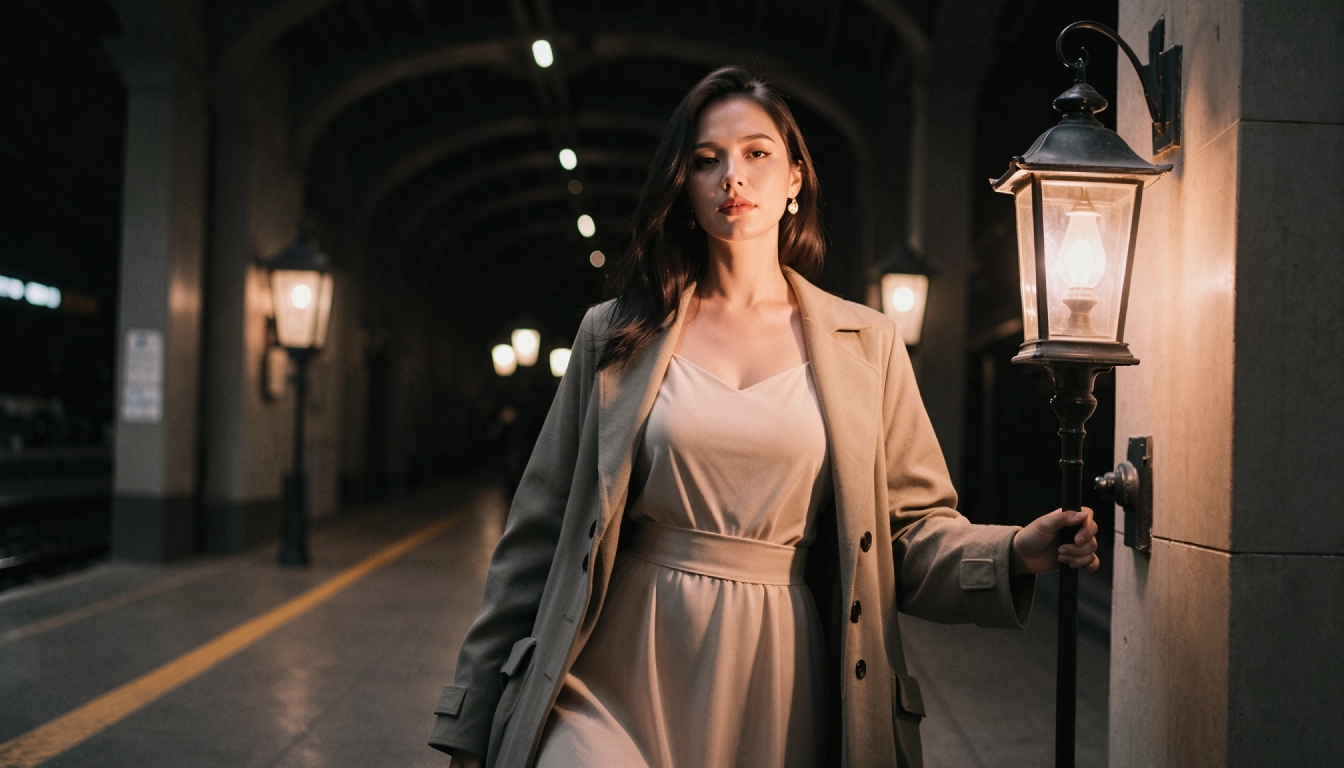
Frequently Asked Questions
Put the Guide into Practice
Use the approach above to make one careful test in PornX. Keep your subject fictional and clearly adult, review the result and change one thing at a time.
Create a consistent Character in PornXDiscover more
Keep exploring with related tools, features and step-by-step guides.
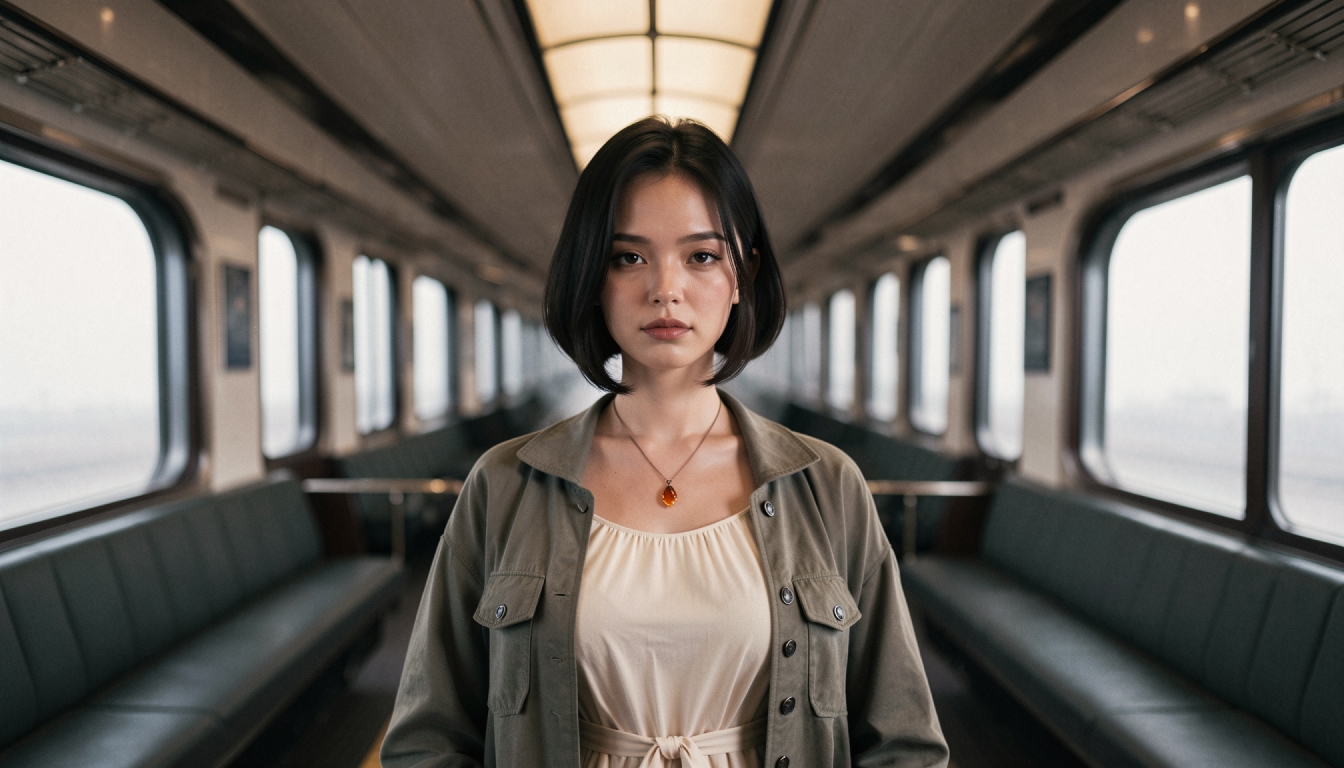
Consistent AI Characters
Learn how saved characters help maintain a recognizable visual identity across PornX generations, when to describe the scene and which tools require Premium.
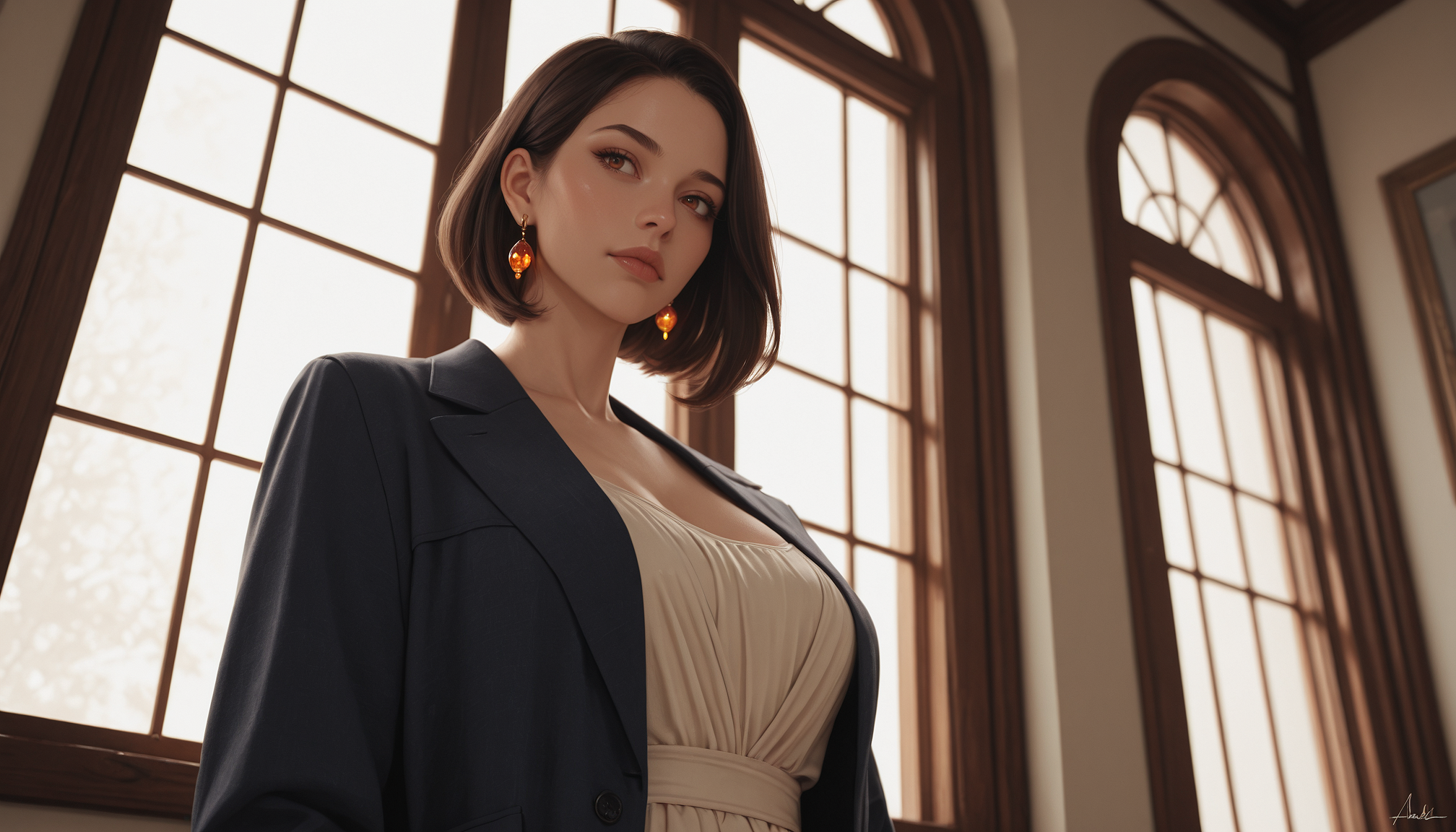
Saved Generation Presets
Learn how saved presets on PornX store image model, LoRA, style, resolution and prompt combinations so you can return to useful generation settings.
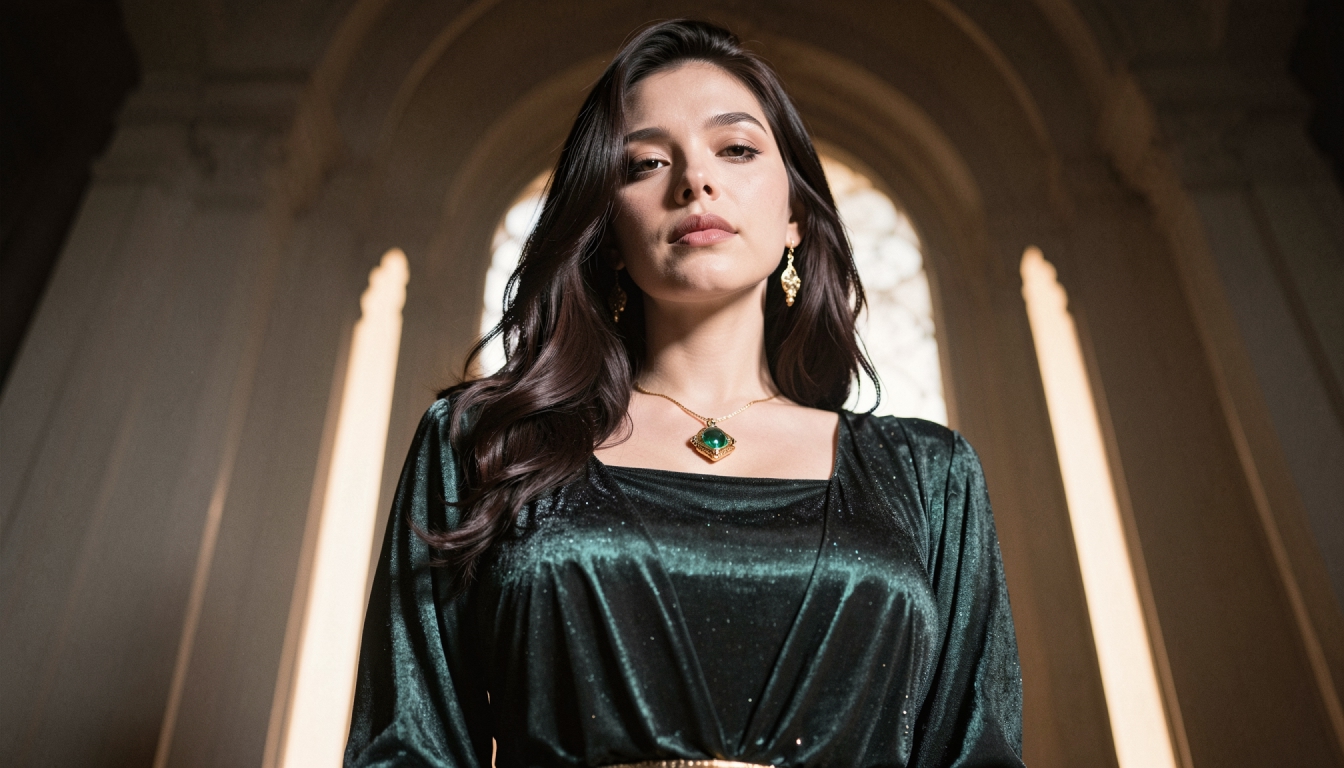
NSFW AI Character Generator
Create original adult AI characters on PornX. Explore Realistic and Anime styles, character appearance settings, saved personas and reusable image workflows.
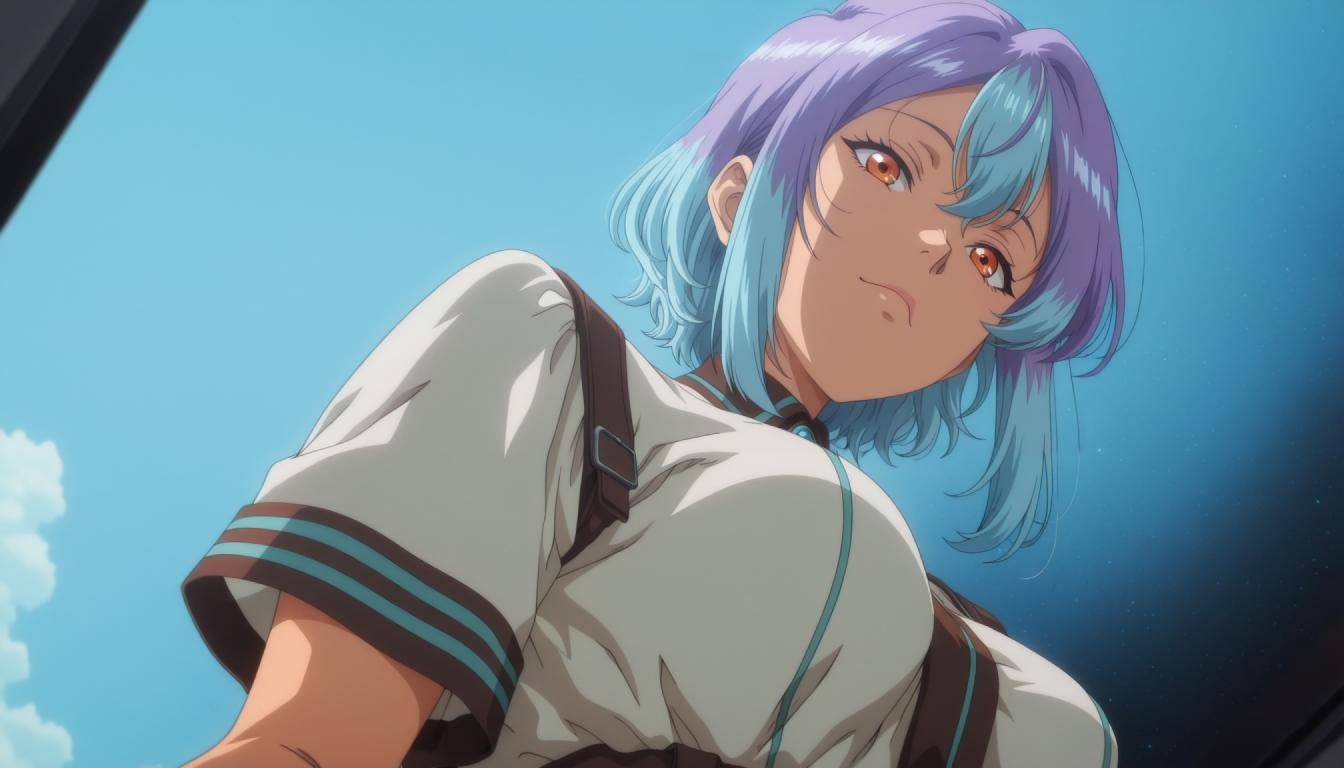
Anime AI Character Generator
Design an original adult anime-style AI character with PornX. Learn the documented Character workflow, appearance options, Premium access and image ideas.